Setup Power Server for CAL
To enable Client Access Licenses (CALs), configure PROLIN Power Server using the following steps.
Each step can be performed while the server is running.
- Install the purchased license certificate file in the root installation folder of PROLIN Power Server.
- Ensure the file is named:
server.licx- Verify the license certificate is installed properly:
- Open a Command Prompt
- Run the following command from the root installation folder:
.\pps.exe statusThe output will indicate:
- Whether the license is valid
- When it expires (if applicable)
- The number of Named and Concurrent CAL user licenses.
If PROLIN Power Server has not been started yet, start it now and confirm that it is running without failures and the modules are started.
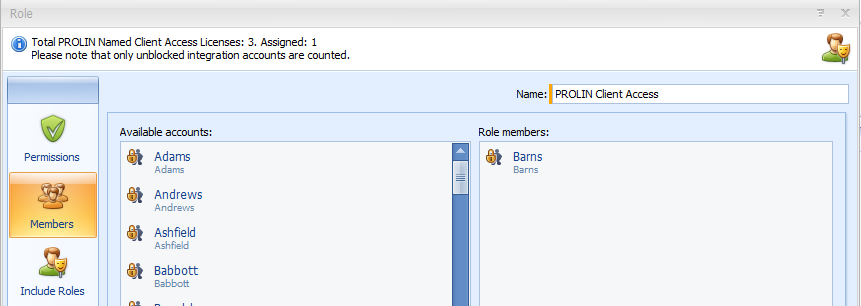
In versions prior to 12.2.0, one would need to start the Administration Console and create a new role with the following name:
PROLIN Client AccessThe Role editor in Smart Client would show the total available and assigned CALs.
From Power Server release 12.2.0 onwards we support Named and Concurrent Client Access licenses.
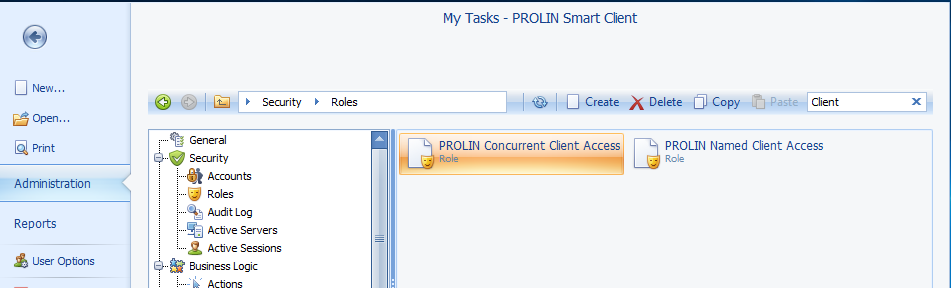
These require separate roles, created automatically when you run the DB Migrator after installation.
If the PROLIN Client Access role existed before the database migration, it will be converted to PROLIN Named Client Access, including any assigned user accounts.
The new role for concurrent users is called PROLIN Concurrent Client Access.
The Role editor will show available and assigned seats for both roles, but also the number of Concurrent CAL users logged in.