Managing Attachments in a Form
Items often need to be documented using formats better suited than plain text. For example:
- A Service Call might include a screenshot of an error.
- A Configuration Item might include a PDF with manufacturer troubleshooting documentation.
PROLIN Smart Client supports attaching virtually any file format to an item (e.g., images, PDFs). The time to open an attachment depends on file size and network speed.
Where to Find Attachments
Attachments are located in the Attachment window, which is an action window typically docked to the side of the form.
📝 How to Add an Attachment
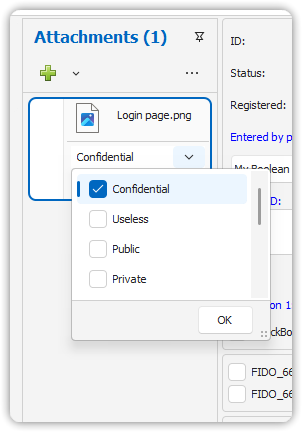
- Open an item in a form.
- Click Attachments in the form’s Home tab.
- The Attachment window will open and pin itself.
- Click Add in the Attachment window.
- A file dialog will appear. Select the file you want to attach.
- Click Open in the file dialog.
- The file will be attached and uploaded when the item is saved.
- Optionally, assign a classification from the dropdown list.
📌 Note: The Attachment window title shows the number of attached files.
🗑️ How to Remove an Attachment
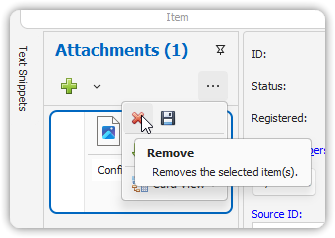
- Open the item in a form.
- Click Attachments in the form’s Home tab.
- The Attachment window will open and pin itself.
- Select the attachment to be removed.
- Click Remove.
- The file will be marked for deletion and removed when the item is saved.
⚠️ Troubleshooting
If the attachment server is unavailable, a problem notification will appear at the bottom of the Attachment window. In such cases, you will not be able to save attachments.