Navigating the Administration Module
The main admin menu is where all administrative functions are located.
Refer to the next chapter for a map of SD admin functions to understand where they are located in the new PROLIN Admin Client.
Administration Console Layout
When a function is opened, a screen similar to the following is shown:
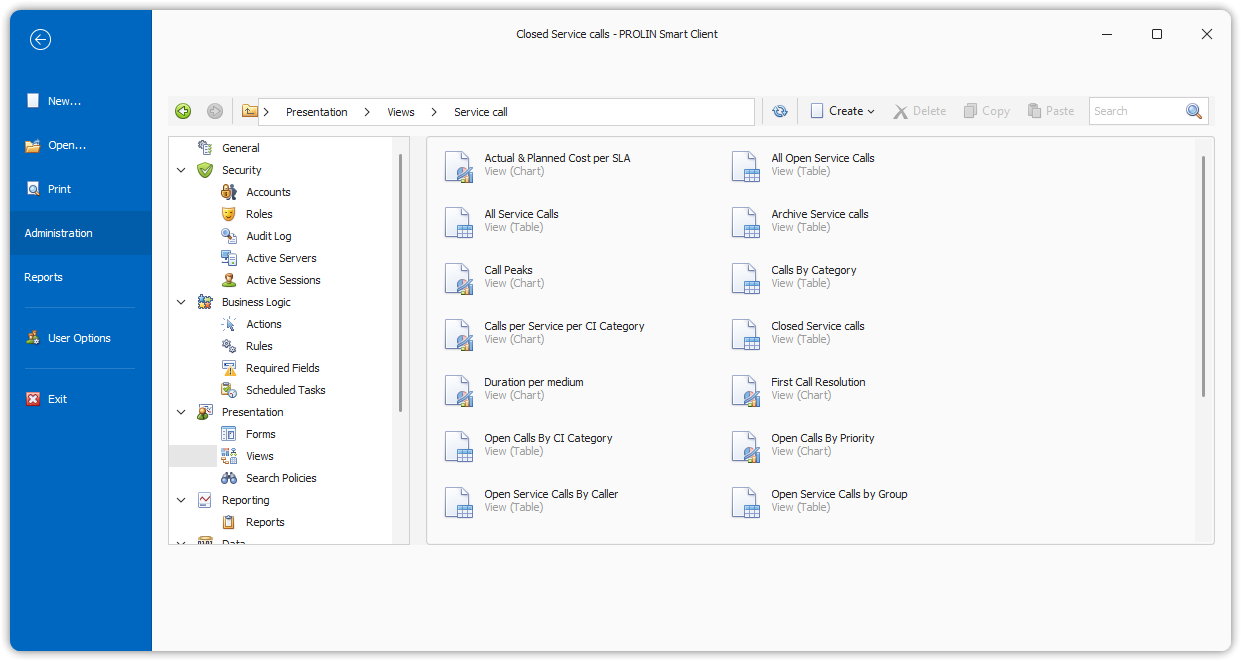
The screen consists of:
- Toolbar
- Navigation Tree
- Data Window
Toolbar Components
- Navigation Buttons:
Includes:- Back
- Forward
- Go Up
- Refresh
- Action Buttons:
Contextual actions such as:- New item
- Delete item
- Search Box:
Allows searching within the contents of the Data Window
Data Window
Shows the data for the selected section. You can:
- Drill down into nested data
- Open and edit individual records
Example:
Under Presentation → Forms, the data window lists all available entities (e.g., Change, Problem, etc.).
- Double-clicking on an entity shows all forms associated with that entity.
- Double-clicking a specific form opens its data dialog for editing.