Getting Started

After you have successfully installed the PROLIN Power Server software, a new entry will be created in the Start menu under:

PROLIN Inc → Power Server
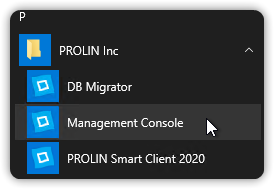
Finding the Power Server Management Console

Power Server Menu

NOTE
Before you proceed, make sure you have read the Release Notes for important last-minute information.

You may need to perform some additional tasks to get the system up and running. These tasks consist of the following:

  1. Create a backup of your database.
  2. Run the Database Migration Wizard to migrate your database from previous releases.
  3. Prepare your machine for Single Sign-On authentication.
  4. Configure a driver and dialect for your database.
  5. Configure various server settings using the Server Management Console.
  6. Optionally, use an alternate startup mode if you want to force PROLIN Power Server to run in 64-bit or 32-bit mode.
  7. Start the PROLIN Power Server instance either from the command line or the Server Management Console.
Back to top