Save Reports
Reports are saved in the Smart Suite database, making it easy to distribute them to other users.
Save Controls
There are three buttons in the toolbar that control report saving and related metadata:
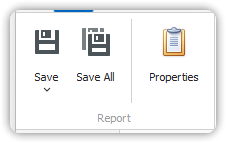
When you press Save (for a new report) or Save As (for an existing report), the following dialog appears:
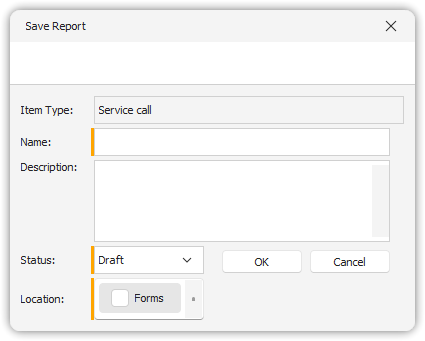
Save Report Dialog Fields
In this dialog, you can specify the following information:
Name
- The name of the report.
- This field is mandatory.
Description
- A brief description of the report.
- This description is visible to end users who have access to the report.
Status
- Choose between:
Draft: Only visible to administrators.Published: Visible to all users with view rights on the entity where the report is created.
Location
Specifies where the report is available to end users:
Forms: Appears in the Print menu in forms.Views: Appears in the Print menu in views in the console.Reports: Appears under Home → Reports.
✅ Reports can be made available in multiple locations simultaneously.
Additional Notes
- The Properties button in the toolbar also opens this dialog.
- If a report has sub-reports, they can be opened in the same designer.
- Use the Save All button to save changes across all open reports.