Creating Multiple Configuration Items at Once
The Generate CI Wizard allows you to create multiple Configuration Items (CIs) in a single operation. Some planning is useful before starting the wizard.
Preparation
Before starting, ensure you have:
- ✅ The total number of Configuration Items to be created.
- ✅ A template that contains the correct default information.
⚠️ Once the wizard starts, it cannot be canceled. If the count is incorrect, you’ll need to delete and re-create the items manually.
Starting the CI Wizard
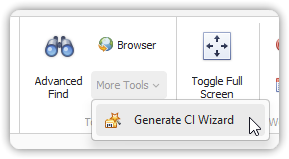
Go to:
Tools > More Tools > Generate CI Wizard
Step 1: Opening Screen
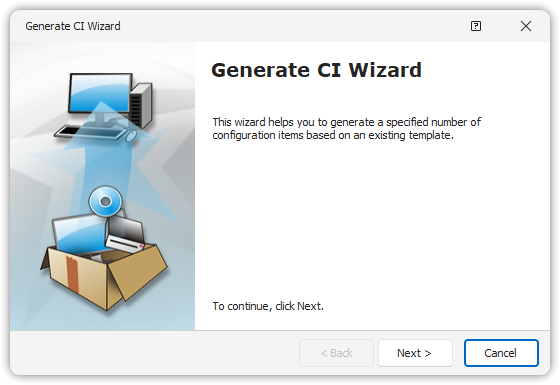
Click Next to begin.
Step 2: Total Numbers and Template
- Enter the total number of CIs you want to create.
- Select a template.
If the template requires additional values (e.g., location), click Modify Fields, then click Save and Close.
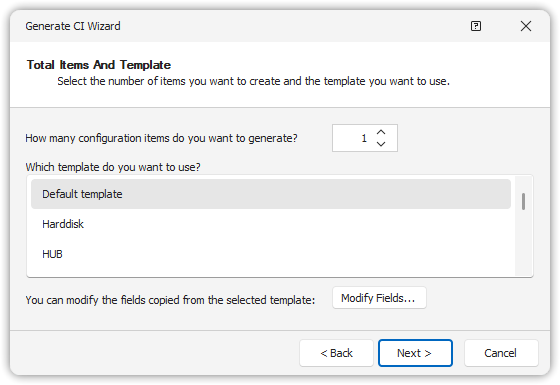
🟡 If required values are missing, a warning will appear. Fix the fields before continuing.
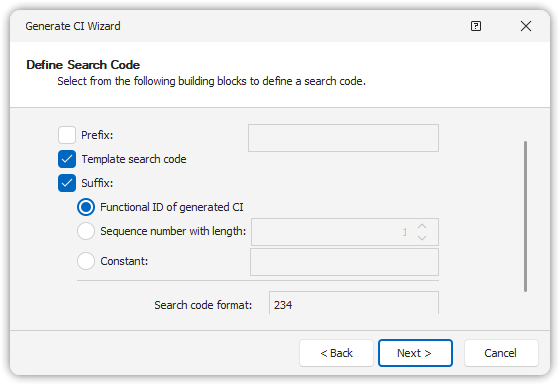
Step 3: Define Search Code
You can choose how the search codes are generated:
- Functional ID of Generated CI
- Sequence number with length
If using a sequence, enter the length (e.g., 3 → "001" to "999").
An example of the final search code will appear in the preview box.
Step 4: Confirm and Generate
Check the summary. If anything is wrong, use Back to revise.
Click Next to start generating. You cannot stop the process once started.
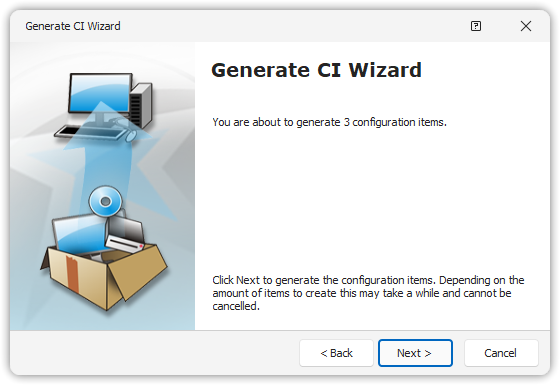
A progress bar will display generation status.
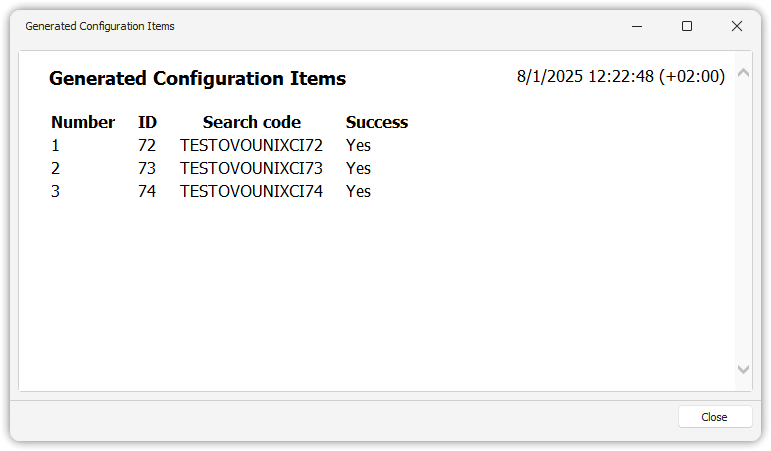
Step 5: Completion and Reporting
After generation:
- Click Report to view/print a summary.
- Click Restart to run the wizard again.
- Click Finish to exit.
Notes
- Templates used in the wizard must be pre-configured and contain all necessary default data.
- Use caution when selecting large counts to avoid performance delays.