Scheduler Views
The Scheduler View is a powerful feature in PROLIN Smart Client, available for all entities. It provides a visual, time-based representation of records like Projects, Changes, and Work Orders.
Creating a Scheduler View
To create a Scheduler View:
- Open the All Views dialog.
- Click New.
- Select the Scheduler type from the list of view types.
- Configure the scheduler view using the following three dialogs:
1. General Tab
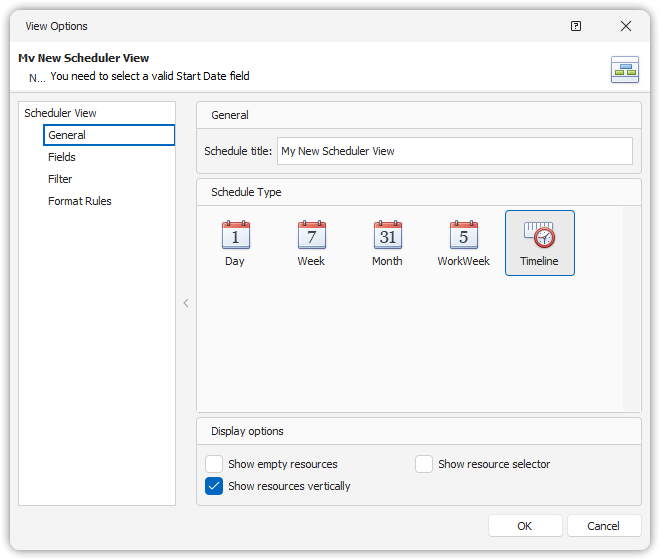
This tab defines general behavior and layout settings for the scheduler.
Schedule Title
Define the title of the view.Schedule Type
Choose the default display mode (e.g., calendar, timeline). Can be changed at runtime.Show Empty Resources
- ✅ If selected: Records with no resource value are grouped under an “empty” resource.
- ❌ If not selected: Those records will not be shown.
Show Resource Selector
- ✅ Enables a resource selection panel in the view.
Show Resources Vertically
- ✅ Displays resource labels vertically.
- ❌ Displays them horizontally.
2. Fields Tab
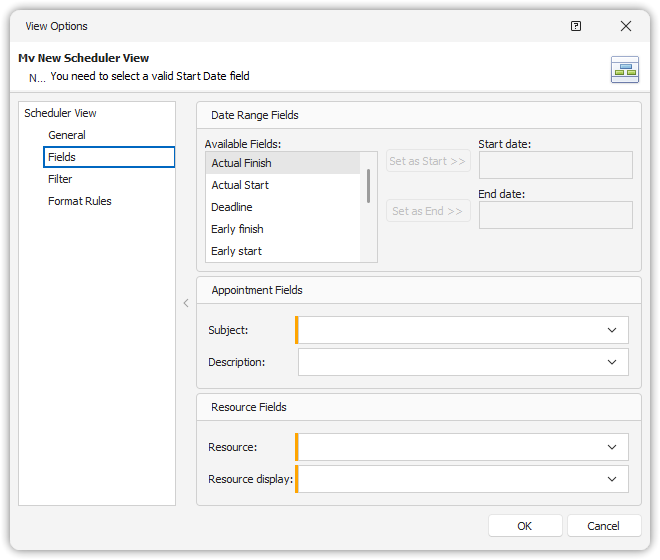
This tab defines the data properties shown in the schedule.
Start Date
Start date and time of the activity.End Date
End date and time of the activity.Subject Property
Primary label shown for each activity.Description Property
Tooltip information displayed when hovering over an activity.Resource Property
Determines which activities belong to which resource grouping.Resource Display Property
Text shown for each resource in the scheduler.
3. Filter Tab
Standard filter dialog where selection criteria for the scheduler view can be configured.
Example Use Case
The example below shows how a Scheduler View is used to visualize Changes within a Project. This includes various display modes such as calendar and timeline.
Calendar Modes
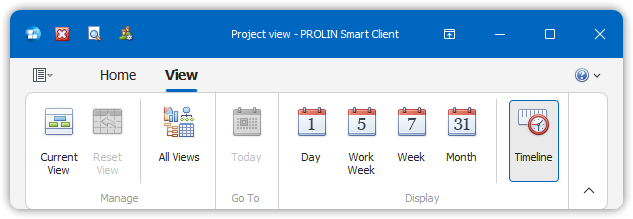
Scheduler views support four calendar modes:
- Day
- Work Week
- Week
- Month
Each mode displays how items like Changes relate to each other over time.
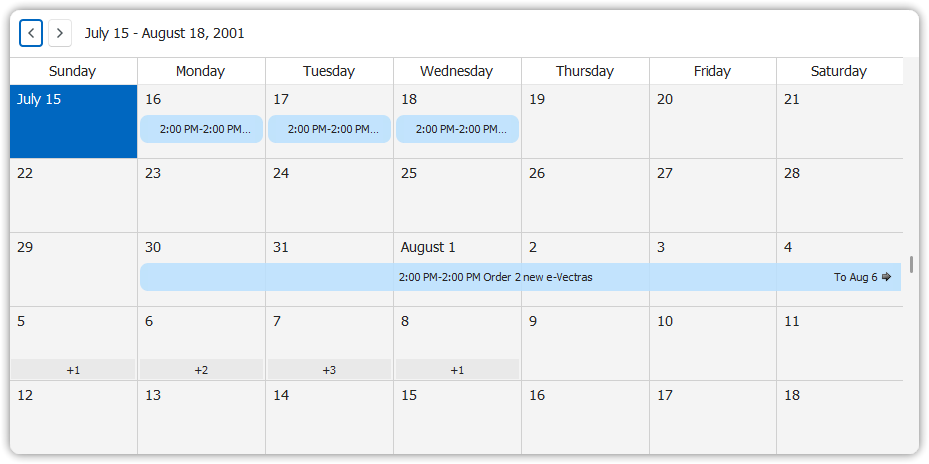
Changes displayed on a monthly calendar
Timeline Mode
The Timeline mode groups Changes or other items within lanes per Project or resource. It opens in the week containing the current date.
If a project lane contains no items in the visible range, quick navigation tabs appear to jump forward or backward in time.
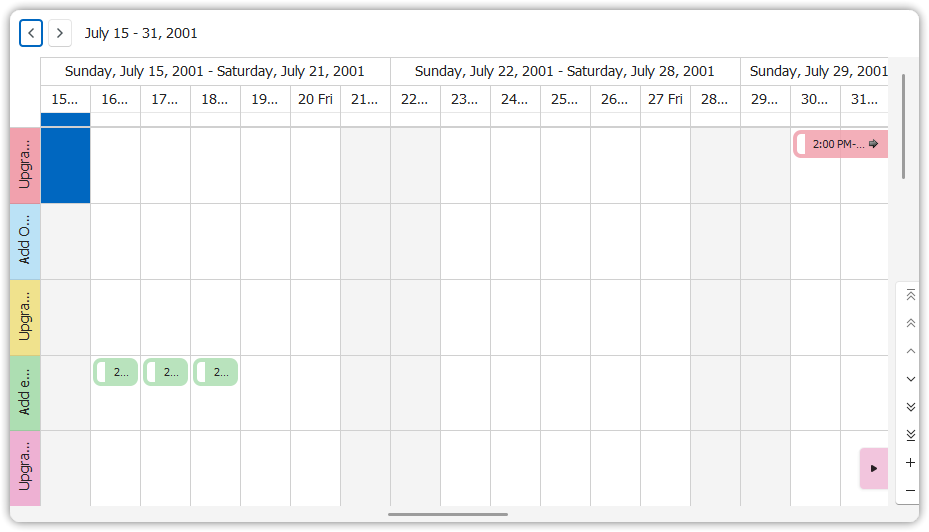
Changes related to Projects shown in timeline format
Quick Navigation Tabs
These tabs appear when a timeline lane has no visible items. Clicking them jumps to the first item in the direction indicated.
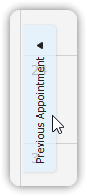
Quick navigation tabs for scrolling timelines