Customizing the Console
You can tailor the PROLIN Smart Client console to better suit your workflow. These customizations are saved when you close the console, ensuring your layout is preserved for the next session.
🔄 Changing the MyTasks View
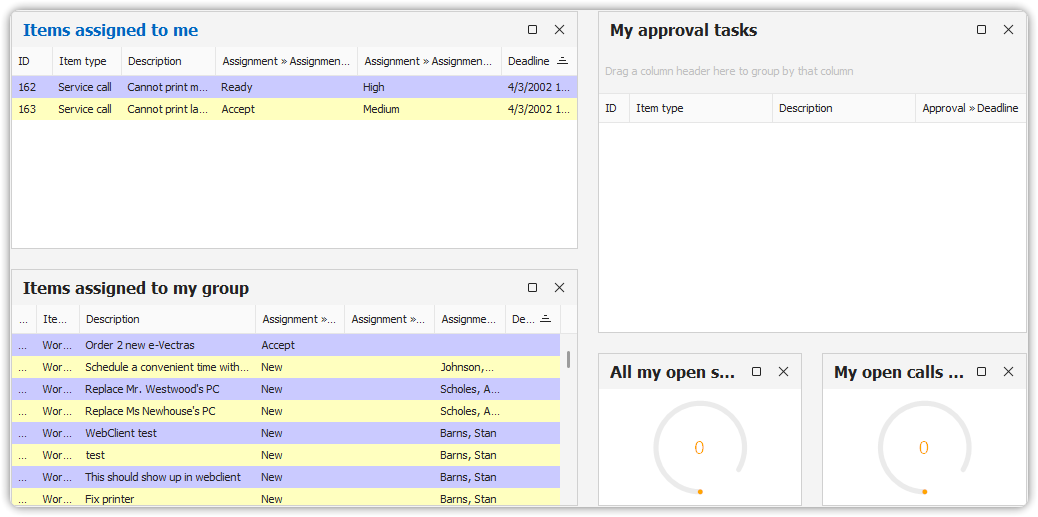
The MyTasks view is a great place to start your day. It shows:
- Items assigned to you
- Items assigned to your group
- Approval tasks
You can customize this view if certain sections are not relevant to you.
To Resize Windows:
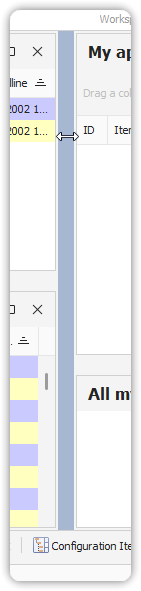
- Drag the splitter to resize any pane within the MyTasks view.
📏 Minimizing and Maximizing the Ribbon
To focus on your work, you can hide the ribbon to maximize vertical space. To toggle the ribbon:
- Press Ctrl + F1 to minimize or maximize.
- When minimized:
- Click a tab to open it temporarily.
- The ribbon will auto-hide again after a command is used.
🧱 Moving Action Windows
Action windows can be rearranged to better fit your workflow.
To Move an Action Window:
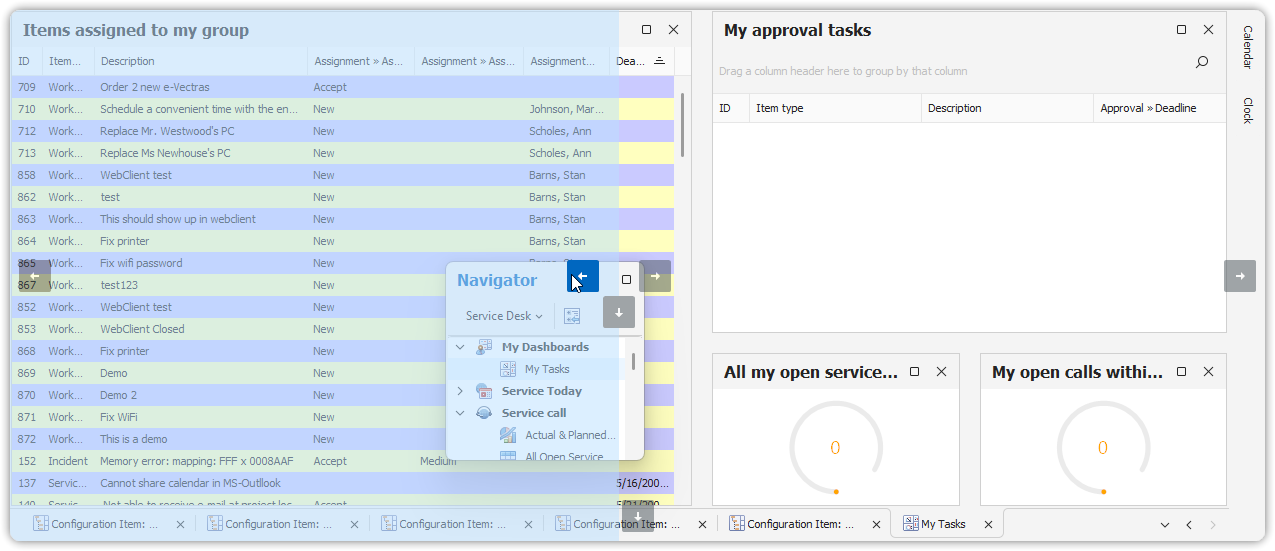
- Hover over the action window name to open it.
- Pin the window open.
- Click and drag the title bar to move it.
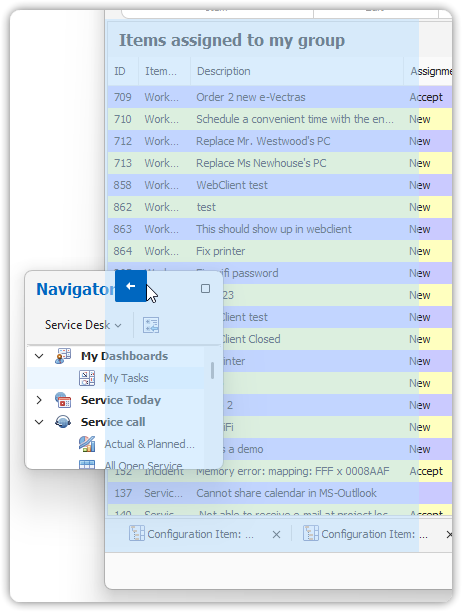
- Drop it on a location marker (blue shaded area).
- Unpin the window to allow it to scroll.
💡 Markers show valid drop zones inside and outside the console. You can dock windows precisely as needed.
🧭 Customizing the Navigator
To adjust how views are grouped or tracked in the Navigator:
- Click Customize Groups at the top of the Navigator.
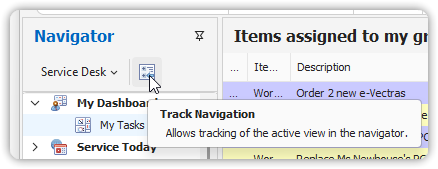
🖥️ Maximizing the Workspace
For a broader view, use one or more of the following methods:
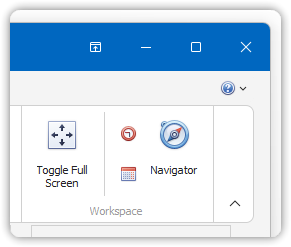
- Close action windows.
- Minimize the ribbon with the button on the far right of the ribbon tabs.
- Maximize the application window using the top-right button or press
Alt + Space→ Maximize. - Toggle Full Screen from the Workspace group on the Home tab.
Full screen mode hides pinned action windows, minimizes the ribbon, and maximizes the main window.
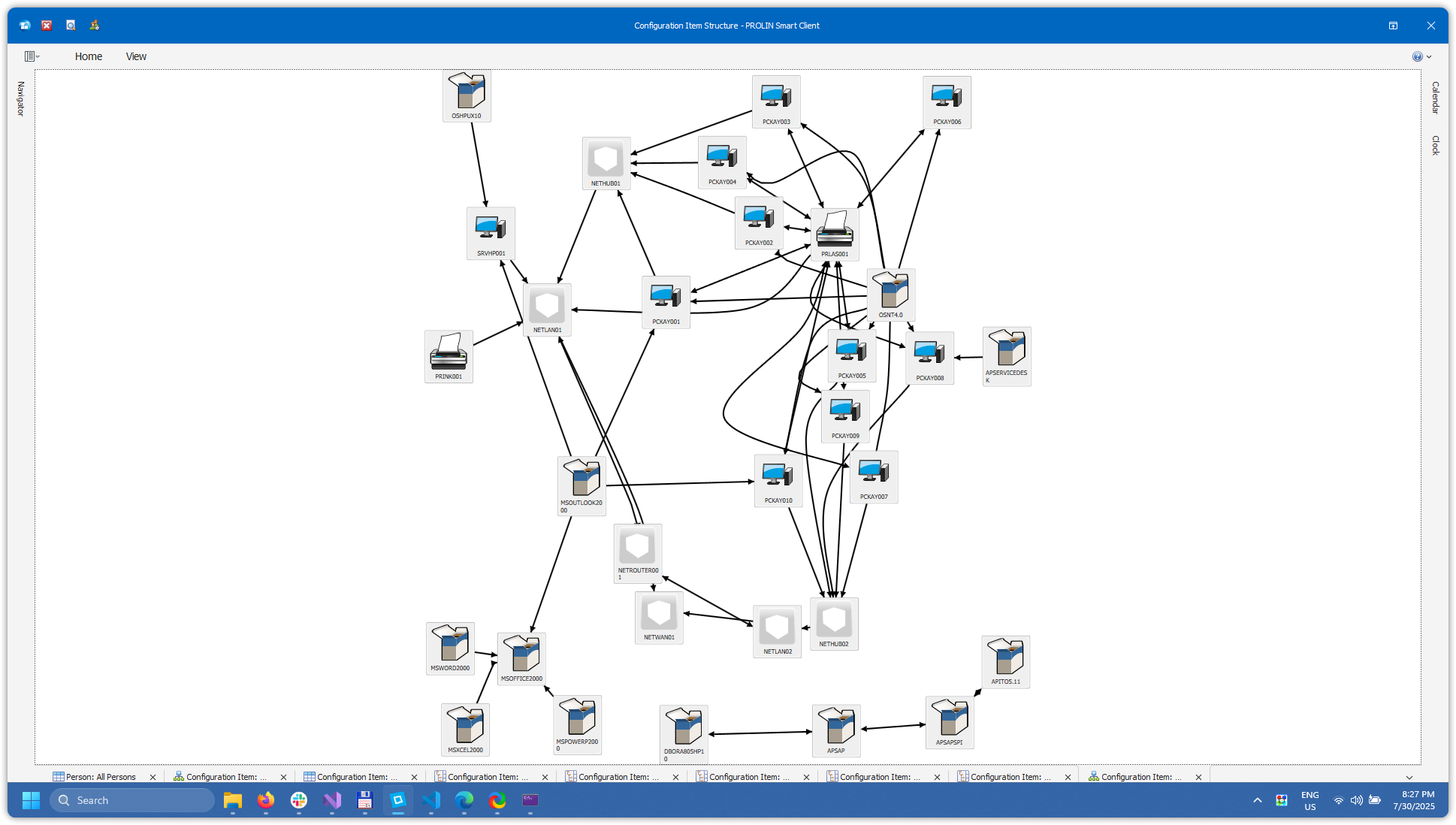
To exit full screen:
- Click the Home tab, then click Toggle Full Screen again.
- Or maximize the ribbon and click the same button.
📄 Maximizing the Form
Sometimes fields in a form are hidden or truncated. To get a full view:
- Open the form.
- Use navigation controls: First, Previous, Next, Last.
- Press Ctrl + F1 to minimize the ribbon.
- Click the Maximize button in the upper-right corner of the form or press
Alt + Space→ Maximize.
These customization options help you make PROLIN Smart Client your own—streamlining daily work and improving visibility.