Starting the Smart Client
To start PROLIN Smart Client, do one of the following:
- 🖱️ Double-click the PROLIN Smart Client icon on the desktop.
- 🧭 Start Menu:
Go to Start → PROLIN, Inc. → Service Management → PROLIN Smart Client.
First-Time Setup
When starting PROLIN Smart Client for the first time, you’ll need to set up your account. On the startup screen, click:
Create New Account…
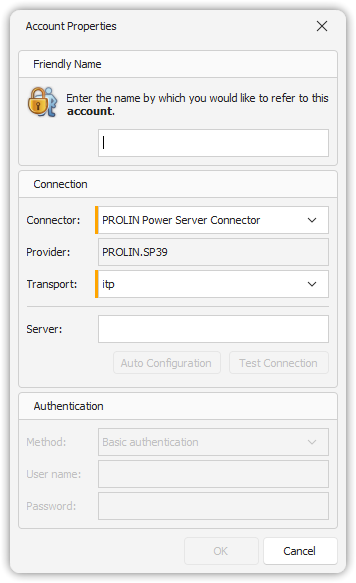
This opens the Account Properties dialog, where you’ll:
- Select the connector type (e.g., PROLIN Power Server or Service Desk).
- Enter the server name or IP address of the target server.
- Click Test Connection to verify the connection details.
Optional Configuration
- Transport Option:
Allows changing the communication method between the client and server.- Typically set to
itp.
- Other options are available when using the PROLIN Connector with PROLIN Power Server 2016 or later.
- Typically set to
- Auto Configuration:
Click this to let PROLIN Smart Client try various options and suggest the best one based on your network location.
Authentication Methods
Depending on the connector you selected:
- Basic Authentication:
- Enter a username and password.
- Supported by all connectors.
- Enter a username and password.
- Integrated Windows Authentication (SSO):
- Available only with the PROLIN Power Server connector.
- Uses your Windows login credentials.
- Requires domain login and proper server configuration.
- Available only with the PROLIN Power Server connector.
Finalizing Setup
Once configured:
- Your connection info is stored locally in a secure location.
- On subsequent launches, PROLIN Smart Client will use the saved credentials automatically.
- The Smart Client Console will open, and you’re ready to begin working.