Starting Reports from a Form or View
Starting Reports from a Form or View
You can execute reports directly from a Form or View. When triggered this way, the selected record(s) from the form or view are used as the input for the report.
Making Reports Available in Forms and Views
To make a report available for execution in a form or view:
- Ensure the report has the appropriate Location option enabled in its properties.
- Refer to the Save Reports section for instructions on setting report availability (e.g., enable
Forms,Views, or both).
- Refer to the Save Reports section for instructions on setting report availability (e.g., enable
How to Start the Report
- From a Form:
Navigate to Home → Print
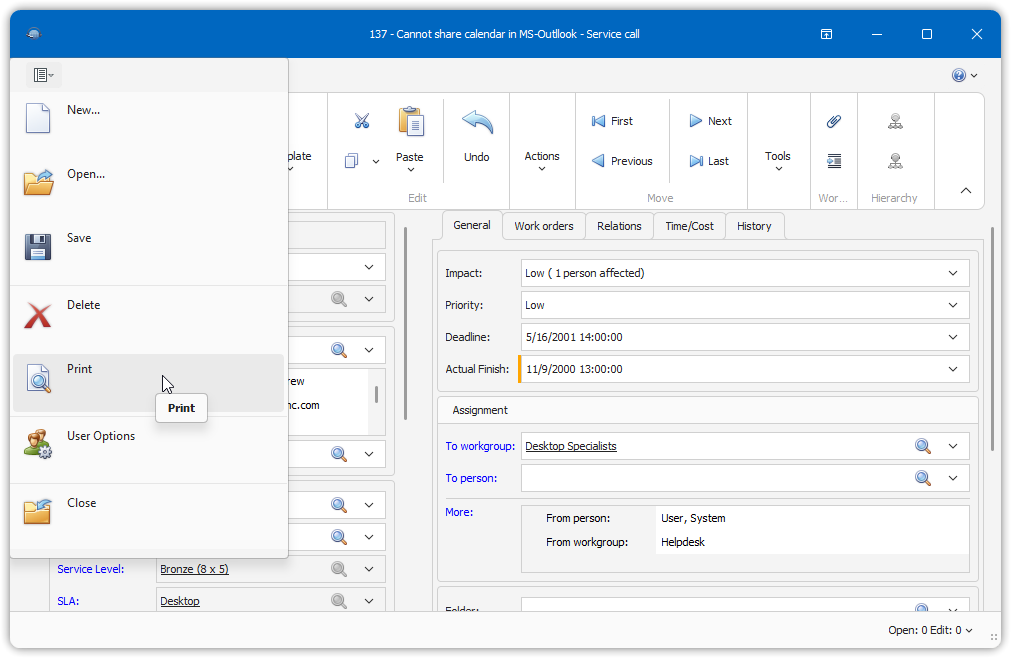
- From a View:
Go to Home → Print, or right-click and choose Print from the context menu
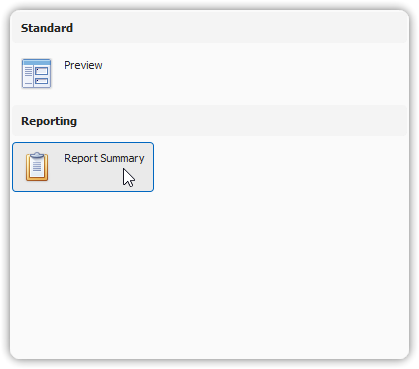
Report Dialog Overview
- The Preview option (top-left) allows standard Print Preview behavior, as used in the Smart Client.
- Below Preview, you’ll see a list of available reports.
- Selecting a report displays a live preview in the right-hand panel.
Important Behavior Notes
- The report automatically binds to the selected record(s) from the form or view.
- Any filter defined in the report itself is ignored when the report is launched from a form or view.