Creating an Item
There are different ways to create an item in PROLIN Smart Client. Some approaches offer more control over the creation process, while others may be more convenient in specific situations.
New
To create an item using default settings and the default form:
Navigate to the item view for which you want to create a new item.
In the Item group on the Home tab, click New.
- The new item will open in the default form and contain values from the default template.
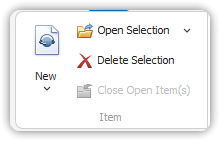
Alternatively, right-click within the item’s view and select New from the context menu.
Note: In views that display multiple item types (e.g., My Tasks), you’ll be prompted to select the item type you wish to create.
- To apply additional values from a different template, use the Apply Template menu in the Template action group.
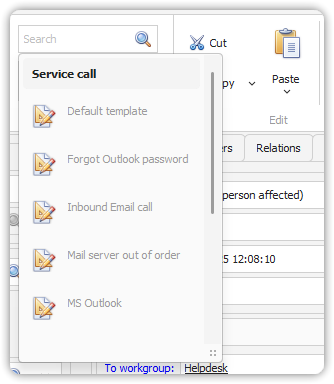
Note: From version 14.1 onwards, you will be apply to reapply a template to an existing item.
You can also create a new item with default settings and form from any view by selecting the desired item type from the New menu.
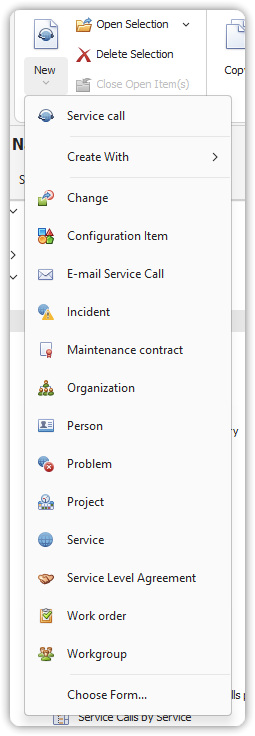
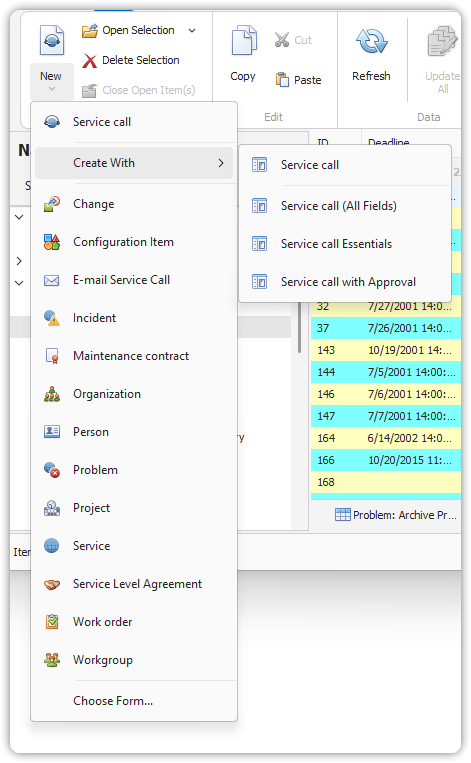
Choose a Form to Create an Item
To create an item using a specific form:
- Navigate to the item view.
- Open the New menu and point to Create With.
- Select the form you’d like to use.
Copy Information to a New Item
Certain item types—such as Service Calls, Incidents, Work Orders, Changes, and Problems—share common information. This shared data can be used to create a new item.
- If the new item is the same type, more fields are copied.
- If the new item is a different type, only commonly shared fields are copied.
The copied information is not editable in the new item form. Only specific copy directions are allowed, which typically follow ITIL process flows.
To copy:
- Open the existing item.
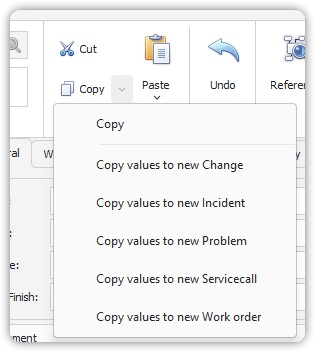
- In the Copy menu, select the item type you wish to create.