Add Totals to a Report
The Report Designer allows you to apply standard summary functions—such as Sum, Average, Count, Max, Min, Percentage, and Running Summary—to data-bound controls.
In this example I will make an overview of all Service Calls and add their total estimated cost to the footer.
Steps to Add a Total (Summary)
1. Add a Report Footer Band
To display the total at the bottom of the report:
- Right-click the report surface.
- Select Insert Band → ReportFooter.
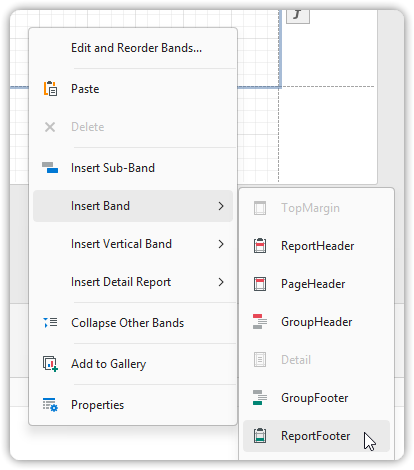
This band will host the summary value.
2. Copy the Target Field to the Footer
- Select the field you want to summarize (e.g., a Label bound to
[Amount]). - Hold CTRL, then drag the field to the Report Footer band.
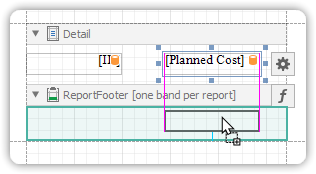
This creates a duplicate Label to display the summary.
3. Configure the Summary
- Select the new Label in the Report Footer.
- Click the Smart Tag.
- In the actions list, click the ellipsis next to the Summary property to open the Summary Editor.
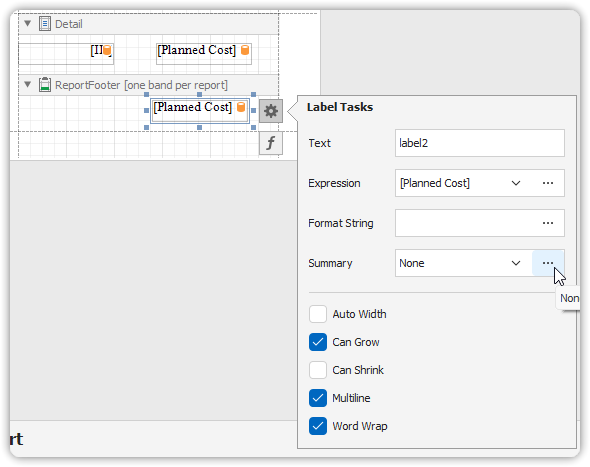
In the Summary Editor:
- Choose the summary function (e.g., Sum).
- Set Summary Running to Report (to include all records in the total).
- Optionally enable or disable Ignore NULL values (more relevant for Count or Average).
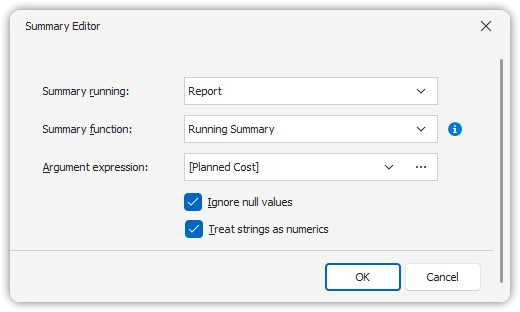
Click OK to apply and close.
🎯 Note: Value formatting for summaries is applied independently from general control formatting and takes higher priority.
Additional Notes
- When calculating group totals, use a Group Footer band instead.
- You can also sort groups by the result of a summary function, to organize data by total value.