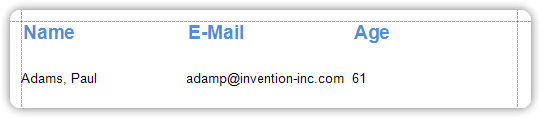
Add Calculated Fields to a Report
Calculated fields are used to perform pre-calculations on existing data fields in your report. These can range from simple operations to complex expressions. Once created, calculated fields behave like regular data fields—you can bind controls to them, group or sort by them, and use them in filters.
Steps to Add a Calculated Field
1. Create the Calculated Field
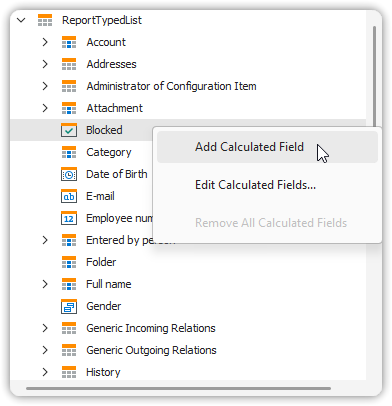
- In the Field List, right-click any data member (e.g., a table or dataset).
- Select Add Calculated Field from the context menu.
2. Configure the Field Properties
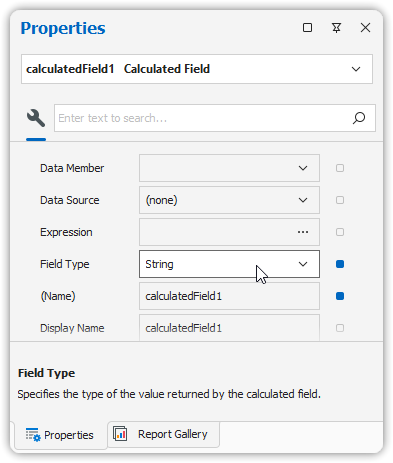
- Select the new calculated field in the Field List.
- In the Property Grid, set the appropriate Field Type (e.g.,
String,Decimal,DateTime, etc.).
3. Define the Expression
- Click the ellipsis (
...) button next to the Expression property to open the Expression Editor.- Alternatively, right-click the calculated field and choose Edit Expression…
- In the editor:
- Use the Fields panel to insert field names (double-click to insert).
- Use the toolbar to add operators and functions.
💡 You can include parameters in the expression if needed.
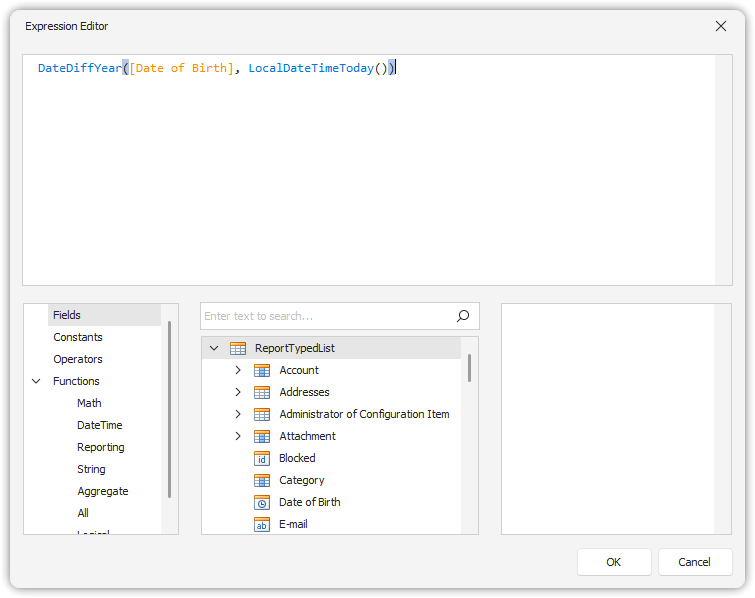
- Click OK to save and close the Expression Editor.
4. Use the Calculated Field in the Report
- Drag the calculated field from the Field List onto the desired report band, just like any other field.
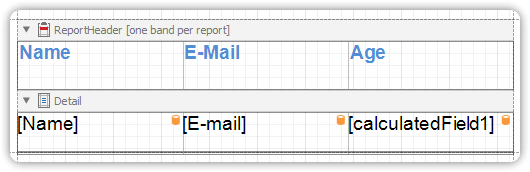
This field will now appear in the output with values calculated based on your defined expression.