Navigating Items in Forms
When you open a form from a table view, you’re working with a single item at a time. However, the table view might contain many more items. PROLIN Smart Client allows you to navigate through those items without closing the form.
Items In Forms
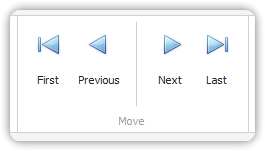
To navigate between items:
- Click Next in the Move group of the form’s Home tab to go to the next item.
- Similarly, you can click:
- Previous to go to the prior item
- First to go to the first item
- Last to go to the last item
These commands move through the same item list shown in the original table view.
Auto-Save Behavior
When moving between items:
- The system attempts to save changes to the current item.
- This happens even if no manual edits were made, as automatic rules may have updated values.
- If any unsaved changes exist, a warning will appear.
History Lines
History lines are displayed in a History Line window, which also includes navigation controls:
- Located in the upper right corner
- Enables stepping through the history records, just like with items in forms
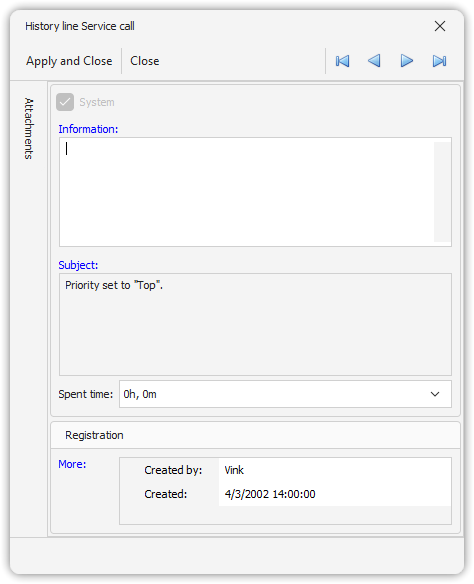
Example: Viewing Service Call history lines using the navigation box.
This navigation system improves efficiency by keeping the form open while allowing easy access to multiple items and their histories.