Explorer Views
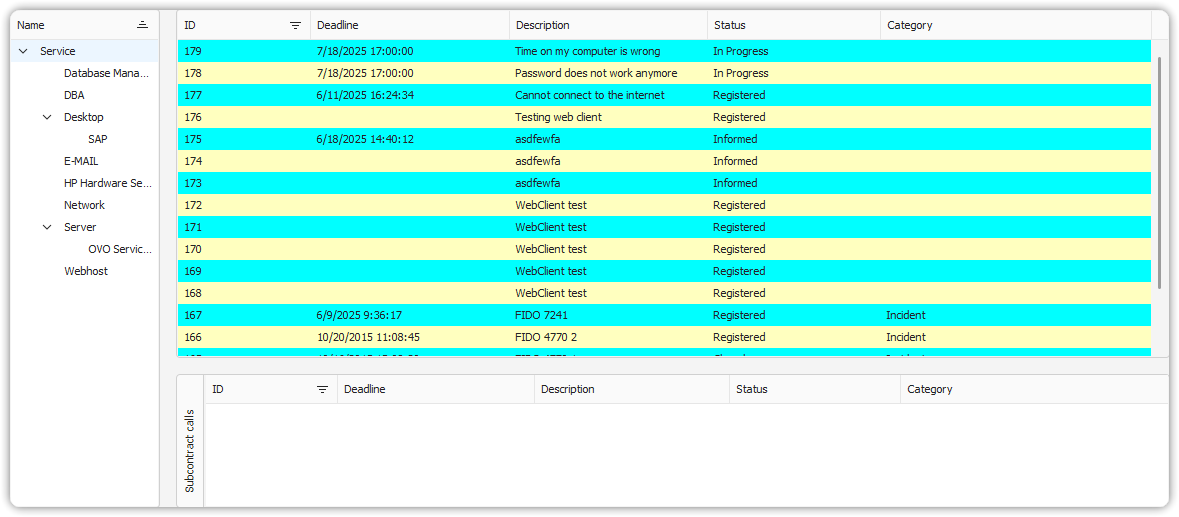
Explorer views provide quick paths to items in PROLIN Smart Client. For example, a Service Desk agent might use an Explorer view to quickly access Service Calls for people from a particular organization.
Finding Items in an Explorer View
Explorer views consist of three main parts:
- Navigation View
- Base View
- Detail Views
How It Works
- The navigation view allows you to select filters.
- The base view displays items based on that selection.
- The detail views show related items for the item selected in the base view.
Example Use Case
You want to find Service Calls for a colleague of the caller: - Use an Explorer view that: - Navigates on Organization - Has Persons in the base view - Shows Service Calls in the detail view (related to the selected Person)
Even though you’re looking for Service Calls, this view will be found in: - The Persons item branch - Inside the Organization group of the navigator - Because the base view shows Person items