Updating Multiple Items at Once
Updating items individually using forms can be tedious when you have a large number of items to modify. PROLIN Smart Client provides an efficient tool called Update All that allows you to apply the same change to multiple selected items at once.
🛈 Note: The Update All function is not available in the My Tasks view.
When Is Update All Available?
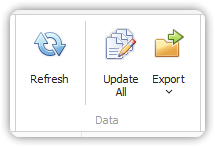
When you select more than one item in a view, the Update All button in the Data group becomes available.
Steps to Use Update All
1. Select Multiple Items
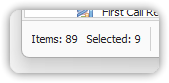
Select more than one item in the view.
The lower-left corner of the window will display the number of selected items.
2. Open Update All Dialog
Do one of the following:
- Click Update All in the Data group
- Or right-click the selection and choose Update All from the pop-up menu
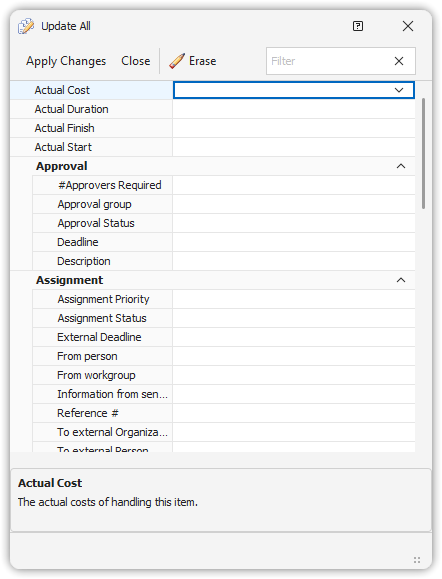
This opens the Update All dialog.
3. Modify Fields
- The dialog shows only those fields that are eligible for bulk updates.
- Modify any of the listed fields.
- To clear all values, click the Clear button.
⚠️ The values you enter will overwrite existing values in all selected items.
4. Apply Changes
- Click Apply Changes to save updates to all selected items.
- Click Close to exit without applying changes.