Starting Form Actions
Smart Actions are powerful ways of enhancing PROLIN Smart Client by integrating commonly available applications. For example, you can use Notepad to take quick notes directly from a form using a Smart Action.
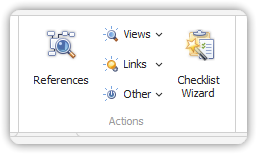
You start actions from the Actions group in a form.
Link Actions
A Link Action is a Smart Action that launches an external application and sends information from PROLIN Smart Client to it.
Example:
Suppose a Configuration Item is named “HP Laserjet 5”. A Link Action using Notepad would create a file namedHP Laserjet 5.txt.
Requirements
- Link Actions must be configured and assigned by the system administrator.
How to Start a Link Action
- Open an item in a form.
- Click Links in the Action group on the form’s Home tab.
- Choose an action from the Links menu.
View Actions
A View Action opens a view related to the item in the form. It’s a quick way to see related data across relationships and processes.
Example:
For a Configuration Item like “HP Laserjet 5”, a View Action might display Problems related to associated Service Calls and Incidents.
Key Features
- Results can be table views, chart views, etc.
- Displayed in an action window within the form.
- View auto-updates when you navigate to another item in the form.
- Fully interactive—just like standard views.
Requirements
- View Actions must be created and made available by the system administrator.
How to Start a View Action
- Open an item in a form.
- Click Views in the Action group on the form’s Home tab.
- Choose an action from the Views menu.