Navigating Trees
The Navigator, Explorer Views, and Tree Views in PROLIN Smart Client all use tree structures for navigation. You can interact with these trees using three main methods:
- 🖱️ Using the Mouse
- ⌨️ Using the Keyboard
- 🔤 Typing Letters
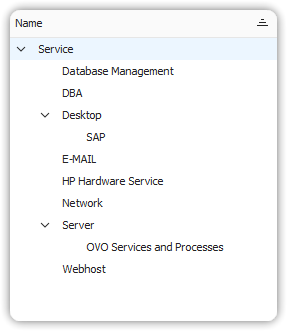
🖱️ Using the Mouse
To expand or collapse branches:
- Click the expand sign (>) to expand a branch.
- Click the collapse sign (v) to collapse a branch.
⌨️ Using the Keyboard
Use these keys for precise control over tree navigation:
- Numeric Key + – Expand current selection
- Numeric Key - – Collapse current selection
- Right Arrow – Expand current node or select its first child
- Left Arrow – Collapse current node or select its parent
- Down Arrow – Move to the next item
- Up Arrow – Move to the previous item
🔤 Typing Letters (Incremental Search)
To find an item quickly by name:
- Select any item in the tree.
- Start typing the first few letters of the desired item’s name:
- First letter selects the first matching item.
- Second letter narrows it further, and so on.
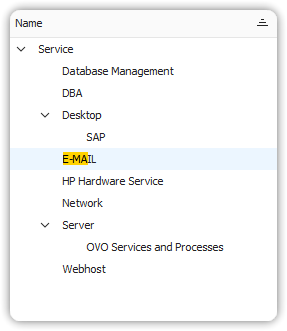
You can type at any speed or pause between letters. To start a new search sequence:
- Press Esc
- Click outside the tree
- Use the mouse to select a different node