Understanding Style Concepts
The Appearance Properties
In the Report Designer, a report and each of its elements (such as bands and controls) include a full set of appearance options, including:
- Background Color
- Borders
- Font
- Foreground Color
- Text Alignment
- and more
By default, these properties are inherited from their parent elements:
- A control inherits from its band
- A band inherits from the report
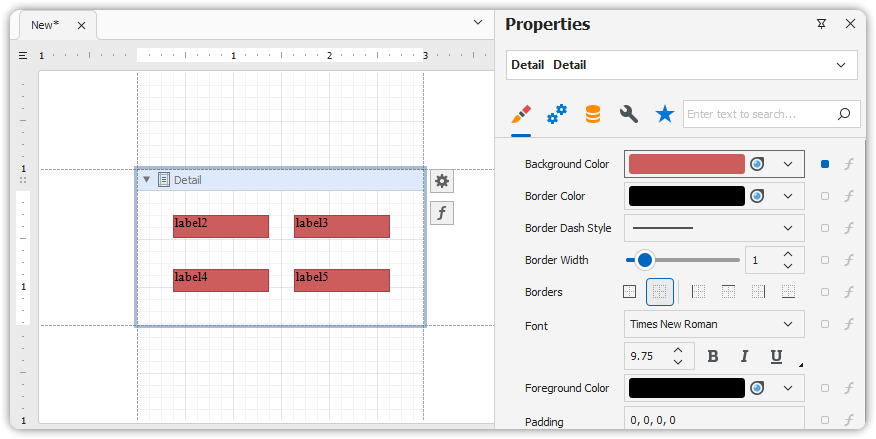
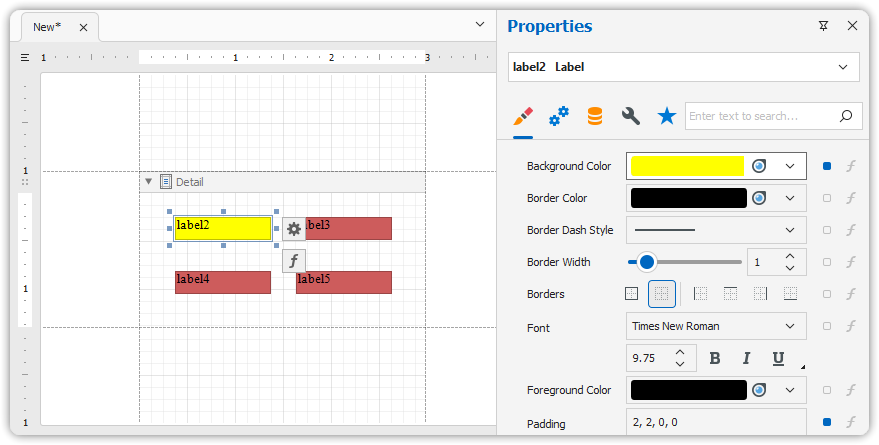
This means if no specific values are set, the appearance flows from top to bottom.
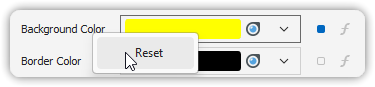
🧼 To reset any appearance property to its inherited value:
- Right-click the property in the Property Grid - Choose Reset
Styles Priority and Inheritance
You can define and reuse consistent formatting across the report using styles. Styles are managed through a style sheet, and there are two storage options:
- External style sheets (
.repssfiles), referenced via the report’s Style Sheet Path property - Embedded styles, stored directly in the report and accessed via the Style Sheet property
⚠️ If external styles have the same names as embedded ones, the external styles override the internal ones.
Style vs. Appearance Properties
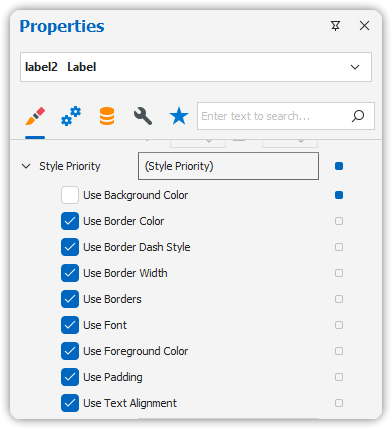
When both styles and direct appearance settings are applied to an element, the Style Priority property determines which takes precedence.
- By default,
Use Background Color,Use Border Color, etc., are set to Yes - This means the style-defined properties override the control’s local appearance settings
To make a local property override the style, set its corresponding Use* property to No.
Odd-Even Styles
The same principles apply to odd-even styling, which alternates row appearance for better readability.
Refer to Use Odd and Even Styles for implementation details.
🛑 Note: When conditional formatting is applied, it always has the highest priority, overriding both direct appearance and style-based settings.