Change the Layout of Report Elements
This guide explains how to manipulate the layout of controls and bands in the Report Designer using both the mouse and keyboard.
Selecting Controls
- Click a control to select it.
- Press TAB to select the next control in tab order.
- Press SHIFT + TAB to select the previous control.
Moving Controls
- Use the mouse to drag a control to a new location.
- Use the arrow keys to move selected controls with precision.
Aligning Controls
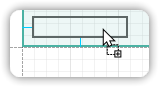
- Align controls using Snap Grid or Snap Lines for precision.
See the topic: Controls Positioning for configuration options.
Resizing Elements
With the Mouse
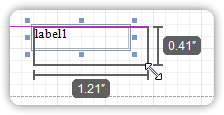
- Controls: Select the control, then drag its edge or corner.
- Bands: Drag the band’s header strip to adjust its height.
With the Keyboard
- Press SHIFT + ARROW or CTRL + SHIFT + ARROW to resize the selected control.
Selecting Multiple Elements
- Hold CTRL or SHIFT, then click each control to select them individually.
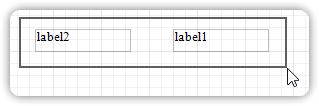
- Click and drag across empty space to create a selection frame.
All controls within the frame will be selected (previous selections will be cleared).
Align and Size Multiple Controls
Use the Layout Toolbar to:
- Align multiple controls (top, middle, left, etc.)
- Make selected controls the same width, height, or size