Command Line Automation
The Command Line Automation (CLA) feature allows you to execute basic commands from the command line for integration purposes.
This feature uses a separate program named smcc.exe, which is located in the same installation folder as PROLIN Smart Client.
Starting CLA
To begin, open a Command Prompt and type:
smcc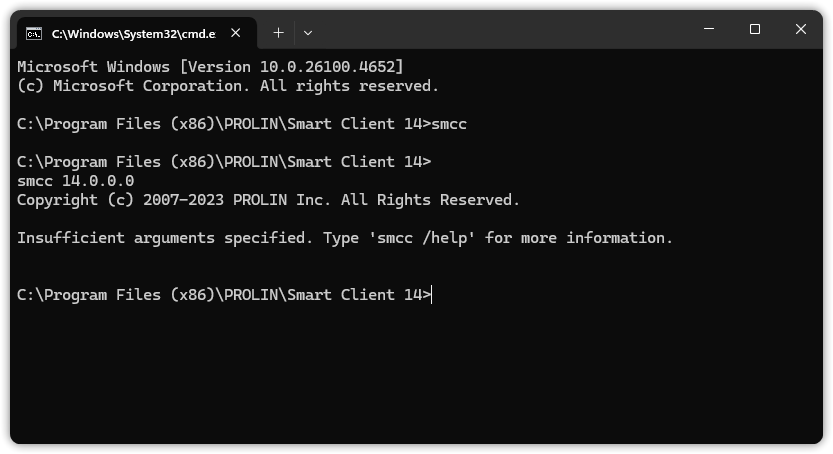
To list all available options, type:
smcc /help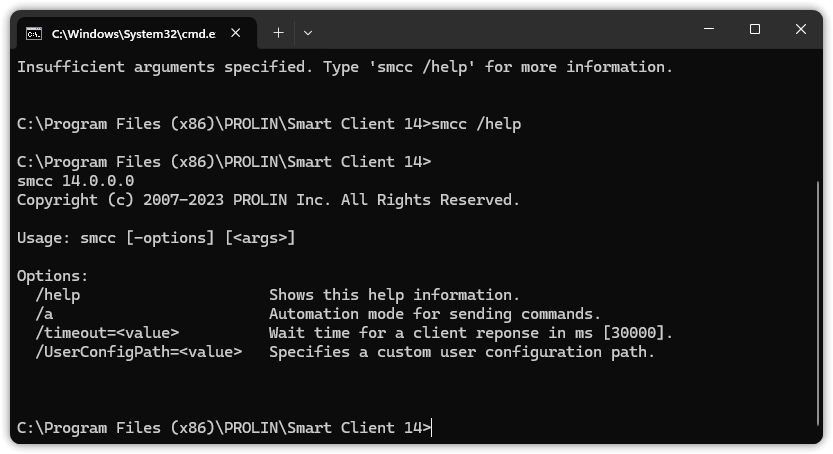
To show automation help:
smcc /a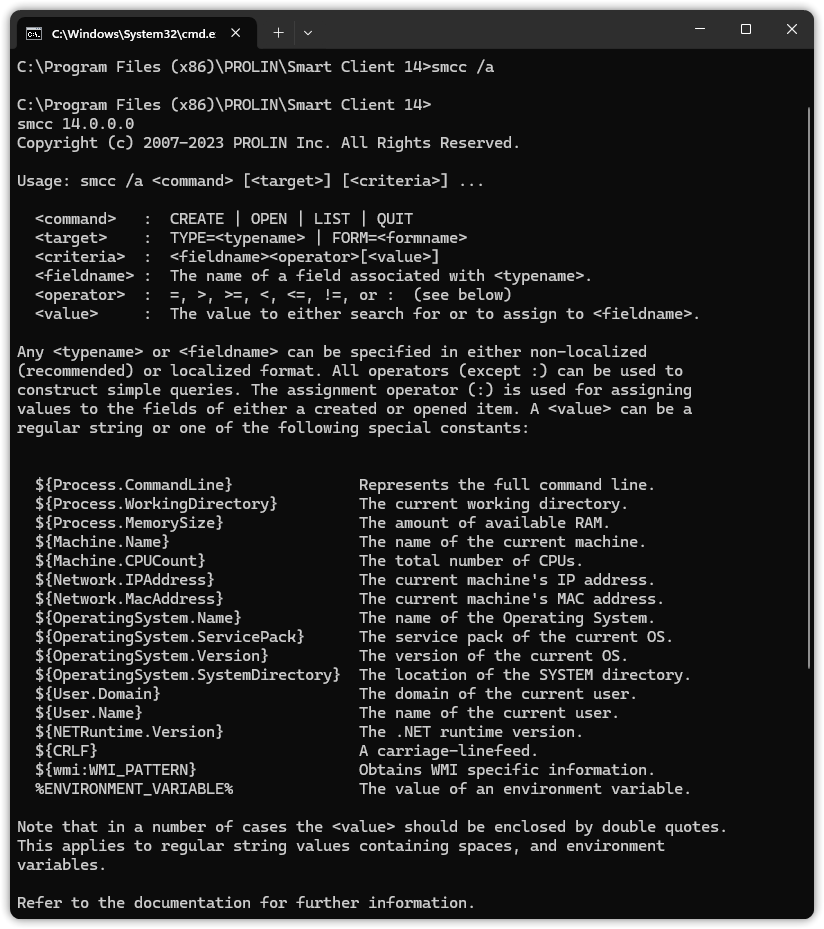
Automation Commands
The first required argument is the automation command to be executed. Supported commands include:
| Command | Description |
|---|---|
CREATE |
Creates a new item based on its type or form with optional values. |
OPEN |
Opens an existing item using search criteria. Depending on results: shows Advanced Find (multiple results), opens item in a form (one result), or prompts to create a new item (no results). |
LIST |
Displays Advanced Find dialog with matching results. |
QUIT |
Terminates PROLIN Smart Client. |
Automation Target
The second required argument specifies the automation target, and it should follow one of these notations:
TYPE=<typename>
FORM=<formname>
If the type or form name contains spaces, enclose it in double quotes:
TYPE="Service Call"
FORM="Incident Form"
Criteria
All subsequent arguments are treated as criteria and can be used to populate fields or filter results.
The format is:
<fieldname><operator>[<value>]Operators
| Operator | Meaning |
|---|---|
= |
Equals |
!= |
Not equals |
> |
Greater than |
>= |
Greater than or equals |
< |
Less than |
<= |
Less than or equals |
: |
Assignment (for setting field values) |
Notes:
- Use
:to assign a value to a field. - Use other operators for search criteria.
- Enclose
fieldnameandvaluein double quotes if they contain spaces. - Omitting a value means assigning an empty value.
- Wildcards (
*) can be used in query filters.
Examples:
"Closure code"="Not solved"
"Status":="Open"
Dynamic Value Substitution
The <value> can refer to field names, especially when CLA is invoked via a Smart Action. Use square brackets for field references:
"Configuration Item"=[Configuration Item]Variable Expansion
CLA supports runtime substitution using:
- Predefined constants
- System environment variables
- WMI data
For a complete list of supported constants, refer to the Variable Expansion documentation.