Pass Parameters to Sub Report
This guide explains how to pass values from a main report to a sub-report, using parameters.
This allows the sub-report to filter its data based on a parameter or field value from the parent report.
1. Create a Parameter in the Sub-Report
- Open the sub-report.
- In the Field List, right-click the Parameters section and choose Add Parameter.
- Give the parameter a name (e.g.,
CategoryID) and appropriate type. - The Visible option should be set to No.
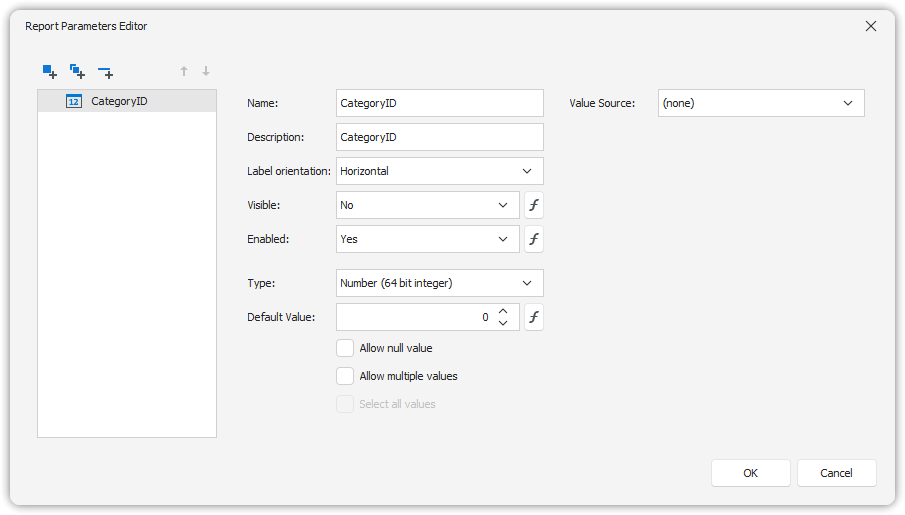
🛑 This ensures the parameter is not visible when the sub-report runs independently.
2. Configure Parameter Binding in the Main Report
- In the main report, select the Sub-Report control or add the Sub-Report if you have not added it yet.
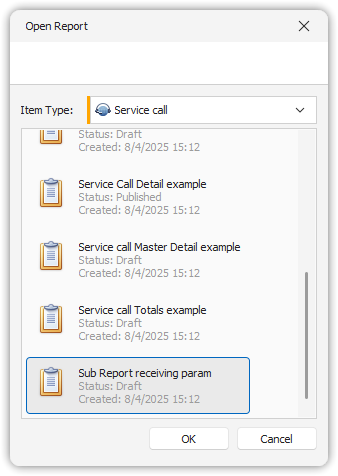
- Open the context menu and choose Edit Parameter Bindings.
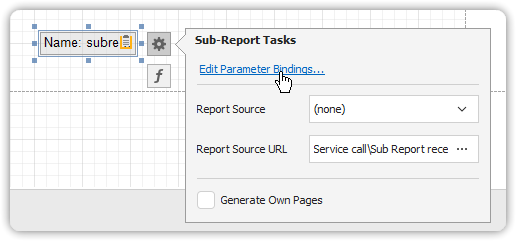
3. Bind the Main Report Value to the Sub-Report Parameter
- In the Edit Parameter Bindings dialog:
- Click the Sync button to auto-detect parameters from the sub-report.
- A new entry will appear showing the sub-report’s parameter.
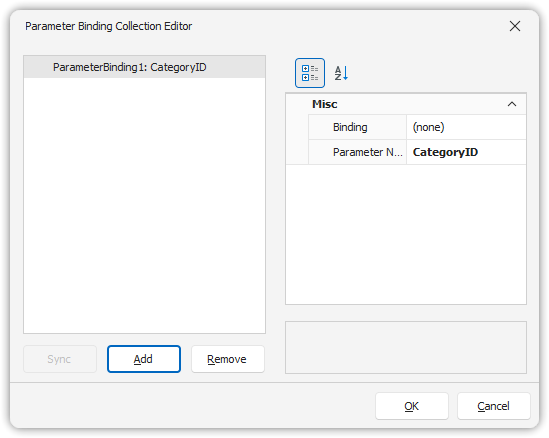
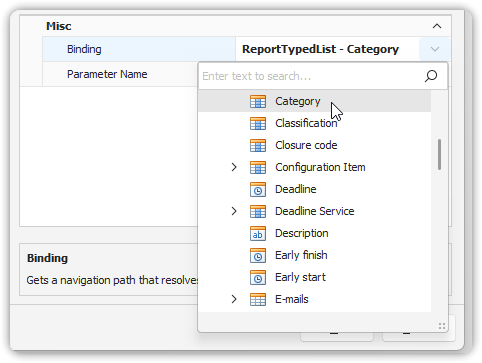
- In the Binding column:
- Select the field or parameter from the main report that should be passed to the sub-report.
4. Save and Preview
- Click OK to confirm the binding.
- Save the report.
- Preview the report to ensure the sub-report receives and applies the value as expected.
This setup allows dynamic, context-sensitive filtering of sub-report content based on the parent report’s data or user-entered parameters.
You are able to use the parameters in a filter as well on the sub-report, see also: Using Parameters in Filters A sub-report may be of a different item type compared to the master report.