Dashboard Views
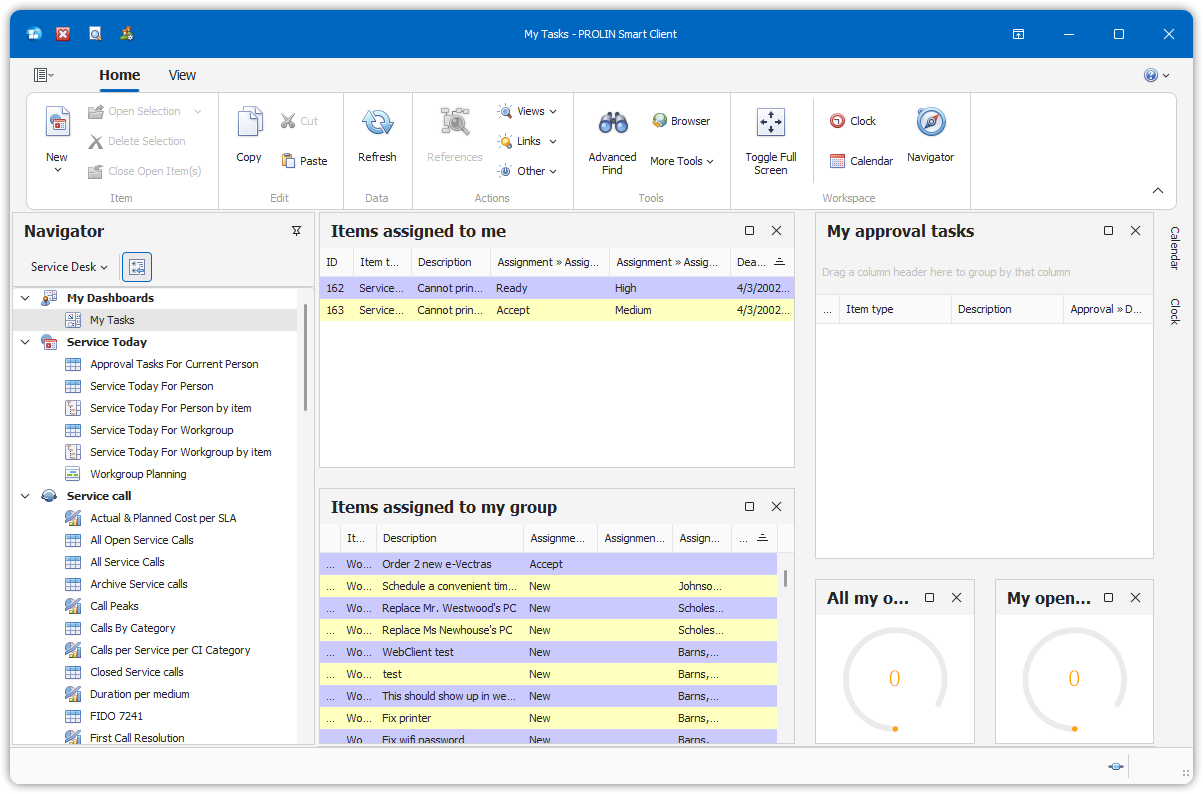
Dashboard views in PROLIN Smart Client allow end users to create composite views by combining individual views such as:
- Tables
- Charts
- Cards
- Trees
- Gauge views (new)
❗ Note: You cannot nest other composite views like Explorer or Dashboard views inside a dashboard.
Default Dashboard: My Tasks
By default, PROLIN Smart Client includes a pre-configured My Tasks dashboard view, found under the My Dashboards node in the navigator.
This view now supports: - Full customization (layout and content) - Inclusion of gauge views
You can: - Rearrange child views by dragging and dropping their headers - Resize views by dragging the bars between them - Close a view using the ✖ (close) button
⚠️ No confirmation is required when closing a child view. To re-add a view, use the configuration dialog.
Dashboard View Configuration
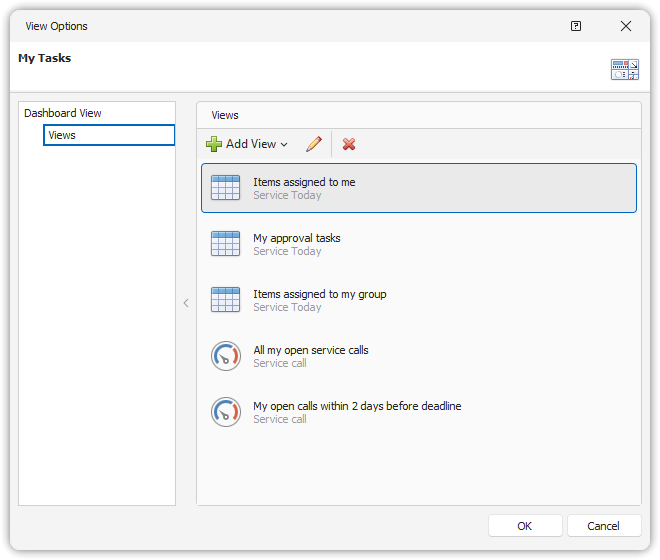
Use the dashboard view configuration dialog to:
- ➕ Add a new or existing view
- ❌ Remove a view
- ⚙️ Edit a referenced view’s settings
➕ Adding Views
Add a New View
- Click Add View → New View…
- In the New View dialog, enter:
- Item Type
- Name
- View Type
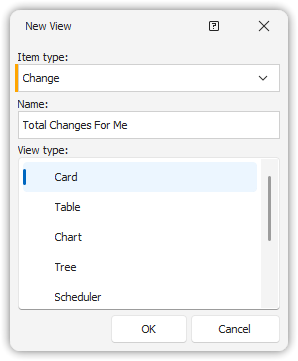
- Press OK, configure your view in the following dialog
- Confirm to add it to the dashboard
Add an Existing View
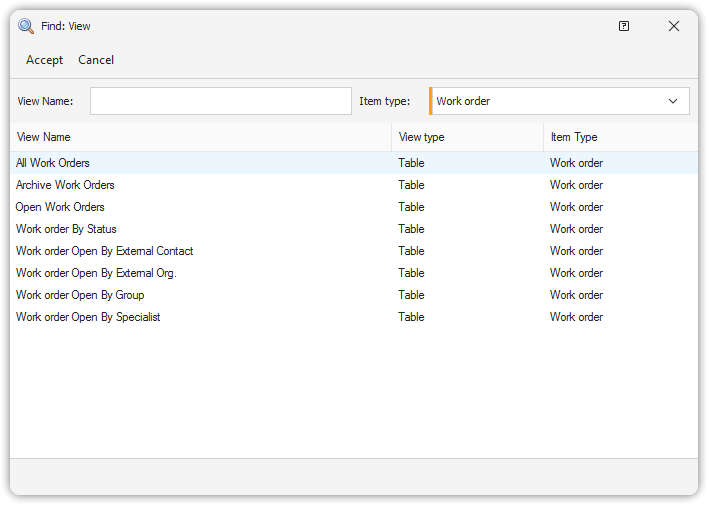
- Click Add View → Find…
- Use the Find View dialog to locate your desired view
- Press Accept to include it in your dashboard
➕ Add or ❌ Remove Dashboard Views
Add Dashboard Views
- Go to the View tab → All Views in the Manage section
Or right-click the My Dashboards node and select Manage All Views - Set Item Type to (My Dashboards)
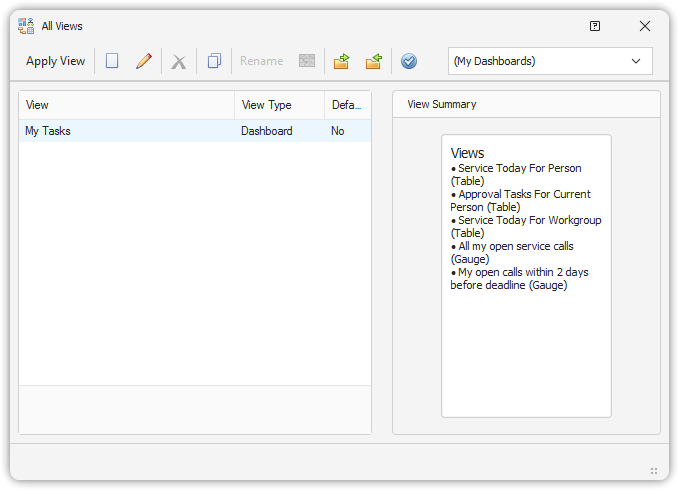
- Click New to open the New View dialog
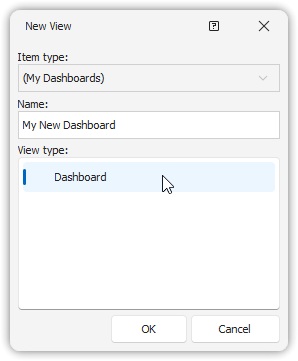
- Create and configure your dashboard
- Your new dashboard will now appear under My Dashboards
❌ Remove Dashboard Views
🚫 You cannot remove the default My Tasks dashboard view.
To remove a dashboard view:
- Go to View tab → All Views
- Ensure Item Type is set to (My Dashboards)
- Select the dashboard you want to delete
- Click Delete
Summary
Dashboard views empower users to create flexible, modular workspaces with diverse visualizations. Configure them to suit your needs using built-in tools in the All Views and Dashboard Configuration dialogs.