Using Advanced Find
The database used with PROLIN Smart Client may contain a large amount of information. Easily finding information is important. At any time, you may want to use Advanced Find.
To use Advanced Find:
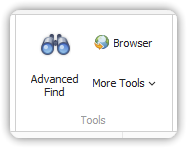
Click Advanced Find in the Tools group on the Home tab.
The Advanced Find dialog opens with the Query Composer visible. If not, click the Query Composer tab at the bottom of the dialog or click Compose in the Filter group.
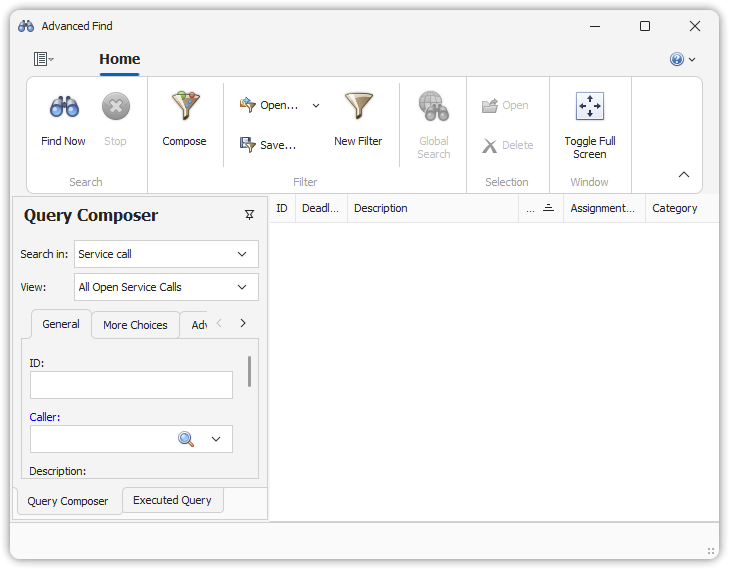
In the Query Composer, select the item to search for in the Search for field.
Select the desired view for the results in the View field.
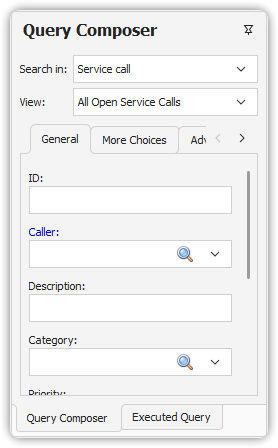
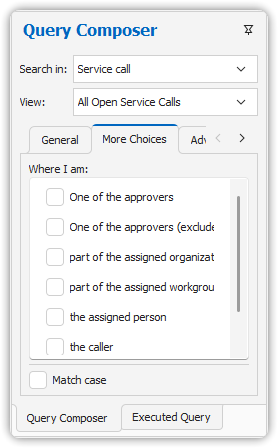
Enter your search criteria:
- Use the General tab for common criteria.
- Use the More Choices tab for predefined filters.
- Use the Advanced tab for complex expressions (see Editing Filters).
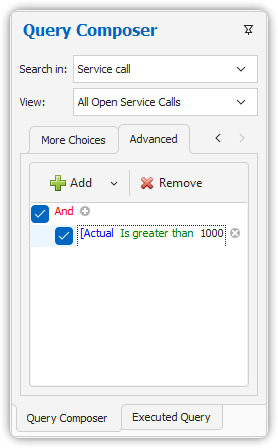
Click Find Now. After changing criteria, click Find Now again to refresh results.
By default, Advanced Find uses
"contains"when searching text unless wildcards are added. For example:"print"→ finds any item where the word “print” occurs."print*"→ finds items where the text starts with “print”.
Results are shown in the result view. You may close the Query Composer to increase visible space.
- To clear all conditions, click New Filter in the Filter group.
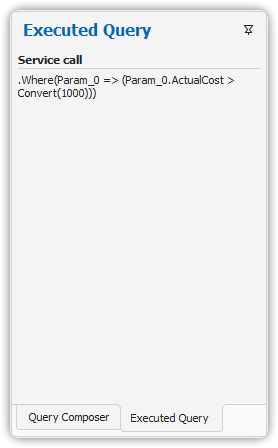
- To inspect the executed query, use the Executed Query action window after clicking Find Now.
Saving and Reusing Filters
- Click Save in the Filter group to save a search filter.
- Click Open to reuse saved filters. Recently opened filters appear in the Open menu.
Global Search
Available in PROLIN Smart Client 2016 and later, Global Search allows cross-entity search (e.g., Service Call, Incident, Problem, Change, Work Order, CI).
⚠️ This feature requires: - The PROLIN Power Server Connector - The Search module to be active on PROLIN Power Server - Elastic Search to be installed - One or more indexed types
Check with your administrator if the Global Search button is disabled.
Using Global Search
Click the Global Search button in the Advanced Find dialog.
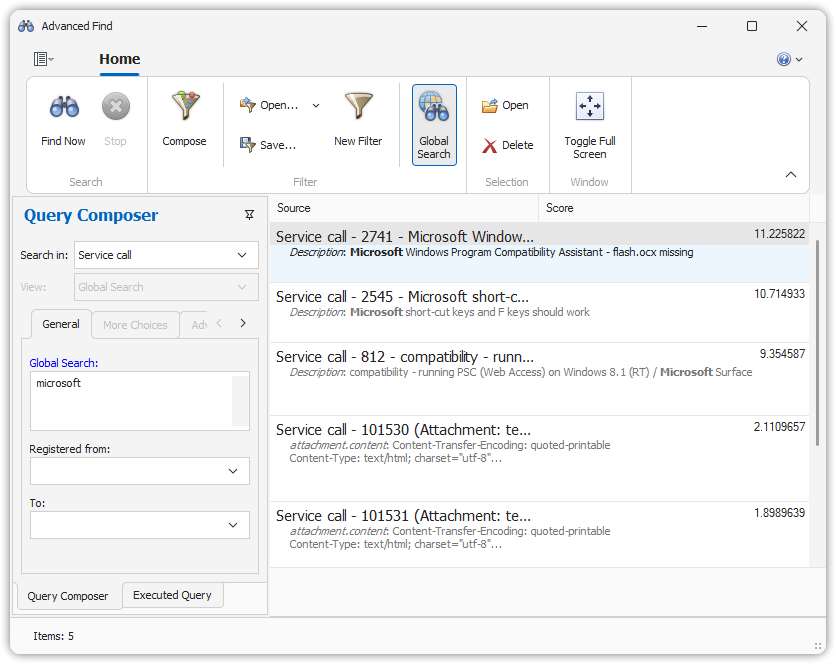
A text editor appears where you can type your search strings.
Press Find Now or the F2 key to execute the query.
The only view available for Global Search is the “Global Search” view. This view cannot be customized.