Change or Apply Data Grouping to a Report
This guide shows how to group data in a report.
Steps to Group Records
1. Create or Open a Report
Begin with a new or existing report. In this example I will make a report for the Person type, and group each Person by it’s Organization.
2. Add a Group
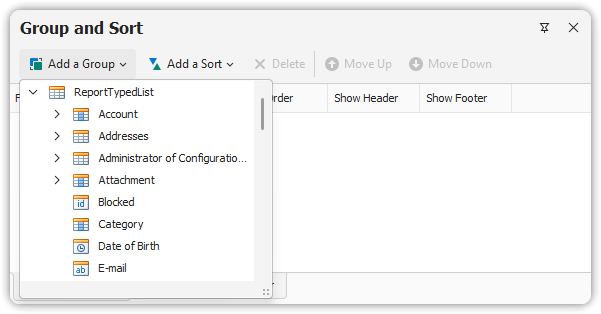
- Open the Group and Sort Panel.
- Click Add a Group.
- In the dropdown list, select the data member to group by.
- You may also group by calculated fields.
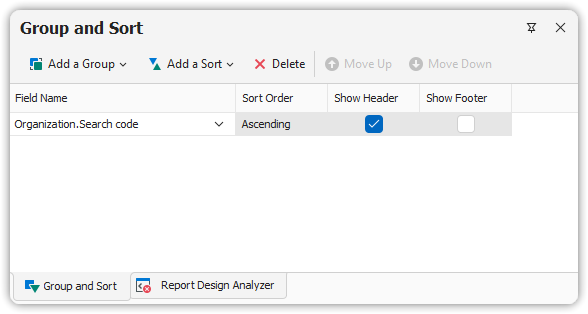
📌 If you create multiple groups, use the Move Up and Move Down buttons to set group priority.
3. Configure the Group Header
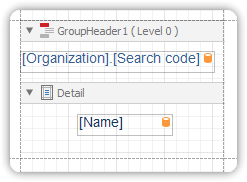
- A Group Header Band is automatically added to the report.
- Drag the relevant field from the Field List onto the Group Header Band to display it as a heading for each group.
✉️ You may use mail merge to format or embed the group field in a custom string.
4. Optional: Add a Group Footer
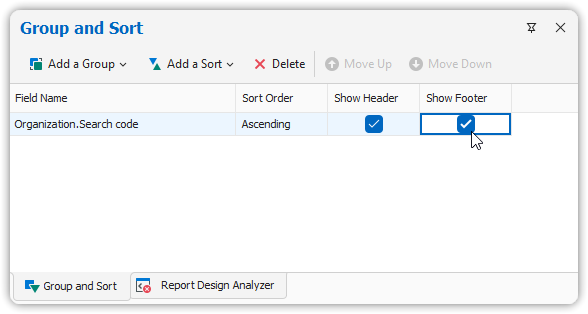
- In the Group and Sort Panel, check Show Footer to add a Group Footer Band.
- Use the Sort Order dropdown to specify whether items in the group appear in ascending or descending order.
5. Add a Summary to the Group
- Drop a Label into the Group Footer Band.
- Set its Summary properties to calculate totals or other aggregates across the group.
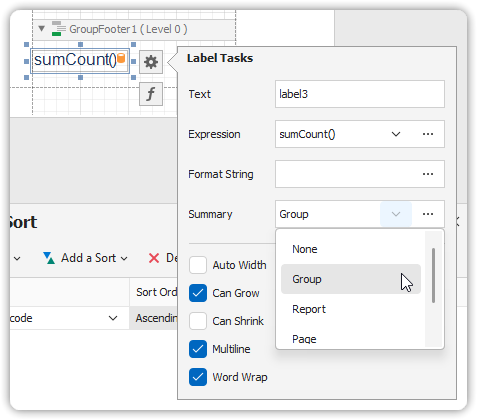
🎯 Value formatting for summaries is set independently from general formatting and takes higher priority.
Grouping helps structure your report for better clarity, enables subtotaling, and enhances readability.