Securing the Smart Suite RESTAPI
2024-12
instructions to create and install a certificate to enable using the Smart Suite RESTAPI with TLS
To use the Power Server RESTAPI securely one needs to:
- enable the RESTAPI to use TLS
- bind an SSL certificate to the port used by the Power Server RESTAPI
- use the https protocol when connecting to the odata endpoint
Enable the RESTAPI to use TLS
- start an elevated Power Server Management Console
- navigate to the Server Configuration - Services - REST API Service page
- select “Enable TLS”.
You will see a warning icon that can be ignored for now.
We will configure the certificate in the next section.
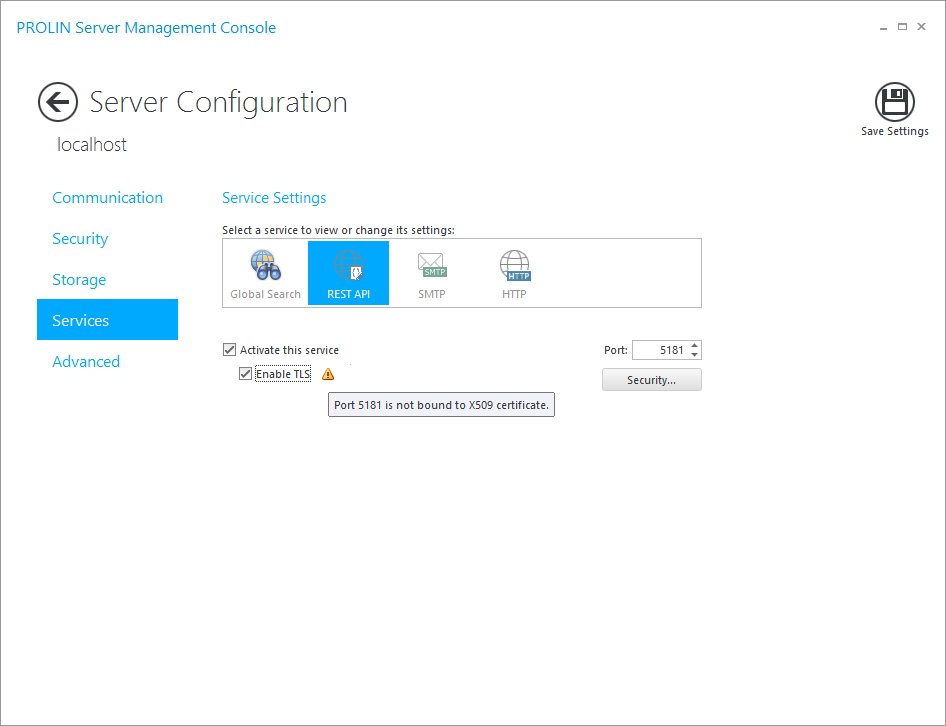
- (re)start Power Server
SSL certificate setup
The commands used are PowerShell commands and most require elevation.
We show the command in the first block and if you hover over the command you should see a clipboard icon to the right so it is easy to copy.
We then repeat the command underneath with the output if there is output.
We assume the default port number 5181 for the RESTAPI is used.
Note
Longer commands are split across two or more lines using backticks
verify existing certificates.
To check whether a certificate is already in place
netsh http show sslcertPS > netsh http show sslcert
SSL Certificate bindings:
-------------------------To check whether there are already any certificates.
If there are, verify if there is one that is bound to the IP:port combination 0.0.0.0:5181
Get-ChildItem cert:\LocalMachine\MyPS > Get-ChildItem cert:\LocalMachine\My
PS >Note:
If you have a valid certificate installed, you can skip the next part.
You only need to find the certificate thumbprint, see Section 2.3.
The below command will get you the fully qualified hostname and alias for later use.
$long_hostname = ([System.Net.Dns]::GetHostByName((hostname)).HostName).toLower()
$long_hostname
$short_hostname = (hostname).toLower()
$short_hostnameotherwise you will need to replace the ones below with ones valid for your server
$long_hostname = 'surprise.pmo.local'$short_hostname = 'surprise'create a new self-signed certificate
run the New-SelfSignedCertificate command
$cert = New-SelfSignedCertificate -dnsname $long_hostname, $short_hostname `
    -CertStoreLocation Cert:\LocalMachine\My
PS > $cert = New-SelfSignedCertificate -dnsname $long_hostname, $short_hostname `
>> -CertStoreLocation Cert:\LocalMachine\My
>>
PS >print the output
$cert | Format-list -property *PS > $cert | Format-list -property *
PSPath : Microsoft.PowerShell.Security\Certificate::LocalMachine\My\FA29BFF2A1AA55D01F3C6CA7D24936003F8980EC
PSParentPath : Microsoft.PowerShell.Security\Certificate::LocalMachine\My
PSChildName : FA29BFF2A1AA55D01F3C6CA7D24936003F8980EC
PSIsContainer : False
EnhancedKeyUsageList : {Client Authentication (1.3.6.1.5.5.7.3.2), Server Authentication (1.3.6.1.5.5.7.3.1)}
DnsNameList : {surprise.pmo.local, surprise}
SendAsTrustedIssuer : False
EnrollmentPolicyEndPoint : Microsoft.CertificateServices.Commands.EnrollmentEndPointProperty
EnrollmentServerEndPoint : Microsoft.CertificateServices.Commands.EnrollmentEndPointProperty
PolicyId :
Archived : False
Extensions : {System.Security.Cryptography.Oid, System.Security.Cryptography.Oid, System.Security.Cryptography.Oid,
System.Security.Cryptography.Oid}
FriendlyName :
IssuerName : System.Security.Cryptography.X509Certificates.X500DistinguishedName
NotAfter : 1/23/2024 9:21:08 PM
NotBefore : 1/23/2023 9:01:08 PM
HasPrivateKey : True
PrivateKey :
PublicKey : System.Security.Cryptography.X509Certificates.PublicKey
RawData : {48, 130, 3, 61...}
SerialNumber : 4B7A514A75FA1E8D4A52F6096FB518CB
SubjectName : System.Security.Cryptography.X509Certificates.X500DistinguishedName
SignatureAlgorithm : System.Security.Cryptography.Oid
Thumbprint : FA29BFF2A1AA55D01F3C6CA7D24936003F8980EC
Version : 3
Handle : 220456098592
Issuer : CN=surprise.pmo.local
Subject : CN=surprise.pmo.localor alternatively
get-childitem cert:\LocalMachine\MyPS > get-childitem cert:\LocalMachine\My
Directory: Microsoft.PowerShell.Security\Certificate::LocalMachine\My
Thumbprint Subject
---------- -------
FA29BFF2A1AA55D01F3C6CA7D24936003F8980EC CN=surprise.pmo.localthe certificate thumbprint
We need the thumbprint in a later section, so we assign it to a variable You can replace $cert.thumbprint with your own, if you have a certificate thumbprint at the ready.
$certificate_thumbprint = $cert.thumbprintPS > $certificate_thumbprint = $cert.thumbprint
PS >$certificate_thumbprint PS > $certificate_thumbprint
FA29BFF2A1AA55D01F3C6CA7D24936003F8980ECfinding the AppID for Power Server
Each installed application has a unique identification.
If Power Server is installed, the following command should show some details
get-wmiobject -class win32_product | where-object {$_.name -Match "PROLIN Power"}PS > get-wmiobject -class win32_product | where-object {$_.name -Match "PROLIN Power"}
IdentifyingNumber : {717BDBD1-4A30-4DC2-9AD7-4BAB36F270FB}
Name : PROLIN Power Server 2020 R8
Vendor : PROLIN Inc.
Version : 12.1.5787
Caption : PROLIN Power Server 2020 R8We need to capture the IdentifyingNumber value for later use.
Adjust the match value in the next command, or define the value using copy/paste, because we need only one IdentifyingNumber.
$powerserver_appid = (get-wmiobject -class win32_product |
    where-object {$_.name -Match "PROLIN Power"}).IdentifyingNumber
PS > $powerserver_appid = (get-wmiobject -class win32_product |
>> where-object {$_.name -Match "PROLIN Power"}).IdentifyingNumber
>>
PS >$powerserver_appidPS > $powerserver_appid
{717BDBD1-4A30-4DC2-9AD7-4BAB36F270FB}binding the certificate to the port used by the OData service
We can now use the netsh command to bind the certificate to the port used by the Power Server OData service using the thumbprint and appid collected earlier.
netsh http add sslcert ipport=0.0.0.0:5181 certhash=$certificate_thumbprint `
    appid="$powerserver_appid"
PS > netsh http add sslcert ipport=0.0.0.0:5181 certhash=$certificate_thumbprint `
>> appid="$powerserver_appid"
>>
SSL Certificate successfully addednetsh http show sslcertPS > netsh http show sslcert
SSL Certificate bindings:
-------------------------
IP:port : 0.0.0.0:5181
Certificate Hash : fa29bff2a1aa55d01f3c6ca7d24936003f8980ec
Application ID : {717bdbd1-4a30-4dc2-9ad7-4bab36f270fb}
Certificate Store Name : (null)
Verify Client Certificate Revocation : Enabled
Verify Revocation Using Cached Client Certificate Only : Disabled
Usage Check : Enabled
Revocation Freshness Time : 0
URL Retrieval Timeout : 0
Ctl Identifier : (null)
Ctl Store Name : (null)
DS Mapper Usage : Disabled
Negotiate Client Certificate : DisabledIf we did not restart Power Server after enabling TLS, now is the time to do so.
get the proper service address
Go to the Services page in the Power Server Management Console - Monitor and look for the OData endpoint. It should start with https://.
verify the certificate is in place
Note that when using a self-signed certificate most tools will at minimum return a warning regarding a non-secure site and usually have a flag or setting to ignore this issue.
Firefox for example will show a Warning: Potential Security Risk Ahead page and allow you to continue by selecting Advanced and then Accept the Risk and continue
verify the certificate is in place using a linux shell
Verify using the command line tool CURL on a linux box or in WSL.
curl https://surprise:5181/odata$ curl https://surprise:5181/odata
curl: (60) SSL certificate problem: self-signed certificate
More details here: https://curl.se/docs/sslcerts.html
curl failed to verify the legitimacy of the server and therefore could not
establish a secure connection to it. To learn more about this situation and
how to fix it, please visit the web page mentioned above.Repeat and specifically allow …
curl --insecure https://surprise:5181/odata$ curl --insecure https://surprise:5181/odata
{"@odata.context":"https://surprise:5181/odata/$metadata","value":[{"name":"ServiceRequests", ...If you get a different error, specifically the one below
$ curl --insecure https://surprise:5181/odata
curl: (35) error:0A00010B:SSL routines::wrong version number
then verify that TLS is enabled for the RESTAPI endpoint, and Power Server was restarted afterward.
verify the certificate is in place using Windows Powershell
On Windows curl is an alias for Invoke-WebRequest, but the command line parameter --insecure is not valid.
Workaround to let PowerShell skip certificate checks
To work around the fact that Invoke-Webrequest is missing the –insecure flag, you can run the following snippet before running Invoke-Webrequest commands.
Source: https://til.intrepidintegration.com/powershell/ssl-cert-bypass
It remains valid for the duration of your PowerShell session.
add-type @"
    using System.Net;
    using System.Security.Cryptography.X509Certificates;
    public class TrustAllCertsPolicy : ICertificatePolicy {
        public bool CheckValidationResult(
            ServicePoint srvPoint, X509Certificate certificate,
            WebRequest request, int certificateProblem) {
            return true;
        }
    }
"@
[System.Net.ServicePointManager]::CertificatePolicy = New-Object TrustAllCertsPolicy
Depending on the service endpoint for the OData service use one of the below commands.
$odata_uri = 'https://' + $long_hostname + ':5181/odata'
Invoke-WebRequest $odata_uri
$odata_uri = 'https://' + $short_hostname + ':5181/odata'
Invoke-WebRequest $odata_urior when prompted add -UseBasicParsing
Invoke-WebRequest $odata_uri -UseBasicParsingCertificate renewal
Unlike suggested in the various online sources, the -NotAfter parameter appeared not a valid parameter,
which means you cannot use a construct like -NotAfter (Get-Date).AddYears(3) to have the certificate expire after three years instead of the default one year. Also, when you re-install or update Power Server, the AppID changes.
It makes sense to replace the certificate and port binding at the same time.
You can of course repeat the steps above and create a new certificate, but you can also clone the certificate to keep the settings except the expiry date. You would also want to regularly clean up old certificates.
Below are a few example commands.
find the certificate and port binding
netsh http show sslcertPS > netsh http show sslcert
SSL Certificate bindings:
-------------------------
IP:port : 0.0.0.0:5181
Certificate Hash : fa29bff2a1aa55d01f3c6ca7d24936003f8980ec
Application ID : {717bdbd1-4a30-4dc2-9ad7-4bab36f270fb}
Certificate Store Name : (null)
Verify Client Certificate Revocation : Enabled
Verify Revocation Using Cached Client Certificate Only : Disabled
Usage Check : Enabled
Revocation Freshness Time : 0
URL Retrieval Timeout : 0
Ctl Identifier : (null)
Ctl Store Name : (null)
DS Mapper Usage : Disabled
Negotiate Client Certificate : DisabledThe Certificate Hash value is the certificate thumbprint We need this value to clone the certificate or remove the certificate.
remove the certificate binding
netsh http delete sslcert ipport=0.0.0.0:5181PS > netsh http delete sslcert ipport=0.0.0.0:5181
SSL Certificate successfully deletedclone a certificate
Find the old certificate using (part of) the thumbprint
Note:
replace theFA29in the command with a part or all of your thumbprint
$cert_to_clone = (get-childitem cert:\LocalMachine\My |
    where-object {$_.thumbprint -Match "FA29"})
PS > $cert_to_clone = (get-childitem cert:\LocalMachine\My |
>> where-object {$_.thumbprint -Match "FA29"})
>>
PS >and verify the thumbprint matches ignoring uppercase/lowercase differences.
$cert_to_clonePS > $cert_to_clone
Directory: Microsoft.PowerShell.Security\Certificate::LocalMachine\My
Thumbprint Subject
---------- -------
FA29BFF2A1AA55D01F3C6CA7D24936003F8980EC CN=surprise.pmo.localCreate a new certificate by cloning an existing certificate
$new_cert = New-SelfSignedCertificate `
    -CloneCert $cert_to_clone -CertStoreLocation Cert:\LocalMachine\My
PS > $new_cert = New-SelfSignedCertificate `
>> -CloneCert $cert_to_clone -CertStoreLocation Cert:\LocalMachine\My
>>
PS >$new_certPS > $new_cert
Directory: Microsoft.PowerShell.Security\Certificate::LocalMachine\My
Thumbprint Subject
---------- -------
B3585872B23DD14100EE39F2B01B985CD23BAB6F CN=surprise.pmo.localYou can then use $new_cert to assign the thumbprint value to a variable
$certificate_thumbprint = $new_cert.thumbprintPS > $certificate_thumbprint = $new_cert.thumbprint
PS >Continue with the steps in (Section 2.4).
Cleanup
When you have too many certificates lying around …
Get-ChildItem cert:\LocalMachine\MyPS > Get-ChildItem cert:\LocalMachine\My
Directory: Microsoft.PowerShell.Security\Certificate::LocalMachine\My
Thumbprint Subject
---------- -------
FA29BFF2A1AA55D01F3C6CA7D24936003F8980EC CN=surprise.pmo.local
4A48CB3AC93AF9C83E9EA56DA9BB24E042D2262B CN=surprise.pmo.local
1AFFA829C3697A55C96D36971A97DA5D0C3814FF CN=surprise.pmo.local
B3585872B23DD14100EE39F2B01B985CD23BAB6F CN=surprise.pmo.localNote
Make sure you have the correct certificate before removal
Remove the certificate
Get-ChildItem cert:\LocalMachine\My |
    where-object {$_.thumbprint -Match "4A4"} | remove-item
PS > Get-ChildItem cert:\LocalMachine\My |
>> where-object {$_.thumbprint -Match "4A4"} | remove-item
>>
PS >The pertaining certificate should no longer be listed.
Get-ChildItem cert:\LocalMachine\MyPS > Get-ChildItem cert:\LocalMachine\My
Directory: Microsoft.PowerShell.Security\Certificate::LocalMachine\My
Thumbprint Subject
---------- -------
FA29BFF2A1AA55D01F3C6CA7D24936003F8980EC CN=surprise.pmo.local
1AFFA829C3697A55C96D36971A97DA5D0C3814FF CN=surprise.pmo.local
B3585872B23DD14100EE39F2B01B985CD23BAB6F CN=surprise.pmo.localIf you want to remove all certificates
Get-ChildItem cert:\LocalMachine\My | remove-itemPS > Get-ChildItem cert:\LocalMachine\My | remove-item
PS >You will have the binding still in place
netsh http show sslcertPS > netsh http show sslcert
SSL Certificate bindings:
-------------------------
IP:port : 0.0.0.0:5181
Certificate Hash : fa29bff2a1aa55d01f3c6ca7d24936003f8980ec
Application ID : {717bdbd1-4a30-4dc2-9ad7-4bab36f270fb}
Certificate Store Name : (null)
Verify Client Certificate Revocation : Enabled
Verify Revocation Using Cached Client Certificate Only : Disabled
Usage Check : Enabled
Revocation Freshness Time : 0
URL Retrieval Timeout : 0
Ctl Identifier : (null)
Ctl Store Name : (null)
DS Mapper Usage : Disabled
Negotiate Client Certificate : Disabledbut without the certificate you will not be able to connect,
so you might want to remove the certificate binding as well.
netsh http delete sslcert ipport=0.0.0.0:5181PS > netsh http delete sslcert ipport=0.0.0.0:5181
SSL Certificate successfully deleted