Text Snippets
Text Snippets
Text Snippets are available in PROLIN Smart Client 2016 R9 and later.
What are Text Snippets?
Text Snippets are reusable pieces of text that can be inserted into text fields within forms. These are especially useful for standardizing communication (e.g. messages to callers) without the need to retype frequently used text.
- Local Storage Location:
C:\Users[USERNAME]\AppData\Roaming\PROLIN Inc\PROLIN Smart Client\14\snippets.dat- Sharing Snippets:
You can share Text Snippets by distributing thesnippets.datfile to other users.
How to Use Text Snippets
Text Snippets are:
- User-specific (but a shared file can be distributed)
- Available across all forms
- Independent of specific entities
Ways to Open the Text Snippets Dialog
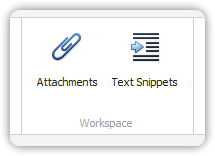
Click the Text Snippets button on the toolbar
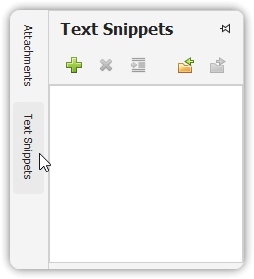
Click the Text Snippets button on the sidebar
Press Ctrl+T while in a text field
The Text Snippets dialog is a general tool window—it can be pinned or undocked like the Attachments pane.
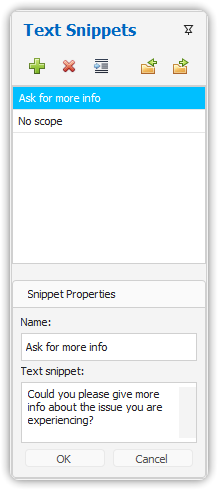
Managing Text Snippets
Add a Text Snippet
- Open the Text Snippets dialog
- Click the “+” button
- Enter a name and text content
No need to save manually; changes are stored automatically.
Modify a Text Snippet
- Open the dialog
- Select a snippet from the list
- Edit the text in the detail view at the bottom
Changes are saved automatically.
Delete a Text Snippet
- Open the dialog
- Select the snippet to delete
- Click the “X” button
Use Text Snippets to enhance productivity and consistency across communications.