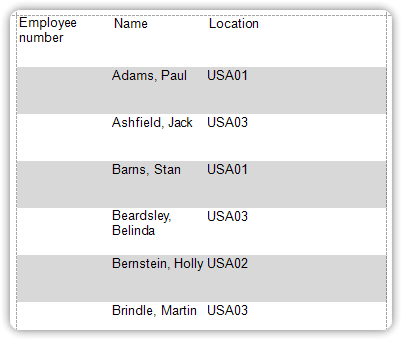
Use Odd and Even Styles
This tutorial explains how to apply odd and even styles to report controls, such as alternating background colors for rows in a table report. This enhances visual clarity and improves readability.
Steps to Apply Odd and Even Styles
1. Create a Table Report
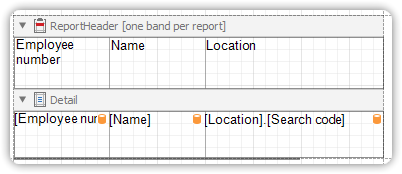
Begin by creating a table report that displays records in rows.
2. Assign an Even Style
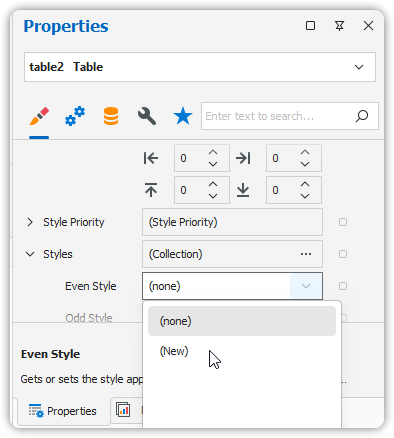
- Select the Detail Table on your report.
- In the Property Grid, expand the Styles section.
- Open the drop-down for Even Style and click (New).
A new style object is created and automatically assigned to the control’s Even Style.
3. Customize the Even Style
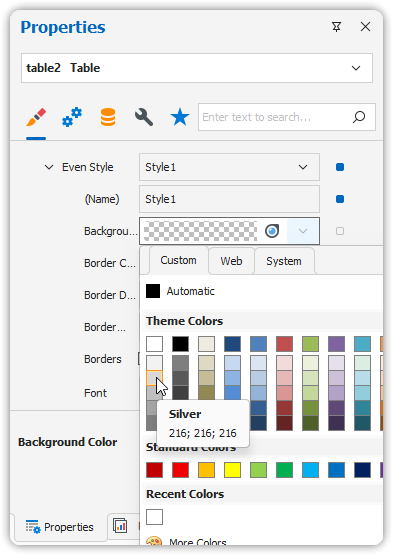
- Expand the Even Style property to access its settings.
- Set the desired formatting (e.g.,
Background Color = ControlLight).
4. (Optional) Assign an Odd Style
To further enhance the report’s appearance:
- Follow the same steps to create and assign a style to the Odd Style property.
- Customize it with a different set of appearance settings (e.g., alternating color).
When previewed, each row in the detail band will alternate between the odd and even styles based on its position in the dataset.