Creating Personal Views
When you start PROLIN Smart Client, the default views are those made available for the processes configured by your organization.
If you have the appropriate permissions, you can create personal views to help you with specific or uncommon tasks. These personal views are stored locally and can be customized to your preferences.
🛠️ How to Create a Personal View
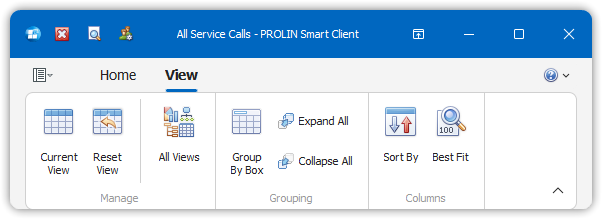
- Go to the View tab and click All Views in the Manage group.
- In the All Views dialog, click New.
- In the New View dialog:
- Enter a name for your new view.
- Choose the type of view you want to create.
- In the View Options dialog, configure the view settings as needed.
> See Changing View Options for more details. - When done, click OK.
💡 Your personal view will be available in the Navigator the next time you start PROLIN Smart Client.
🧰 View Management Options

From the All Views dialog, you can also:
- Edit – Modify an existing view using the View Options dialog.
- Delete – Remove a selected view (only personal views can be deleted).
- Copy – Duplicate a view and give the copy a new name.
- Rename – Change the name of the selected view.
- Reset – Revert a system view to its original settings (cannot reset personal views).
- Export – Save the view configuration to a file (share it with other users).
- Import – Load a view configuration file.
🚫 Note: Personal views are user-specific and stored locally. They do not sync across different machines or user accounts unless exported/imported manually.