Entering Information
Entering Information
A form is used to enter and present information. The fields have different types and each type of information entered must be entered correctly to have value in the processes. PROLIN Smart Client provides numerous tools to enter correct values in the fields. In this section you will learn about the tools available for the various field types.
When you enter invalid information into a field, the field will change appearance.

A field with invalid information will be highlighted.
If a form contains invalid information, a warning will be shown when you try to save the item. You can then discard the invalid information or return to the form to correct it.
Selecting Options
Boolean fields (options) can have the following forms:
- Checkbox: Click the checkbox to select.
- Radio button: Click the button to select.
- Yes/No or True/False: Use the dropdown list to choose.

Entering Text
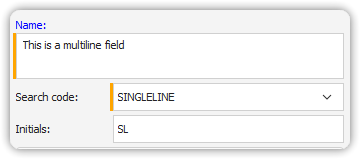
Text fields vary in length:
- Single-line text fields: Press
Enterto move to the next field. - Multi-line text fields: Press
Enterto start a new line.
Text fields support all characters compatible with your system’s encoding (Unicode supported if the database is configured accordingly).
Entering Monetary Values
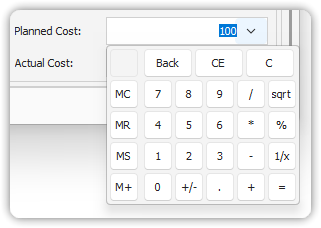
Monetary values are numeric. To enter:
- Type a number.
- Leave the field and the value will format as currency.
You may also use the calculator icon for value entry.
- Primary currency: Format based on main currency setting.
- Secondary currency: Display conversion if applicable.
Entering Date and Time Fields
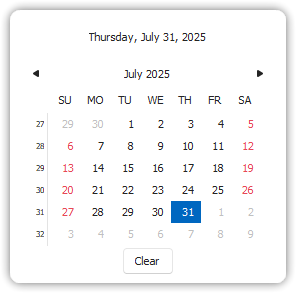
You can enter:
- Specific dates via calendar or manually.
- Relative dates like
+1(tomorrow),-1(yesterday).
Date-Time Fields
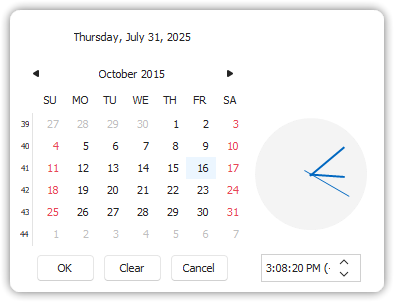
Use the calendar + clock interface. Adjust:
- Hour/minute: Double click the value and use arrows.
- Click
OKto confirm.
Selecting Codes
Code fields can be:
- Flat lists (dropdowns or radio buttons)
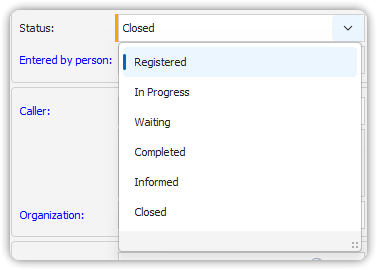
- Hierarchies (tree with expandable branches)
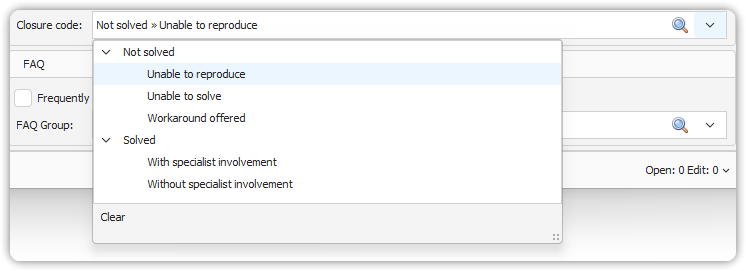
To select:
- Click the dropdown.
- Resize the list as needed.
- Use
+/-icons to expand/collapse hierarchical codes.
Entering Information in a Lookup Field
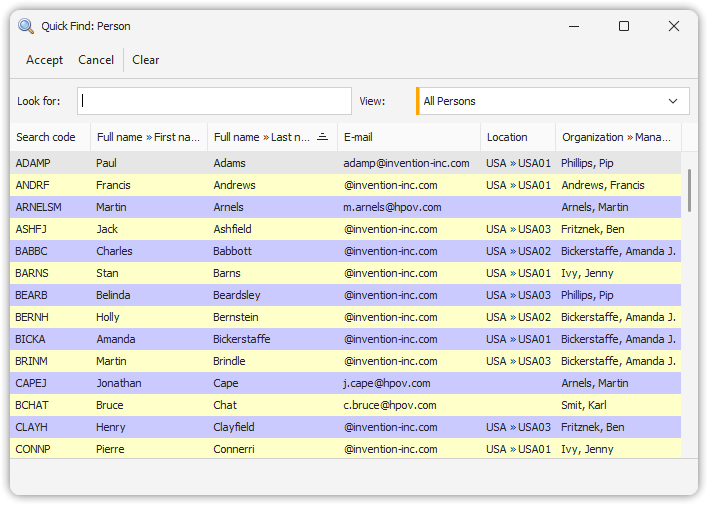
Lookup fields relate to another item (e.g., Caller to Person):
Methods:
- Auto complete: Start typing and select from suggestions.
- Quick Find: Click the magnifying glass and select from a view.
- Create new: Use the Lookup menu > New.
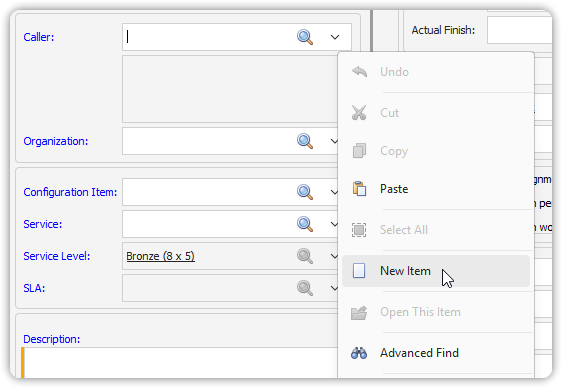
Quick Find Tips:
- Use the Look for field to search.
- Use Clear to reset.
- Cancel closes Quick Find.
One-to-many relationships can often be explored both ways (e.g., one Person related to many Service Calls).