Chart Views
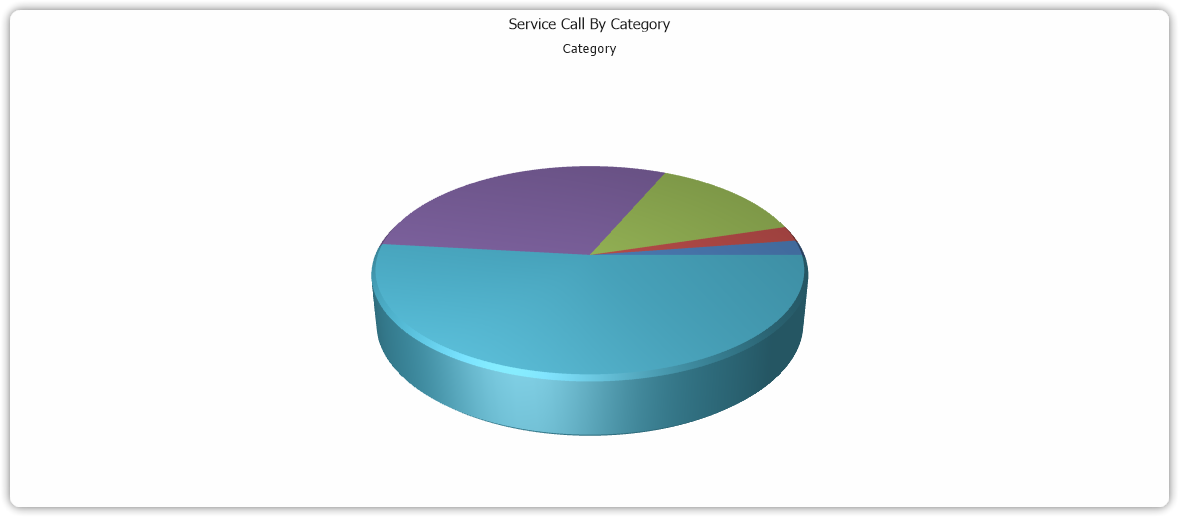
A chart view allows you to create an aggregated visual representation of your data. Charts are useful for summarizing and analyzing trends or distributions within your Service Management data.
Drilling Down in a Chart
🔍 Drilling down works only in 2D mode.
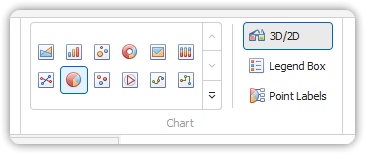
To switch from 3D to 2D, click the 3D/2D command in the View tab of the chart ribbon.
Some charts are configured with a Drilldown View. This lets you double-click a chart element (e.g., a slice of a pie chart or a bar in a bar chart) to open another view (such as a table or chart) filtered based on the selected element.
Example:
If you double-click the RFI category in the Service Calls by Category pie chart:
- A new table view opens showing only Service Calls tagged as RFI.
- This new view inherits the original filters plus a filter on the clicked category.
🧠 Linking multiple charts creates a “drilling” experience.
Effective drill-down design supports specific analysis tasks and should be thoughtfully planned.
How to Add a Drill-Down View:
- Click Current View in the View tab.
- In the View Options dialog, go to the General page.
- In the Drilldown View field, select a target view.
- Uncheck the 3D checkbox.
- Click OK.
How to Use Drill-Down:
- Double-click a chart element (e.g., bar or slice).
- The mouse pointer highlights the interactive element.
- A linked view opens with filtered data.
Changing a Chart
Most chart appearance options are available in the View tab of the chart ribbon.
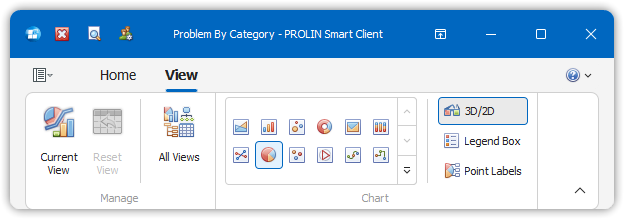
These options allow you to:
- Choose a different chart type (e.g., bar, pie, line).
- Toggle between 3D and 2D modes.
- Adjust display angles (3D only).
- Select a professional layout for printing or reporting.
To change the chart type:
- Go to the Chart group on the View tab.
- Choose the desired chart type.
🧭 In 3D mode, you can rotate the chart: - Mouse over the chart → pointer becomes a hand. - Click and drag → pointer becomes a grabbing hand.
🎯 In 2D mode, drill-down becomes available.
In this mode, the 3D/2D button is not highlighted.