Change Value Formatting of Report Elements
This tutorial explains how to apply value formatting to the contents of data-bound controls, such as formatting numbers as currency, or displaying dates in a specific format.
Apply Format Using the Format String Editor
- Locate the data-bound control in your report.
- Click the control’s Smart Tag.
- In the invoked actions list, click the ellipsis (
...) next to the Format String entry.
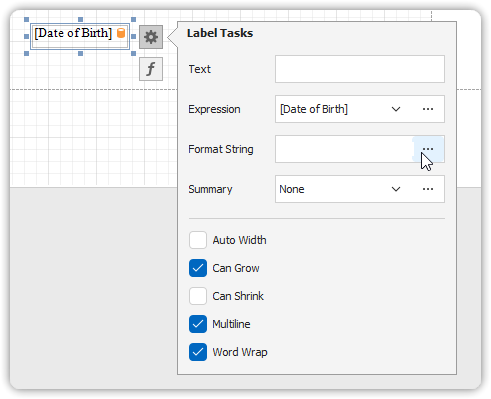
- In the Format String Editor:
- Choose a predefined style (e.g., Currency, Percent, DateTime)
- Or enter a custom format string
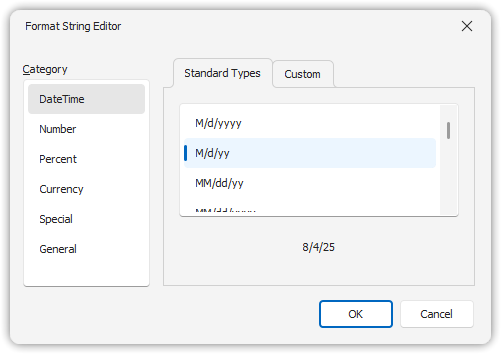
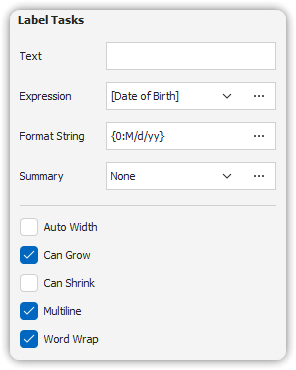
Click OK to apply the formatting.
Apply Format for Summary Values
When a control uses a summary function (e.g., Sum, Average):
- Open the Summary Editor.
- Apply value formatting separately within that editor.
Export-Specific Formatting for XLSX
To preserve formatting when exporting to XLSX:
- Set the control’s
Xlsx Format Stringproperty manually. - This allows fine-grained control over Excel-specific formatting.
Examples: - "mm/dd/yyyy" for dates - "#,##0.00" for numbers with two decimal places
This ensures exported reports maintain intended display styles in Excel.