Finding and Opening a View
To find and open a view in PROLIN Smart Client, use the navigator. The navigator is an action window typically located on the left-hand side of the console. It organizes views into groups of items, displayed in a tree structure, with each item’s views as branches.
You can use either mouse or keyboard navigation, and a quick filter helps manage large numbers of views.
Using the Mouse
To navigate and open a view:
- Open the navigator (usually already visible on the left side of the console).
- At the top of the navigator, select an item group you are authorized for.
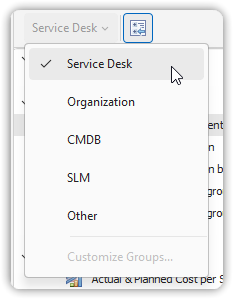
- Expand the item branch in the tree.
- Select the view you want to open.
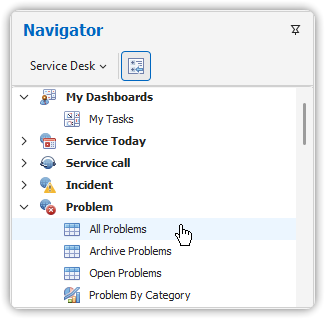
- The selected view opens in the view window.
Alternative Method via All Views Dialog
- Click All Views in the Manage group of the View tab.
- In the All Views dialog, select an item type from the list on the right.
- Choose a view from the Views list and click Apply View.
- Close the dialog when done.
Using the Keyboard
If you know the name of the view, you can quickly locate it in the navigator:
- The navigator tree is organized by processes → items → views.
- Use arrow keys or start typing the view name to locate a match.
- Collapse and expand branches with the plus (+) or minus (–) signs.
- For more navigation techniques, refer to: Navigating Trees.
💡 The quick filter in the navigator helps narrow down results as you type.