Using Action Windows
Action windows provide tools that support your work in PROLIN Smart Client. These tools may help with navigation, display key information, or simply improve user experience.
Tools in action windows may be:
- Developed by PROLIN
- Offered by PROLIN partners
- Created by third-party providers
Some action windows—like the Navigator—are essential for locating items. Others—like a Clock or Dashboard—are useful enhancements.
🔄 Opening and Closing Action Windows
You can manage action windows in several ways:
Option 1: Use the Ribbon
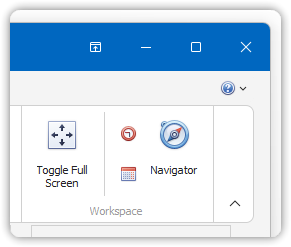
- Go to the Home tab
- In the Workspace group, click the button for the desired action window
Option 2: Use Hover Behavior
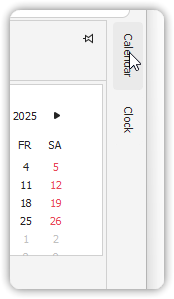
- Move your mouse over the name of an action window
- The window will scroll open
- When you move your mouse away, the window will automatically close
📌 Pinning an Action Window
To keep an action window open:
- Hover over the action window to open it
- Click the pushpin icon in the upper-right corner
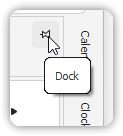
- 📎 A horizontal pushpin = scroll behavior (auto-hide)
- 📍 A vertical pushpin = pinned (always visible)
❌ Closing an Action Window
To remove an action window:
- Click the close (×) button in the upper-right corner of the window
⚠️ Some standard action windows cannot be removed: - Navigator - Calendar - Clock - Dashboard - Attachments window (in forms)
Action windows offer quick access to commonly used tools and can be customized based on how you work best.