Creating and Changing Relations
Relations contain important information about an item. For example, the relation between a Service Call and a Person tells for whom the Service Call is created, helping determine who to contact for more information.
PROLIN Smart Client supports three types of relations:
- One-to-many (e.g., many Service Calls for one Person)
- Many-to-many (e.g., multiple users per Configuration Item)
- Generic one-to-one, company-defined and flexible
One-To-Many Relations
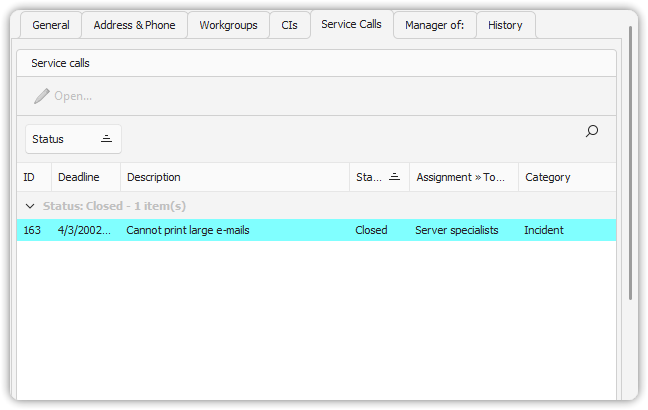
Example: Service Call ↔︎ Person
- In the Service Call: found as a Lookup field (e.g.,
Caller)

- In the Person item: shown as a list of related Service Calls
Creating Relations
- New Item: Click
Addin the relations list to open a form for the new item.
- Existing Item: Click
Add Relation, use Advanced Find, then select an item.
Managing Relations
- Edit: Select the related item, then click
Edit - Remove: Select the item and click
Remove Relation
Note: Some relations (e.g., Service Call–Caller) are immutable after creation due to ITIL constraints.
Many-To-Many Relations
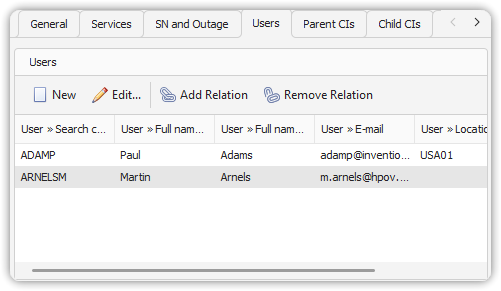
Shown as lists on both related items (e.g., CI ↔︎ Person).
Managing Many-to-Many
- Use Add or Add Relation to link items.
- Use Edit and Remove Relation as needed.
Generic Relations
Generic relations are custom, directional links between items, defined by the company to support specific processes.
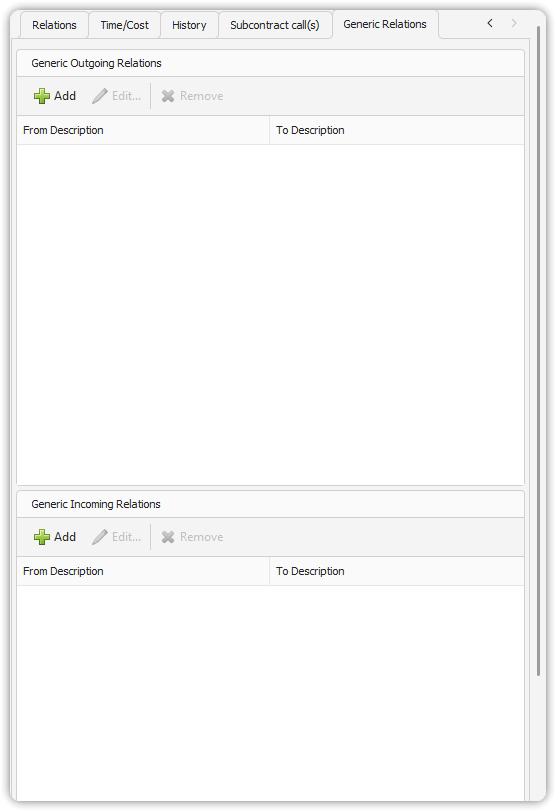
Relation Direction
- Incoming: From another item to the current item
- Outgoing: From the current item to another
Managing Generic Relations
- Locate the Generic Relations tab
- Choose the appropriate list: Incoming or Outgoing
To Add:
- Click
Addabove the list - Select relation Type and the related item
- Click Apply and Close
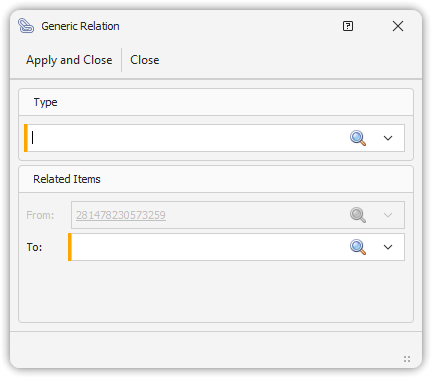
To Edit:
- Select the relation and click
Edit - Modify fields in the dialog
To Remove:
- Select the relation and click
Remove
The dialog will pre-select the current item and only allow valid relation types based on configuration.
For more details: