Conditionally Hide Bands
This tutorial explains how to conditionally hide bands in a report using formatting rules.
We’ll demonstrate this feature using a grouped report.
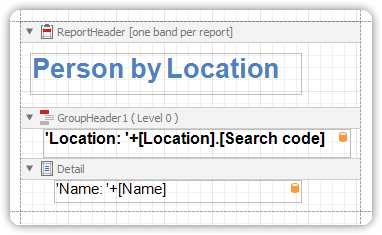
Steps to Conditionally Hide Bands
1. Access Formatting Rules for the Group Header
- Select the Group Header band.
- Click its Smart Tag.
- In the invoked actions list, click the ellipsis (
...) button next to Formatting Rules.
2. Create a New Formatting Rule
- In the Formatting Rules Editor, click Edit Rule Sheet….
- In the Rule Sheet Editor, click the Add (+) button to create a new rule.
- Set the rule’s Visible property to No.
- Click the ellipsis next to the Condition property.
3. Define the Condition
- Enter a logical expression that determines when the band should be hidden.
Example:
[CategoryID] < 2 - Click OK, then Close the Rule Sheet Editor.
4. Apply the Rule
- Back in the Formatting Rules Editor, move the rule to the Applied Rules list to activate it.
- Repeat this process for the Detail Band:
- Click the ellipsis for its Formatting Rules property.
- Apply the same rule to this band.
Preview the Result
Switch to the Preview Tab to view the output.
In this example, all groups with CategoryID < 2 are hidden, confirming that the conditional visibility logic is functioning correctly.