Database Migration Wizard
Important
Before you run this wizard, it is highly recommended to create a backup of your database.
Also, make sure you have the following information ready:
- The vendor and version of your database
- The database connection string for an account with DDL privileges
Running the Wizard
Start the wizard by clicking on the Windows™ Start button and navigating to:
PROLIN Inc → Power Server → DB Migration Wizard
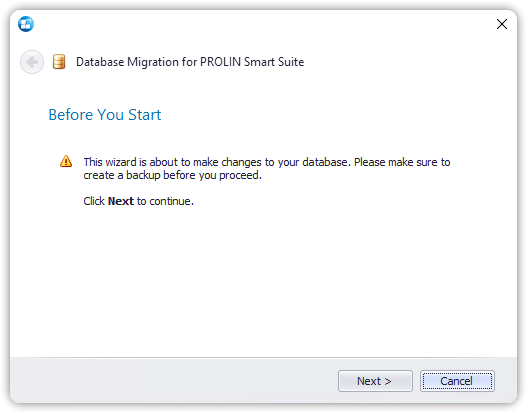
NOTE
If you want to return to a previous page, you can use the Back button (the arrow pointing left in the upper-left corner of the dialog).
Click Next to proceed to the next page and select your database type.
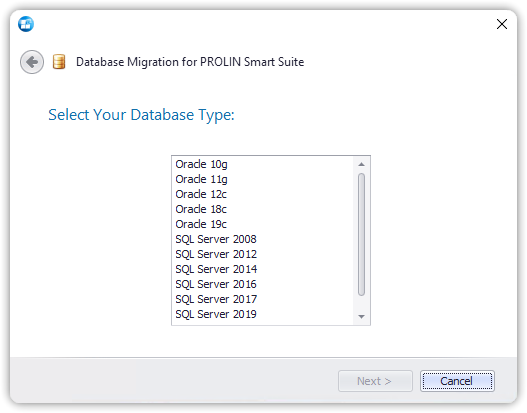
Select Database Type
After you have made your selection, click Next to proceed to the Database Connection page.
Depending on your database type, this page will differ as described below.
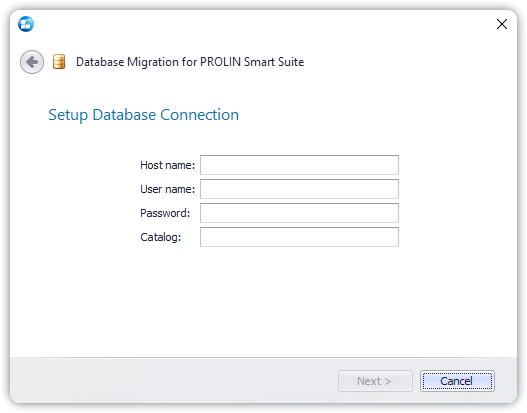
Database Connection for SQL Server
If you have a Microsoft SQL Server database, you typically only need to enter a single database connection string.
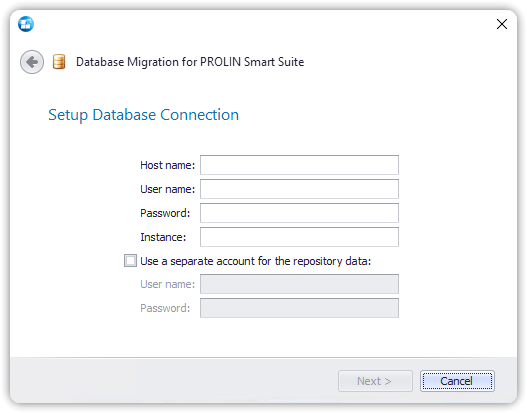
Database Connection for Oracle
If you have an Oracle database, your data might be split under two separate data stores:
- One containing the application data (Default data store)
- The other containing the repository data (Repository data store)
In this case, check the “Use a separate account for the repository data” option and enter the required fields to access both data stores.
If you have a single data store, leave the checkbox unchecked.
After filling in the connection information, click Next.
The wizard will attempt to connect to your database.
(If you are using Oracle with two separate data stores, both connections will be checked.)
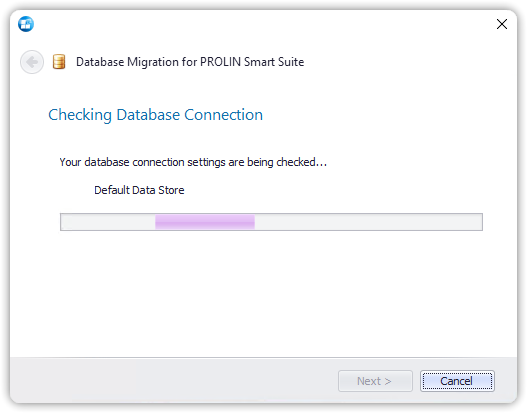
Checking Database Connection
If an error occurs, you will see an error page (note: the exact message may vary).
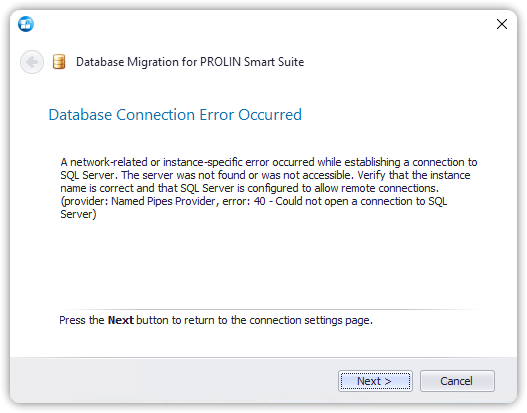
If this happens, click Next to return to the connection settings page.
When a successful connection has been established, the wizard will proceed.
Start Migration Process
Click Next to begin the actual migration process.
The wizard will display a progress page while the migration is running.
Migration Completed
When the migration is complete, the wizard will display a completion page.
You can:
- Verify whether any errors occurred
- Press the Migration Report button for detailed information
- Press Finish to close the wizard