EML attachment processing
installation and configuration
version: 2024.10.6
date: February 2025
Introduction
With the release of Power Server 2020 the inbound email processing changed.
An important change was decoupling email reception and email processing.
Deferred processing allows receiving larger peak volumes, archiving, better diagnostics and replay.
Another important change was that the complete inbound email message was attached to the servicecall as an EML attachment, as well as attaching the EML file to the associated email servicecall when the instance is configured to record email.
This would allow the user to open the EML file using a local email client and see the email as it was intended by the sender.
It was left to the user to extract any attachments and add these to the pertaining service call.
Extracting attachments from the EML file and adding these to the service call can be done manually, but with the new IEAP server in combination with the DUEW server, it is now possible to process EML attachments automatically, with various configuration settings and directives to fine-tune the processing.
The DUEW server
The Data Update External Web (DUEW) server or duewserver is a microservice that is designed to receive a payload from Data Update External actions and optionally respond with a payload in a specific format determined in the action.
Data Update External actions are a standard feature in Smart Suite client-side and server-side rules.
The route used in the action determines how the payload is processed.
At present there are three main routes:
- /due/queue_name
- /validate/format
- /check_duplicate_text/field_name
For EML processing we use the /due/eml_attachment_processing route.
The payload is stored as a JSON document in a file with a unique id in the name, in the eml_attachment_processing output folder.
The unique id is returned as a response, and the action stores the value in the designated custom field.
The unique id can be used for diagnostics, and because it is subject to frequent change a candidate for auditing.
The file containing the JSON document is picked up by the IEAP server for further processing.
The IEAP server
The Inbound EML Attachment Processing (IEAP) server or ieapserver is a microservice that monitors the eml_attachment_processing queue folder in real-time or at regular intervals.
Configured correctly it picks up the files deposited by the DUEW server, reads the payload, extracts directives, metadata and determines the unique servicecall identifier. With the unique identifier it queries the Smart Suite RESTAPI to retrieve service call and attachment details, and filters out the EML attachments.
To prevent duplicates it verifies that the unique internal EML attachment filename has not been processed before.
Based on configuration and directives the server will extract content and/or attachment(s) from the EML file, and upload these as attachments to the service call.
Because incoming email service calls are read-only, they cannot be used to upload attachments to.
Smart Suite Application Requirements
Smart Suite RESTAPI
The Smart Suite Power Server RESTAPI service needs to be enabled.
This can be done in the Power Server Management Console, on the Services page for the REST API.
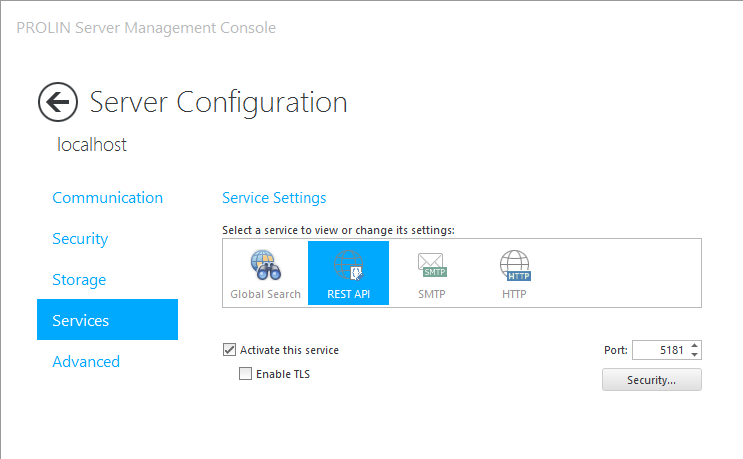
If the service was not enabled, you will need to restart the server.
Note
You need to decide to leave Enable TLS disabled, or to enable the feature.
You will need a valid X509 certificate bound to the RESTAPI port (default 5181) for this to work.
There is a separate document available at PROLIN support explaining the setup with a self-signed certificate.
Application Role and User account
When using a service application that interacts with Smart Suite, it is recommended to create a role with only the privileges required for the task and to assign the role to a specific user account that is only used for the integration.
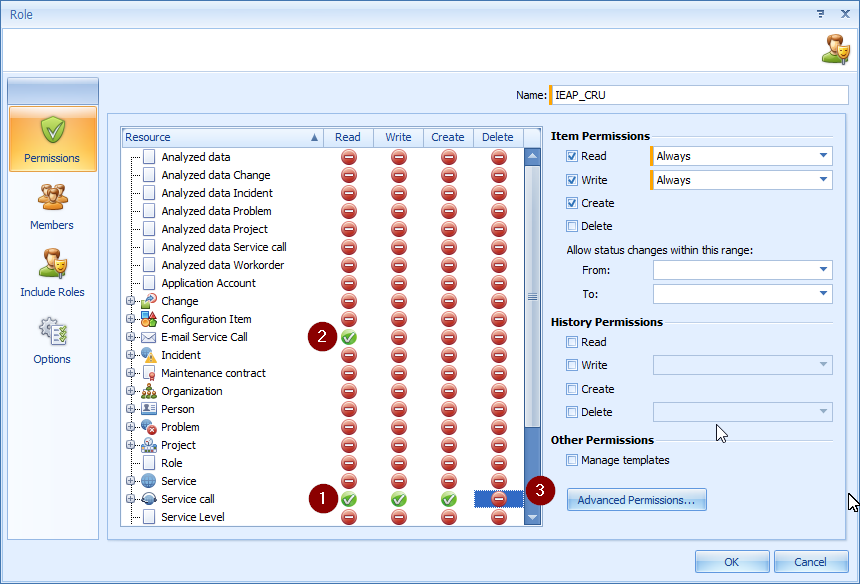
- You need to set Read, Write and Create item permissions on the resource Service call.
- You need to set Read item permission on resource E-mail Service call.
- You do not Delete privileges, unless - see Note below.
Note
You need to enable the Delete item permission on the Servicecall resource if you want to be able to discard EML attachments. This will be fixed in a future Power Server 12.2 LTS upgrade release.
A valid application account is required for the IEAP server to be able to use the RESTAPI, and the role we created earlier needs to be assigned to the account.
A separate account is required if we want to be able to process updates via inbound email,
as we need to use the account name in rule condition(s).
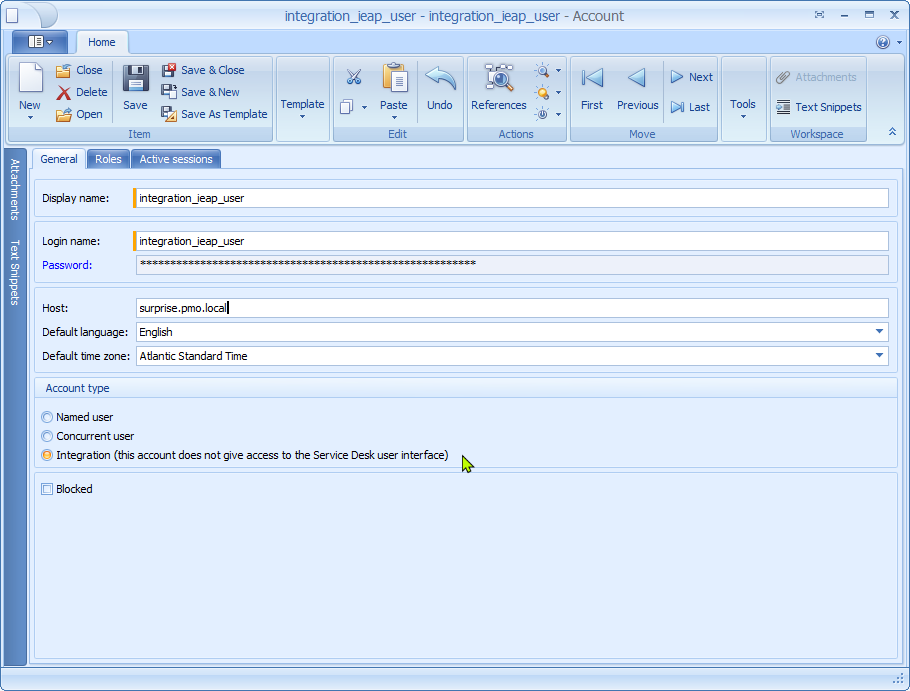
Tip
When using a separate integration user account for an integration, an entry will show up in the connections overview in the Power Server Management Console - Monitor / Connections page as well as the Active Sessions overview, when the integration has opened a session, and not yet closed it after finishing processing.
Tip
If you have separate accounts per integration, it is easy to specify rule or filter conditions.
Tip
Using a separate Integration user account instead of a Named or Concurrent user account leaves licensed seats available for actual users.
Please store the credentials in a password safe. You need the account name when configuring rule conditions, and the credentials when configuring the IEAP server.
Additional Custom Fields.
Because we want to be able to refer to the custom fields by name, it is required to create new custom fields for use by the DUEW server as well as the IEAP server.
You cannot use an existing standard or additional custom field at the moment. Our convention is to use the entity name as a suffix, so programs using custom fields can apply the same logic to other entities.
Important
Please create the additional custom fields with the correct type and required name.
If you try to change the name afterwards, it will diverge from the internal attribute name that the RESTAPI uses.
This might lead to errors and confusion.
Notify support if you need help with the repair.
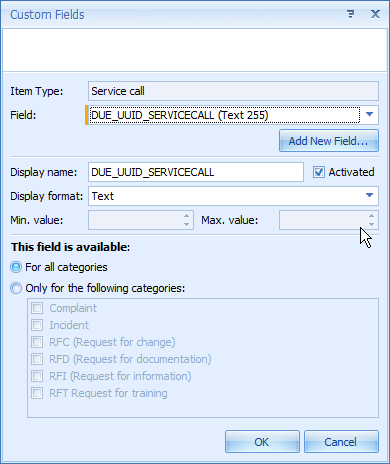
servicecall custom field DUE_UUID_SERVICECALL
The DUEW server generates a unique id that is used to create a file with a unique name to store the payload. To enable diagnostics and tracking the unique id is sent back as a response and should be stored in a custom field.
The convention is to use DUE_UUID_SERVICECALL as the field name for the custom text field and recommended length is 255 characters.
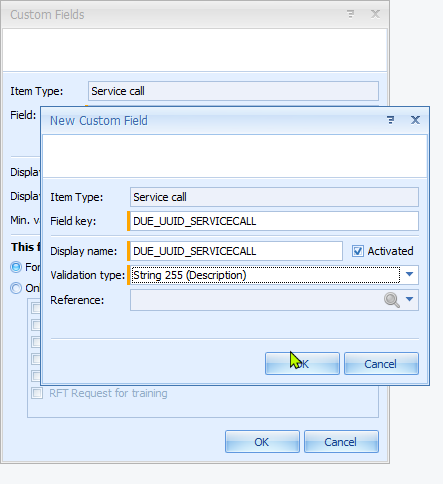
Activate the field and make it available for all categories.
Tip
It is also recommended to audit this field as the content might change frequently, and without an audit trail you would (partly) lose the ability to diagnose issues.
servicecall custom field IEAP_FILELIST_SERVICECALL
When an EML attachment is processed, the unique filename attribute of the EML attachment is added to this field.
The field type is Text and length is 4000 characters.
This should allow for quite a few EML attachments per servicecall.

The field is used to record the file names of the EML attachments that have been processed, and allows the IEAP server to determine if the EML attachment needs to be processed or should be skipped.
servicecall custom field IEAP_UPLOAD_REGISTRY_SERVICECALL
The field is used to record details of the last EML attachment processed when the configuration setting IEAP_REGISTER_UPLOADS is set to True. Current format contains EML attachment name, associated email service call ID (if available), EML attachment filename and a list of attachments added to the servicecall. The field is overwritten to prevent running out of space, but can be audited to retain processing information.
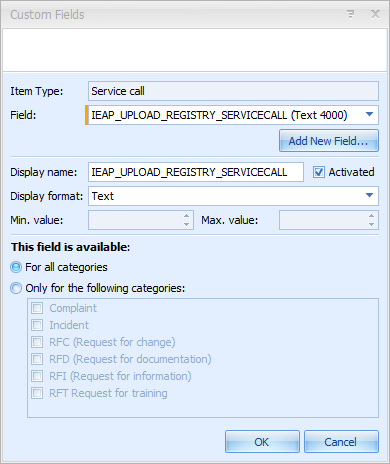
Note Displaying the field on a form is not required, but it might help the user determine the origin of the attachments.
Important
You can configure the first part of the name of both custom fields in the configuration file. The ieapserver uses the configured name and adds the entity name it finds in the payload in uppercase programmatically. Without the custom fields enabled, the IEAP server will not run successfully.
servicecall custom field DUE_TRIGGER_SERVICECALL
This field is only required if you decide to create the due_eml_attachment_processing_client rule.
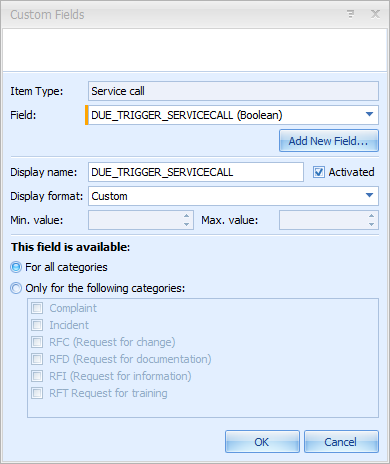
The field type is boolean, with display format Custom.
Server-side Rule Scenarios
For setting up the server-side rules, we can choose between different scenarios.
Scenario 1
Choose this scenario when you are only interested in new service calls created by inbound email.
You have one rule with Apply this rule set to When a service call is created.
Scenario 2
Choose this scenario if you allow email to create new service calls as well as update existing servers calls, and want to have specific conditions for each rule. You have one rule with Apply this rule set to When a service call is created, similar to the one in scenario 1,
and another rule with Apply this rule set to When a service call is modified.
Scenario 3
This is scenario 2 but with fewer options to specify conditions. You have one rule with Apply this rule set to both When a service call is created and When a service call is modified.
Example Rules
In the above scenarios we alluded to rules. Below are working examples that can be refined. The rule name and action name will show up in the DUE payload.
The IEAP server displays these details in the log, but does not use the rule name or action name in any logic.
Note
Enabling the rules before installing and configuring the DUEW server is harmless, but will result in error messages in the Power Server log file. These can be ignored for now.
server-side rule due_email_attachment_processing_create
You can use this example in scenario 1 as well as in scenario 2.
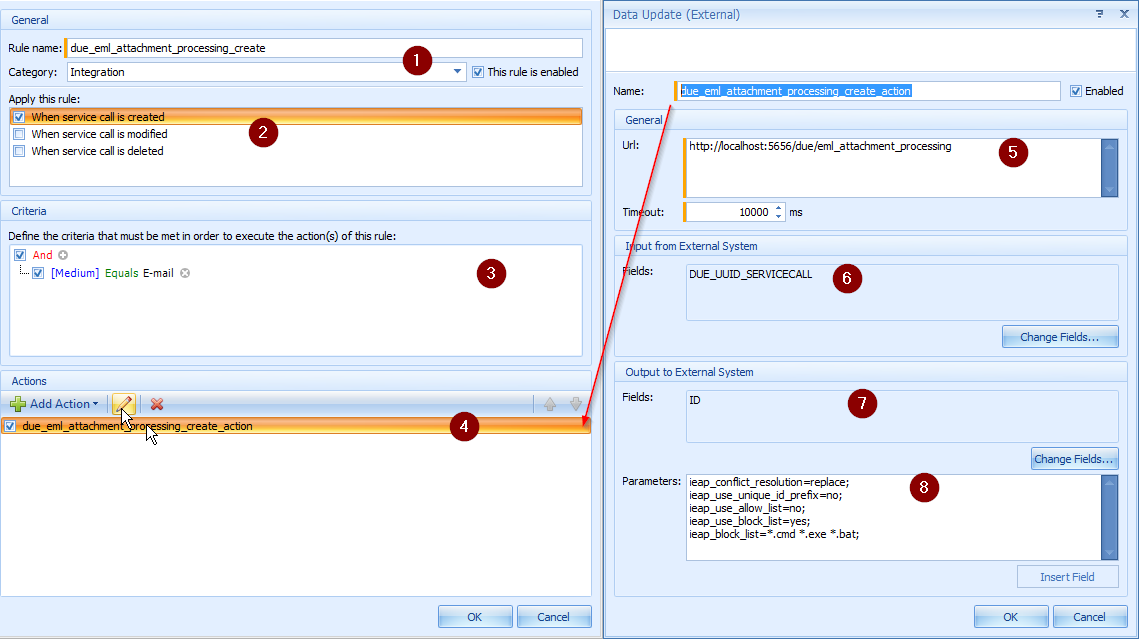
- The rule name. This will be included in the DUE payload.
- Set Apply this rule to When a service call is created.
- The following condition for example. The Medium field is set in the template.

- Use Add Action and select Data Update (External) and name the action.
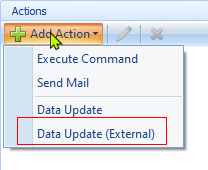
- in the General section define the URL depending on the DUEW server configuration.
Tip
You can leave the action disabled and return after installing and configuring the DUEW server.
- It is important to specify exactly one field, as the DUEW server expects exactly one field.
- optionally add the ID field to the payload. It is not needed, because the IEAP server currently uses the unique internal id that is always part of the payload.
- optionally add directives in the parameters field when you want to adjust settings per rule. The Directives section contains more information.
Note
The default configuration should fit most instances, and directives are usually not needed.
server-side rule due_email_attachment_processing_update
This is the second rule for scenario 2 and optional because not every organization uses email to update service calls.
You need to create a server-side rule with Apply this rule set to When a service call is modified.
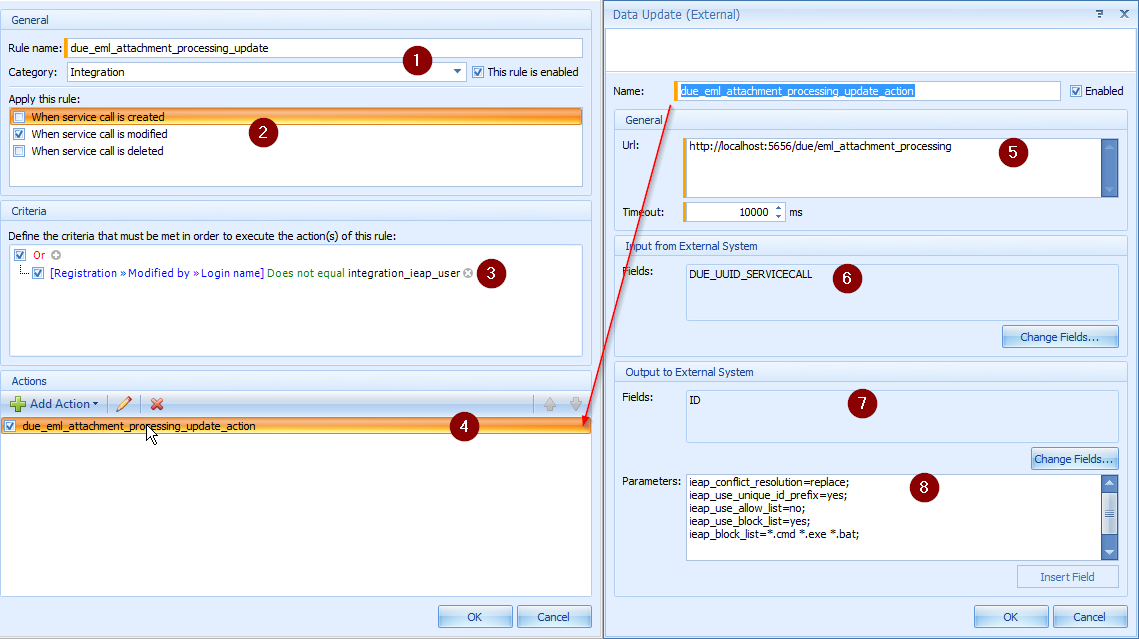
The remaining setup is similar to rule described earlier, albeit
- use a different descriptive rule name at #1.
- use a different descriptive action name at #4.
- use the following condition, the value depends on the user account you have created earlier.
- use additional conditions if applicable.

Important
Because we cannot distinguish the origin of the modification, e.g. whether that is the user interface, another rule, an inbound email or another integration, we need to have a condition in place to prevent execution when the interface itself is causing the modification to the service call it processes.
If not, both the update by the DUE response and updates through RESTAPI calls by the ieapserver, will trigger the rule action multiple times. Using a separate application account for the integration and using the account name in the condition solves this issue.
server-side rule due_email_attachment_processing
An example rule for scenario 3.
Important
This rule should not be enabled when the rules for scenario 1 and/or scenario 2 are enabled.
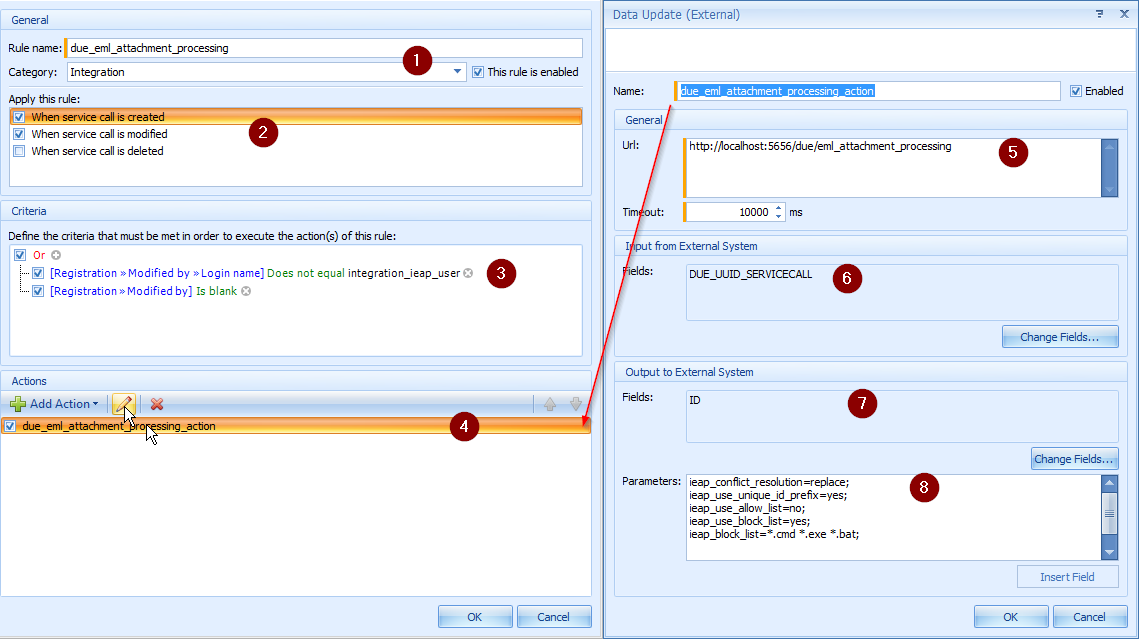
Similar to the earlier rules, but with a different names at #1 and #4.
Because the rule is used for create as well as update, we need to specify the following conditions to catch both, while preventing repeated calls.


Client-side Rule
As mentioned earlier, the Data Update (External) action is also available in client-side rules.
Using a client-side rule simplifies testing the Data Update (External) action by itself.
If you have all pertaining fields on the form page, you see the DUE_UUID_SERVICECALL field change. Without the IEAP server running, you can observe the queue folder and verify a file is created using the DUE_UUID_SERVICECALL value in the file name.
Each time you trigger the rule, the DUE_UUID_SERVICECALL field is updated.
You need to press Save to store the new value in the database.
Important
When the IEAP server is running, triggering the client-side rule will likely result in changes to the IEAP custom fields and upload of attachments.
Changes to the service call are done in the background in separate transactions, while the transaction in the client is still open.
You will not see those changes or attachments appear in the attachments panel until you do a Refresh, and you will be prompted to Save, Discard or Cancel because the item was changed. You might see a Merge Dialog pop up.
Taking the above into account, a client-side rule can be used to very selectively apply the EML attachment processing to specific service calls.
client-side rule due_email_attachment_processing_client
The client-side rule is of course optional, but requires the DUE_TRIGGER_SERVICECALL field, and a form that contains this field. and two actions, one to send payload to the DUEW server,

and the second one resetting the trigger field.

The rule has the following condition in place, so when you click on the pertaining field, the client-side rule is applied.

optional form page for diagnostics
To see the content of the custom fields one could create a separate page or a separate form.

Installation
The duewserver and ieapserver are distributed in one or more ZIP files and the default location to unzip into is the C:\Program Files\PROLIN\Integration Server folder. It would look like this.
C:\Program Files\PROLIN\Integration Server\
  |____duewserver\
  |       |____lib\
  |       |      |____*
  |       |____wsw\
  |       |      |____duewserver-service.exe
  |       |      |____duewserver-service.exe.config
  |       |      |____duewserver-service.xml
  |       |____duewserver.exe
  |       |____duewserver.patterns.yaml.dist
  |       |____duewserver.py.config.dist
  |       |____frozen_application_license.txt
  |       |____python3.dll
  |       |____python312.dll
  |____ieapserver\
  |       |____lib\
  |       |      |____*
  |       |____wsw\
  |       |      |____ieapserver-service.exe
  |       |      |____ieapserver-service.exe.config
  |       |      |____ieapserver-service.xml
  |       |____frozen_application_license.txt
  |       |____ieapserver.exe
  |       |____ieapserver.py.config.dist
  |       |____python3.dll
  |       |____python312.dll
Important
If you decide to place the IEAP server or DUEW server software in a different location,
you will need to change the servername-service.xml file in the wsw folder for each affected server.
This can be done after all configuration steps are completed.
Details can be found in the Run as a service section.
Setup steps DUEW server
We start with the DUEW server as this would normally be the first server to install. The setup steps are basically the same for each service or tool in the SISpy family.
The DUEW server installation and configuration is described in the Data Update External Web (DUEW) server document.
Setup steps IEAP server
Open (another) elevated command line and navigate to the server directory.
cd "\Program Files\PROLIN\Integration Server\ieapserver"Verify the version.
ieapserver --versionPROLIN Smart Integration Server - ieapserver
(build - 2024.10.5)
(C)2024+ PROLINTo see usage and options, use the --help parameter.
ieapserver --helpusage: ieapserver [-h] [--create-directories] [--version] [--configfile CONFIGFILE] [--logfile LOGFILE]
[--loglevel LOGLEVEL] [--logstyle LOGSTYLE] [--print-named-configs] [--print-configdb-content]
[--manage-config] [--named-config NAMED_CONFIG]
PROLIN Smart Integration Server - ieapserver
options:
-h, --help show this help message and exit
--create-directories create directories if needed
--version print version info and exit
--configfile CONFIGFILE
use (alternate) configuration file
--logfile LOGFILE set log file name
--loglevel LOGLEVEL set loglevel [DEBUG, INFO, WARNING, ERROR, CRITICAL]
--logstyle LOGSTYLE set logstyle [FILE, STREAM, TIMEROTATING, SIZEROTATING]
--print-named-configs
print named configs (stored in local config database)
--print-configdb-content
print content of local config database
--manage-config create/update named config and store in local database
--named-config NAMED_CONFIG
use named config (stored in local database)Run the program with --logstyle stream added to the command line, and see what the default configuration requires.
ieapserver --logstyle streamconfig file "C:\Program Files\PROLIN\Integration Server\ieapserver\ieapserver.py.config" does not exist
expected directory "F:\temp\SISpy\adm\ieapserver\config" does not exist
expected directory "F:\temp\SISpy\work\due_queue\eml_attachment_processing" does not exist
expected directory "F:\temp\SISpy\work\due_archive" does not exist
expected directory "F:\temp\SISpy\work\ieap_inbound" does not exist
expected directory "F:\temp\SISpy\work\ieap_outbound" does not exist
An error occurred.
Expected directories do not exist, please check settings
usage: ieapserver [-h] [--create-directories] [--version] [--configfile CONFIGFILE] [--logfile LOGFILE]
[--loglevel LOGLEVEL] [--logstyle LOGSTYLE] [--print-named-configs] [--print-configdb-content]
[--manage-config] [--named-config NAMED_CONFIG]
C:\Program Files\PROLIN\Integration Server\ieapserver>You will notice that the IEAP server requires a specific set of folders, hence the error messages.
It is highly unlikely that these folders exist in the default location when this is a greenfield installation. You will need to verify that the folders - all starting with drive F: - are acceptable.
If not, adjust the setting for these folders in the configuration file, and uncomment the line by removing the # at the beginning.
It is recommended to select a location outside the Program Files folder.
Important
Please note that the IEAP queue folder (IEAP_QUEUE_FOLDER) needs to be the same as the DUEW server output folder (DUE_OUT_QUEUE) concatenated with the last part of the URL in the Data Update (External) action.
You then need to run the program again, this time with the --create-directories parameter to instruct the program to create the folders it needs. Once the folders are created successfully the server will prompt for additional values for the default config. These settings are stored in a configuration database and any account credentials are stored encrypted.
ieapserver --logstyle stream --create-directoriescreated F:\temp\SISpy\adm\ieapserver\config
created F:\temp\SISpy\work\due_queue\eml_attachment_processing
created F:\temp\SISpy\work\due_archive
created F:\temp\SISpy\work\ieap_inbound
created F:\temp\SISpy\work\ieap_outbound
2024-05-06 16:22:38,303 WARNING shared.appconfig.database.get_program: schema has no programs table - programs
2024-05-06 16:22:38,303 INFO shared.appconfig.manage.create_config_database: started
2024-05-06 16:22:38,303 WARNING shared.appconfig.database.get_program: schema has no programs table - programs
2024-05-06 16:22:38,319 INFO shared.appconfig.database.create_database: schema created
2024-05-06 16:22:38,334 INFO shared.appconfig.database.get_program: no program found
2024-05-06 16:22:38,396 INFO shared.appconfig.manage.create_config_database: finished
Configuration Steps - section: Smart Suite RESTAPIThe directories and configuration database are created, and configuration dialog starts.
Power Server REST API Protocol ('http', 'https') [http]:The protocol, either http or https, depending on the configuration in Power Server Management Console. When in doubt, go to the Power Server Management Console - Monitor and select the Services page. It will show the protocol and server hostname under the OData service endpoint.
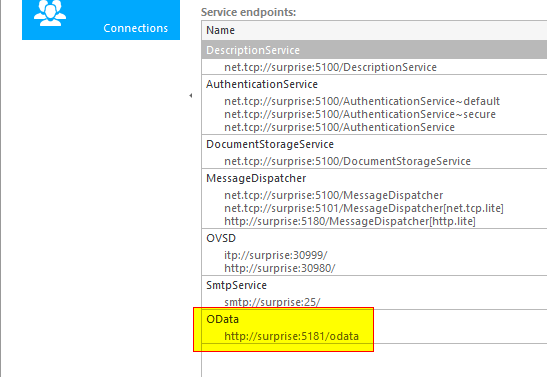
You need to use the hostname and port number as shown. You do not need to specify a port number if you accept the default with
Power Server REST API Host Name []: surprise
Power Server REST API Port [5181]:
You then need the credentials for the application account created earlier, e.g. integration_ieap_user. The password is not shown, and needs to be entered a second time for confirmation.
REST API Username [restapiusername]: integration_ieap_user
REST API Password:
Repeat please:
Configuration "default" saved. Please restart
If you need to change the password for the integration user, you need to re-run the configuration. Assuming the default configuration, use the --manage-config parameter and complete the dialog.
ieapserver --logstyle stream --manage-configConfiguration Steps - section: Smart Suite RESTAPI
Power Server REST API Protocol ('http', 'https') [http]:
Power Server REST API Host Name []: surprise
Power Server REST API Port [5181]:
REST API Username [restapiusername]: integration_ieap_user
REST API Password:
Repeat please:
Configuration "default" saved. Please restartRunning the program to verify the DUEW server and IEAP server setup. As with the DUEW server, you can stop the server running in the console with
ieapserver --logstyle stream2024-05-06 16:56:33,870 INFO ieap.server.serve: starting
2024-05-06 16:56:33,870 INFO ieap.processing.from_work_folder: no files found in F:\temp\SISpy\work\ieap_inbound
2024-05-06 16:56:33,870 INFO ieap.server.watch_queue_folder: shift ends around 2024-05-06T23:59:59.870966-03:00
2024-05-06 16:56:33,886 INFO ieap.server.watch_queue_folder: iteration 1 of 1 watching F:\temp\SISpy\work\due_queue\eml_attachment_processingWith both servers running, and the pertaining rules activated, you can now send a test email, and see the results. If you see the following events in the Power Server Management Console, it means that the Data Update (External) action cannot connect to the DUEW server. E.g. either the URL is incorrect, or the DUEW server is not running.

DUEW server and IEAP server log output
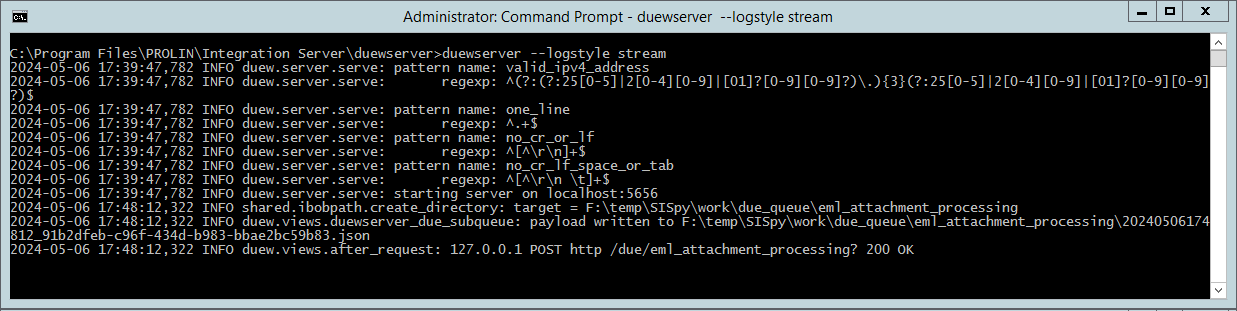
When correct the elevated command lines should show output for the duewserver.
and a bit more for the ieapserver.
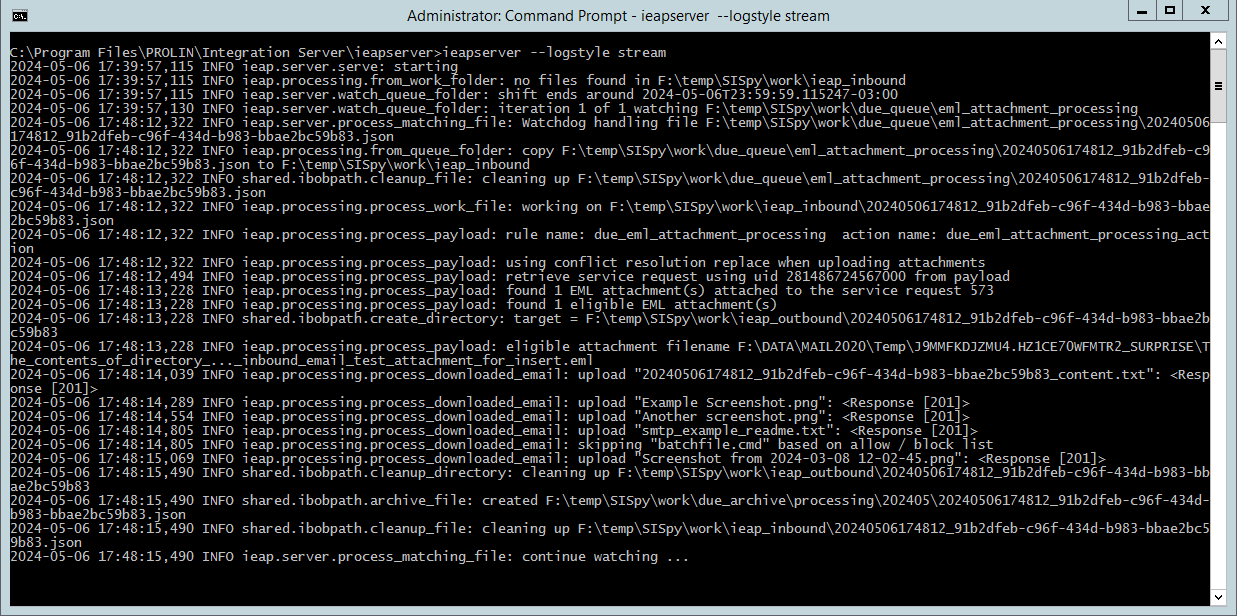
Detailed explanation of the log content can be found in Appendix A.
Considering there were no errors, we can now stop both servers and configure each to run as a service.
Configuration settings and directives for the ieap server are explained in Appendix B.
Run as a service
Installing a Windows service involves a few simple steps that are the same for each server. Each server has a wsw folder that contains three files:
- an EXE file to manage the service.
- an XML file that tells the service the program to start, and any command line parameters.
- a CONFIG file that is not really used at the moment.
Important
When you selected a different base location than the default C:\Program Files\PROLIN\Integration Server folder, you need to edit the XML file and change the value between<executable>and</executable>to point to the correct file.
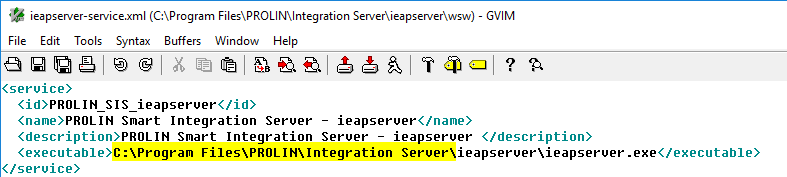
duewserver windows service installation
Open an elevated command line, and navigate the wsw folder in the duewserver folder.
cd C:\Program Files\PROLIN\Integration Server\duewserver\wswTo install the service.
duewserver-service.exe install2024-05-07 15:20:09,465 INFO - Installing service 'PROLIN Smart Integration Server - duewserver (PROLIN_SIS_duewserver)'...
2024-05-07 15:20:09,515 INFO - Service 'PROLIN Smart Integration Server - duewserver (PROLIN_SIS_duewserver)' was installed successfully.To start the service.
duewserver-service.exe start2024-05-07 15:20:16,186 INFO - Starting service 'PROLIN Smart Integration Server - duewserver (PROLIN_SIS_duewserver)'...
2024-05-07 15:20:16,590 INFO - Service 'PROLIN Smart Integration Server - duewserver (PROLIN_SIS_duewserver)' started successfully.The above commands write to the duewserver-service.wrapper.log file. The duewserver-service.out.log captures standard output and should remain empty if you are using a log file.
The duewserver-service.err.log captures standard error, and will be written to if the service crashes.
To check if the service is running
duewserver-service.exe statusStartedYou should now also be able to manage the service in the Windows Service Panel.
ieapserver windows service installation
Open an elevated command line, and navigate the wsw folder in the ieapserver folder.
cd C:\Program Files\PROLIN\Integration Server\ieapserver\wswTo install the service.
ieapserver-service.exe install2024-05-07 15:35:21,240 INFO - Installing service 'PROLIN Smart Integration Server - ieapserver (PROLIN_SIS_ieapserver)'...
2024-05-07 15:35:21,258 INFO - Service 'PROLIN Smart Integration Server - ieapserver (PROLIN_SIS_ieapserver)' was installed successfully.ieapserver-service.exe start2024-05-07 15:35:26,216 INFO - Starting service 'PROLIN Smart Integration Server - ieapserver (PROLIN_SIS_ieapserver)'...
2024-05-07 15:35:26,630 INFO - Service 'PROLIN Smart Integration Server - ieapserver (PROLIN_SIS_ieapserver)' started successfully.The above commands write to the duewserver-service.wrapper.log file. The ieapserver-service.out.log captures standard output and should remain empty if you are using a log file.
The ieapserver-service.err.log captures standard error, and will be written to if the service crashes.
To check if the service is running
ieapserver-service.exe statusStartedYou should now also be able to manage the service in the Windows Service Panel.
Appendices
Appendix A - runtime server log output explained
The default setting for logstyle is TIMEROTATING, and will cycle the log file at midnight. It will keep the dated log files for a maximum of 10 days. This should not be too much of a strain on resources. The log lines contain a timestamp, a loglevel e.g. INFO, WARNING or ERROR, a function name and a message
duewserver log output
With loglevel set at INFO, a group of lines will appear every time the DUEW server receives a payload from the Data Update External action.
2024-05-06 17:48:12,322 INFO shared.ibobpath.create_directory: target = F:\temp\SISpy\work\due_queue\eml_attachment_processing
2024-05-06 17:48:12,322 INFO duew.views.duewserver_due_subqueue: payload written to F:\temp\SISpy\work\due_queue\eml_attachment_processing\20240506174
812_91b2dfeb-c96f-434d-b983-bbae2bc59b83.json
2024-05-06 17:48:12,322 INFO duew.views.after_request: 127.0.0.1 POST http /due/eml_attachment_processing? 200 OKIt tells you the folder where the payload will be written to, the actual file name with the unique id, and if the request to the DUEW server was handled successfully.
The custom field DUE_UUID_SERVICECALL value should show the same unique id 20240506174812_91b2dfeb-c96f-434d-b983-bbae2bc59b83 as used in the filename.
ieapserver log output
With the loglevel set to INFO, you will see the following output, when using the default settings.
2024-05-06 16:56:33,870 INFO ieap.server.serve: starting
2024-05-06 16:56:33,870 INFO ieap.processing.from_work_folder: no files found in F:\temp\SISpy\work\ieap_inbound
2024-05-06 16:56:33,870 INFO ieap.server.watch_queue_folder: shift ends around 2024-05-06T23:59:59.870966-03:00
2024-05-06 16:56:33,886 INFO ieap.server.watch_queue_folder: iteration 1 of 1 watching F:\temp\SISpy\work\due_queue\eml_attachment_processingWhen the server starts it will check if there are files in the work folder that still need to be processed, and process these. It will then calculate the time it should reset itself and starts watching the folder for incoming files.
2024-05-06 17:48:12,322 INFO ieap.server.process_matching_file: Watchdog handling file F:\temp\SISpy\work\due_queue\eml_attachment_processing\20240506
174812_91b2dfeb-c96f-434d-b983-bbae2bc59b83.json
2024-05-06 17:48:12,322 INFO ieap.processing.from_queue_folder: copy F:\temp\SISpy\work\due_queue\eml_attachment_processing\20240506174812_91b2dfeb-c9
6f-434d-b983-bbae2bc59b83.json to F:\temp\SISpy\work\ieap_inbound
2024-05-06 17:48:12,322 INFO shared.ibobpath.cleanup_file: cleaning up F:\temp\SISpy\work\due_queue\eml_attachment_processing\20240506174812_91b2dfeb-
c96f-434d-b983-bbae2bc59b83.json
When a file has arrived in the queue folder, the server copies the file to the work folder for further processing and cleans up after itself.
2024-05-06 17:48:12,322 INFO ieap.processing.process_work_file: working on F:\temp\SISpy\work\ieap_inbound\20240506174812_91b2dfeb-c96f-434d-b983-bbae
2bc59b83.json
2024-05-06 17:48:12,322 INFO ieap.processing.process_payload: rule name: due_eml_attachment_processing  action name: due_eml_attachment_processing_act
ion
2024-05-06 17:48:12,322 INFO ieap.processing.process_payload: using conflict resolution replace when uploading attachments
2024-05-06 17:48:12,494 INFO ieap.processing.process_payload: retrieve service request using uid 281486724567000 from payload
The payload file is read, and the server displays some of the highlights, i.e. the rule and action names, and important directive when handling uploading attachments, and the unique id or primary key of the service call. This is the value you see when you query for the SER_OID field in the ITSM_SERVICECALLS table.
2024-05-06 17:48:13,228 INFO ieap.processing.process_payload: found 1 EML attachment(s) attached to the service request 573
2024-05-06 17:48:13,228 INFO ieap.processing.process_payload: found 1 eligible EML attachment(s)
2024-05-06 17:48:13,228 INFO shared.ibobpath.create_directory: target = F:\temp\SISpy\work\ieap_outbound\20240506174812_91b2dfeb-c96f-434d-b983-bbae2b
c59b83
2024-05-06 17:48:13,228 INFO ieap.processing.process_payload: eligible attachment filename F:\DATA\MAIL2020\Temp\J9MMFKDJZMU4.HZ1CE70WFMTR2_SURPRISE\T
he_contents_of_directory_..._inbound_email_test_attachment_for_insert.eml
The server then sends a query to the RESTAPI to get a list of attachments, and verifies if the attachment has not been processed before. The Power Server will create a unique filename for each incoming email, and attaches the file as the EML attachment. Each eligible attachment will be processed.
2024-05-06 17:48:14,039 INFO ieap.processing.process_downloaded_email: upload "20240506174812_91b2dfeb-c96f-434d-b983-bbae2bc59b83_content.txt": <Resp
onse [201]>
2024-05-06 17:48:14,289 INFO ieap.processing.process_downloaded_email: upload "Example Screenshot.png": <Response [201]>
2024-05-06 17:48:14,554 INFO ieap.processing.process_downloaded_email: upload "Another screenshot.png": <Response [201]>
2024-05-06 17:48:14,805 INFO ieap.processing.process_downloaded_email: upload "smtp_example_readme.txt": <Response [201]>
2024-05-06 17:48:14,805 INFO ieap.processing.process_downloaded_email: skipping "batchfile.cmd" based on allow / block list
2024-05-06 17:48:15,069 INFO ieap.processing.process_downloaded_email: upload "Screenshot from 2024-03-08 12-02-45.png": <Response [201]>
The processing tries to extract attachments and HTML and TXT content into separate files. Note that this mimics legacy behaviour and is configurable.
When directed to use an allow list or a block list, the file names are checked against a pattern. If allowed, or not blocked, the server will upload the file to the service call as an attachment, using the conflict resolution setting.
In this example the attachment with name batchfile.cmd is skipped.
2024-05-06 17:48:15,490 INFO shared.ibobpath.cleanup_directory: cleaning up F:\temp\SISpy\work\ieap_outbound\20240506174812_91b2dfeb-c96f-434d-b983-bb
ae2bc59b83
2024-05-06 17:48:15,490 INFO shared.ibobpath.archive_file: created F:\temp\SISpy\work\due_archive\processing\202405\20240506174812_91b2dfeb-c96f-434d-
b983-bbae2bc59b83.json
2024-05-06 17:48:15,490 INFO shared.ibobpath.cleanup_file: cleaning up F:\temp\SISpy\work\ieap_inbound\20240506174812_91b2dfeb-c96f-434d-b983-bbae2bc5
9b83.json
2024-05-06 17:48:15,490 INFO ieap.server.process_matching_file: continue watching ...
It then cleans up, and continues watching the folder for new arrivals.
2024-05-06 23:59:59,132 INFO ieap.server.watch_queue_folder: Stopped observing F:\temp\SISpy\work\due_queue\eml_attachment_processing
2024-05-06 23:59:59,132 INFO ieap.server.serve: sleep for 60 seconds
2024-05-07 00:00:59,133 INFO ieap.processing.from_work_folder: no files found in F:\temp\SISpy\work\ieap_inbound
2024-05-07 00:00:59,133 INFO ieap.server.watch_queue_folder: shift ends around 2024-05-07T23:59:59.133375-03:00
2024-05-07 00:00:59,149 INFO ieap.server.watch_queue_folder: iteration 1 of 1 watching F:\temp\SISpy\work\due_queue\eml_attachment_processing
Once the shift is over, it resets, checks the work folder, and starts a new shift.
Appendix B - Configuration options
configuration files
Each server comes with a configuration file, that can be used to adjust the default configuration.
All settings and explanations are commented out. If you want to use a different value for a configuration setting, you need to remove the hashtag at the beginning of the line. After changing the configuration file, you need to restart the server or service for the change to take effect. You can create additional configuration files for other purposes.
duewserver --configfile my_other_config.configTip
You can also set the configuration parameters in the environment to override default values or values in the configuration file.
This is mainly used in containerized deployments, or to temporarily use a different value.
named configurations
Besides the “default” configuration to store connections and credentials, you can also have “named” configurations. To use a named configuration you simply add the parameter –named-config to the command line. If the pertaining configuration is new, or incomplete, the standard configuration dialog will be started.
ieapserver --named-config my-named-configConfiguration "my-named-config" not found or incomplete.
Create new configuration. (Y/n)?Once you have completed the dialog, you will be asked to restart. Use in combination with the --manage-config parameter to recreate the named configuration. Use the --print-named-configs parameter to show a list of configurations.
C:\Program Files\PROLIN\Integration Server\ieapserver>ieapserver --print-named-configsid name description default_config
-- ------- --------------------- --------------
1 default default configuration True
-- ------- --------------------- --------------configuration settings and directives
The configuration settings for the programs are documented in the configuration file. Apart from the standard configuration methods, for the IEAP server we also support directives, to allow more fine-grained control over the EML processing.
The default configuration value is shown as well as the directive name if applicable. The directive has the same name as the config setting, but is all lowercase.
The directives override any previously set configuration values on a per-invocation basis, i.e. when the rule action is executed, and should be set in the parameters section in the Smart Suite Rule action. A client-side rule for instance could have a different set of directives compared to a server-side rule. Changing a directive takes effect immediately.
Important
When in doubt, use the default values, or contact support for help.
IEAP_CUSTOM_FIELD_FILELIST
The first part of the name of the additional custom field that keeps a list of processed EML attachments to prevent duplicate processing. The program adds _SERVICECALL as a suffix.
default config: IEAP_FILELIST
acceptable values: any, provided the name including the _SERVICECALL suffix is a valid custom field name.
IEAP_CUSTOM_FIELD_UPLOAD_REGISTRY
The first part of the name of the additional custom field that keeps the details of the EML attachment processed most recently, with a list of names of added attachments, when the IEAP_REGISTER_UPLOADS is set to True. The program adds _SERVICECALL as a suffix.
default config: IEAP_UPLOAD_REGISTRY
acceptable values: any, provided the name including the _SERVICECALL suffix is a valid custom field name.
IEAP_DISCARD_EML
Determines if the EML attachments should be discarded after processing.
The program only allows removing the attachment from the service call, when the EML attachment is still available with the associated email service call, unless the IEAP_REMOVE_EML_ALLOWED_OVERRIDE is set to True.
default config: False
acceptable values: True, False
IEAP_REMOVE_EML_ALLOWED_OVERRIDE
Only used when IEAP_DISCARD_EML is set to True. Determines whether to continue removing the EML attachment, when there is no backup copy available with the associated email service call.
When your instance does not keep/create email service calls for inbound emails, you would not be able to remove EML attachments unless this is set to True.
default config: False
acceptable values: True, False
IEAP_REGISTER_UPLOADS
Governs whether to write EML attachment details and a list of attachments to a dedicated custom field.
 default config: True
 acceptable values: True, False
IEAP_USE_ORIGIN_PREFIX
When an inbound email arrives and the pertaining application server flag is enabled, an email service call is created in tandem with the service call. Both have the same EML attachment with an identical filename. When the setting is set to True, the server will look for the associated email service call that has and attachment with the same filename. The email service call ID value is used to construct a prefix that is used to label extracted attachments, so the user can deduce the origin of an attachment.
 default config: False
 acceptable values: True, False
Note
The collection editor view showing the email service calls, does not show the ID by default. Adjust the view at the system level to show the ID to simplify finding the origin of an attachment extracted from an inbound email.
IEAP_USE_ORIGIN_PREFIX_DELAY
Because the server creates the service call before it creates the email service call, the IEAP server needs to delay querying for the email service call to be able to find a result. The default value should be sufficient.
 default config: 2
 acceptable values: 0 to 10 (not verified)
IEAP_CONFLICT_RESOLUTION
Determines how to handle the upload of attachment with the same name as an already existing attachment, similar to handling duplicate name attachments in the client. When you try to upload an attachment with the same name, you are presented with three options in the User interface. You can either replace, rename or cancel.
When you try to upload an attachment programmatically you can specify a conflict resolution option.
If you have set it to None, encountering an attachment with the same name returns an error (HTTP 409).
If you have set it to Replace attachments with the same name are overwritten.
If you have set it to Rename the system will leave the existing attachment in place, and create a new attachment while adding a sequence number to the name.
Note
Users might have added and/or referred to attachments by name.
Replacing such attachments automatically amounts to data-loss if you do not audit attachments, and will surely lead to confusion when the pertaining attachment no longer has the expected content. When you audit Attachments, replacing or removing an attachment will create a history line with a copy of the pertaining attachment.
default config: replace
-
directive: ieap_conflict_resolution
default value: replace
acceptable values: replace, rename, none
When setting IEAP_USE_ORIGIN_PREFIX is set to True, attachment names are prefixed with the email service call number, which will likely make the name unique.
Important
Using conflict resolution none is emphatically discouraged.
The upload will fail and return an error code, that will show in the log like below
INFO ieap.processing.process_downloaded_email: upload "content.txt": <Response [409]>
INFO ieap.processing.process_downloaded_email: upload "content.html": <Response [409]>
The none setting is accepted as intended and the error is ignored, and attachments the user would expect updated will not be there.
IEAP_CREATE_CONTENT_HTML
Mimics legacy behaviour and tries to extract the HTML representation of a multipart mail message, and creates a content.html file to be uploaded. See also IEAP_CREATE_CONTENT_TXT and IEAP_USE_UNIQUE_ID_PREFIX.
default config: True
-
directive: ieap_create_content_html
default value: yes
acceptable values: yes, y, 1, true, no, n, 0, false
IEAP_CREATE_CONTENT_TXT
Mimics legacy behaviour and tries to extract the Text representation of a multipart mail message, and creates a content.txt file to be uploaded. See also IEAP_CREATE_CONTENT_HTML and IEAP_USE_UNIQUE_ID_PREFIX.
default config: True
-
directive: ieap_create_content_txt
default value: yes
acceptable values: yes, y, 1, true, no, n, 0, false
IEAP_DISCARD_EMBEDDED_EMAILS
Governs the handling of embedded email messages. When set to yes, these special type of attachments in the EML attachment are discarded. When set to no, these nameless attachments are stored with “embedded_message” in the attachment name, and a “.msg” extension. There is no further processing.
default config: False
-
directive: ieap_discard_embedded_emails
default value: no
acceptable values: yes, y, 1, true, no, n, 0, false
IEAP_PROCESS_NAMELESS_INLINE_IMAGES
Depending on the mail client that was used to create the email, an inline attachment might have a name in which case it is processed as a regular attachment.
If the inline attachment does not have a name, the server will try to come up with a valid filename based on the Content-ID, or when that is not possible, use “image” with a sequence number, and prefix depending on the IEAP_USE_UNIQUE_PREFIX setting.
The associated HTML representation of the email will not show the image, as it will not be possible to resolve the link, but will have a reference to the Content-ID.
default config: True
-
directive: ieap_process_nameless_inline_images
default value: yes
acceptable values: yes, y, 1, true, no, n, 0, false
IEAP_SHORT_CIRCUIT_CREATE
Prevents processing the EML attachment.
Important
Should only be used with caution in the action of the first rule when using scenario 2. Please consult with support beforehand.
default config: False
-
directive: ieap_short_circuit_create
default value: no
acceptable values: yes, y, 1, true, no, n, 0, false
IEAP_SKIP_SINGLE_PLAIN_TEXT
To mimic legacy behaviour and not creating an attachment when the email is plain text.
default config: True
-
directive: ieap_skip_single_plain_text
default value: yes
acceptable values: yes, y, 1, true, no, n, 0, false
IEAP_USE_UNIQUE_ID_PREFIX
This directive governs the use of a unique prefix for the content.html and content.txt files, so these will be attached to the service call irrespective of the IEAP_CONFLICT_RESOLUTION setting.
default config: True
-
directive: ieap_use_unique_id_prefix
default value: yes
acceptable values: yes, y, 1, true, no, n, 0, false
Important
Using the directives governing allow list and block list behaviour require special attention.
IEAP_USE_ALLOW_LIST
Use the filename pattern(s) in IEAP_ALLOW_LIST to selectively allow uploading attachments.
A file not matching a pattern in the allow list will not be allowed. This might lead to excessive blocking. Any file matching a pattern in the allow list will be allowed, even if it would match a pattern in the block list.
default config: False
-
directive: ieap_use_allow_list
default value: no
acceptable values: yes, y, 1, true, no, n, 0, false
IEAP_USE_BLOCK_LIST
Use the filename pattern(s) in IEAP_BLOCK_LIST to selectively block uploading attachments.
Any file matching a pattern in the block list will be blocked, unless allowed (see above).
default config: False
-
directive: ieap_use_block_list
default value: no
acceptable values: yes, y, 1, true, no, n, 0, false
IEAP_ALLOW_LIST
List of one or more filename patterns separated by a space. Default is empty. Value is ignored when IEAP_USE_ALLOW_LIST is False.
default config: ""
-
directive: ieap_allow_list
default value: ""
example values: *.png *.txt alwaysallowthislogo.jpg
IEAP_BLOCK_LIST
List of one or more filename patterns separated by a space. Default is empty. Value is ignored when IEAP_USE_BLOCK_LIST is False. Commonly used to filter out social media logo’s.
default config: ""
-
directive: ieap_block_list
default value: ""
example values: facebook*.png twitter*.jpg
IEAP_VERIFY_CERTIFICATE
Whether to verify the certificate is valid when calling the RESTAPI endpoint. The default is set to False, because most of the time a self-signed certificate is used.
default config: False
acceptable values: True, False