Data Update External Web server
DUEW server
version: 2024.10.6
date: February 2025
Introduction
The Data Update External Web (DUEW) server or duewserver is a microservice that is designed to receive a payload from Data Update (External) actions. The payload contains metadata and output and input fields and values. The optional response payload contains fields and values in a specific format, so the values can be used to update the fields specified in the action. Data Update (External) actions are a standard feature in Smart Suite client-side and server-side rules. The URL used in the request contains the route that determines how the payload is processed and what is returned.
Routes
At present there are three main routes, each with a variable part at the end. These routes only support a POST request.
/due/queue_name
Supports a File-based message queue. The request payload is stored as a JSON document in a file with a unique id in the name.
The variable part is the queue_name which designates the target folder, or DUE queue.
The unique id is returned as a response and the action stores the value in the designated custom field.
This field is subject to frequent change a candidate for auditing.
With the unique id it is possible to find entries in the logs and trace further processing of the file.
This route is used in for instance EML processing, using queue_nameeml_attachment_processingand the Request(TM) Third Party Service Integration using queue_namerequest.
Note that actual processing the content is left to another process or service./check_duplicate_text/specifier
Supports the Check Duplicate Text feature.
This route allows you to verify if a field value entered or modified is unique or a duplicate,
i.e. if there are other records with the same value for that field. The variable part and the only specifier supported at the moment isperson_email. The route was created to be able to prevent entry of a duplicate email address in a Person record.
For the verification to work, you need a secondary field that contains a lowercase copy of the field you want to verify, and both fields need to be available in the RESTAPI, but these requirements may change in the future.
Further details in appendix C./does_not_match/pattern_name
Supports the Validate Format feature.
The request payload is usually a single field value.
The parameters section contains directives that determine if a blank value is allowed and the default response if an error occurs.
The variable part is a pattern name that is resolved to a regular expression.
If the submitted value does not match the regular expression, the value is deemed invalid, and the response value is True, which can trigger subsequent rules to notify the user and/or prevent the user from saving the item with an invalid value.
Due to the fact that boolean fields that do not yet have a value, default to False in the application, you can only use dependably True in rule conditions for notifications. Further details in appendix B.
There are also routes for information and monitoring only supporting a GET request.
/
and
/about
Returns unformatted program, version and copyright information./alive
Returns “alive” and HTTP response OK, code 200.
This route can be used to verify that the server is still running.
Setup steps.
The DUEW server is usually the first server to get installed. The setup steps are basically the same for each service or tool in the SISpy family.
You might need Administrator privileges to extract the software to the program files folder (if you have already done so), set permissions on and edit configuration files and to manage the Windows service.
Open an elevated command line and navigate to the directory where you installed to program.
cd C:\Program Files\PROLIN\Integration Server\duewserverRun the server to verify the version.
duewserver --versionPROLIN Smart Integration Server - duewserver
(build - 2024.10.5)
(C)2018+ PROLINTo see usage and options, use the --help parameter.
duewserver --helpusage: duewserver [-h] [--create-directories] [--version] [--configfile CONFIGFILE] [--logfile LOGFILE]
[--loglevel LOGLEVEL] [--logstyle LOGSTYLE] [--print-named-configs] [--print-configdb-content]
[--manage-config] [--named-config NAMED_CONFIG] [--hostname HOSTNAME] [--port PORT]
PROLIN Smart Integration Server - duewserver
options:
-h, --help show this help message and exit
--create-directories create directories if needed
--version print version info and exit
--configfile CONFIGFILE
use (alternate) configuration file
--logfile LOGFILE set log file name
--loglevel LOGLEVEL set loglevel [DEBUG, INFO, WARNING, ERROR, CRITICAL]
--logstyle LOGSTYLE set logstyle [FILE, STREAM, TIMEROTATING, SIZEROTATING]
--print-named-configs
print named configs (stored in local config database)
--print-configdb-content
print content of local config database
--manage-config create/update named config and store in local database
--named-config NAMED_CONFIG
use named config (stored in local database)
--hostname HOSTNAME set hostname or ip address
--port PORT set port numberThe program expects, but not requires, a configuration file, i.e. duewserver.py.config, in the same directory as the exe file. The distribution contains configuration files with an additional .dist suffix that can be used to create a configuration file of c If you want to change the program’s defaults, you can also use command line parameters and/or environment variables. Environment variables take precedence over default values and configuration settings in a configuration file. Command line parameters in turn take precedence over environment variables.
Note
When an upgrade to the software is applied, the new distribution will have configuration file(s) with a .dist extension.
Please compare with the active configuration file(s) to see if any changes are required.
When you run the program (for the first time) without a configuration file, it will complain… As the server programs are intended to run in the background, the output goes to a timerotating log file by default.
You need to add --logstyle stream to the command line to see logging output on the console.
duewserver --logstyle streamconfig file "C:\Program Files\PROLIN\Integration Server\duewserver\duewserver.py.config" does not exist
expected directory "F:\temp\SISpy\adm\duewserver\config" does not exist
expected directory "F:\temp\SISpy\work\due_queue" does not exist
An error occurred.
Expected directories do not exist, please check settings
usage: duewserver.py [-h] [--create-directories] [--version] [--configfile CONFIGFILE] [--logfile LOGFILE]
[--loglevel LOGLEVEL] [--logstyle LOGSTYLE] [--print-named-configs] [--print-configdb-content]
[--manage-config] [--named-config NAMED_CONFIG] [--hostname HOSTNAME] [--port PORT]You will notice that the DUEW server requires a specific set of folders, hence the error messages.
It is highly unlikely that these folders exist in the default location when this is a greenfield installation. You will need to verify that the folders - in this case all starting with drive F: - are acceptable.
If not, adjust the setting for these folders in the configuration file, and uncomment the line by removing the # at the beginning.
It is recommended to select a location outside the Program Files folder.
You then need to run the program again, this time with the --create-directories parameter to instruct the program to create the folders it needs. Once the folders are created successfully the server will prompt for additional values for the default config. These settings are stored in a configuration database and any account credentials are stored encrypted.
duewserver --logstyle stream --create-directoriescreated F:\temp\SISpy\adm\duewserver\config
created F:\temp\SISpy\work\due_queue
2024-05-06 15:20:17,873 WARNING shared.appconfig.database.get_program: schema has no programs table - programs
2024-05-06 15:20:17,873 INFO shared.appconfig.manage.create_config_database: started
2024-05-06 15:20:17,873 WARNING shared.appconfig.database.get_program: schema has no programs table - programs
2024-05-06 15:20:17,888 INFO shared.appconfig.database.create_database: schema created
2024-05-06 15:20:17,888 INFO shared.appconfig.database.get_program: no program found
2024-05-06 15:20:17,951 INFO shared.appconfig.manage.create_config_database: finished
Configuration Steps - section: Data Update External Web Server
DUEW Server Host Name [localhost]: localhost
DUEW Server Port [5656]:
Configuration "default" saved. Please restartIf you will be running the DUEW server on the same host as the Power Server, then the default localhost and port number 5656 can be accepted. If you have multiple servers in a cluster, you can opt to run a DUEW server service on each node, or one a single or separate node, in which case you need to specify a qualified hostname.
Important
The configuration values filled in here need to align with those in the URL in the DUE action.
Restarting the program …
duewserver --logstyle stream2024-05-06 15:23:51,778 WARNING duew.server.serve: File duewserver.patterns.yaml not found
2024-05-06 15:23:51,778 WARNING duew.server.serve: Please create a pattern file, example available in the distribution
2024-05-06 15:23:51,778 WARNING duew.server.serve: The Validate Format feature is not available
2024-05-06 15:23:51,778 INFO duew.server.serve: starting server on localhost:5656You can stop the program with
2024-05-06 15:29:52,858 INFO duew.server.serve: exitingIf you want to use the Validate Format feature, please copy the example file called duewserver.patterns.yaml.dist and name it duewserver.patterns.yaml.
The name of the pattern file is governed by the DUEW_PATTERNS_FILE configuration setting, if you want to use another pattern file.
The example pattern file contains a few patterns, and details are shown at startup as shown below.
The feature requires setting up client or server-side rules and actions, and you can find examples in Appendix B.
duewserver --logstyle stream2024-05-06 15:37:14,088 INFO duew.server.serve: pattern name: valid_ipv4_address
2024-05-06 15:37:14,088 INFO duew.server.serve: regexp: ^(?:(?:25[0-5]|2[0-4][0-9]|[01]?[0-9][0-9]?)\.){3}(?:25[0-5]|2[0-4][0-9]|[01]?[0-9][0-9]?)$
2024-05-06 15:37:14,088 INFO duew.server.serve: pattern name: one_line
2024-05-06 15:37:14,088 INFO duew.server.serve: regexp: ^.+$
2024-05-06 15:37:14,088 INFO duew.server.serve: pattern name: no_cr_or_lf
2024-05-06 15:37:14,088 INFO duew.server.serve: regexp: ^[^\r\n]+$
2024-05-06 15:37:14,103 INFO duew.server.serve: pattern name: no_cr_lf_space_or_tab
2024-05-06 15:37:14,103 INFO duew.server.serve: regexp: ^[^\r\n \t]+$
2024-05-06 15:37:14,103 INFO duew.server.serve: starting server on localhost:5656If there are no error messages in the log, we can stop the program by typing
Run as a service
Installing a Windows service involves a few simple steps that are the same for each server. Each server has a wsw folder that contains three files:
- an EXE file to manage the service.
- an XML file that tells the service the program to start, and any command line parameters.
- a CONFIG file that is not really used at the moment.
Important
When you selected a different base location than the default C:\Program Files\PROLIN\Integration Server folder, you need to edit the XML file and change the value between<executable>and</executable>to point to the correct file.
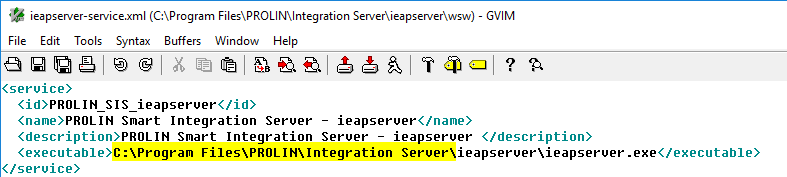
duewserver windows service installation
Open an elevated command line, and navigate the wsw folder in the duewserver folder.
cd C:\Program Files\PROLIN\Integration Server\duewserver\wswTo install the service.
duewserver-service.exe install2024-05-07 15:20:09,465 INFO - Installing service 'PROLIN Smart Integration Server - duewserver (PROLIN_SIS_duewserver)'...
2024-05-07 15:20:09,515 INFO - Service 'PROLIN Smart Integration Server - duewserver (PROLIN_SIS_duewserver)' was installed successfully.To start the service.
duewserver-service.exe start2024-05-07 15:20:16,186 INFO - Starting service 'PROLIN Smart Integration Server - duewserver (PROLIN_SIS_duewserver)'...
2024-05-07 15:20:16,590 INFO - Service 'PROLIN Smart Integration Server - duewserver (PROLIN_SIS_duewserver)' started successfully.The above commands write to the duewserver-service.wrapper.log file. The duewserver-service.out.log captures standard output and should remain empty if you are using a log file.
The duewserver-service.err.log captures standard error, and will be written to if the service crashes.
To check if the service is running
duewserver-service.exe statusStartedYou should now also be able to manage the service in the Windows Service Panel.
Appendices
Appendix A - DUE queue feature
A DUE queue is a folder in the DUEW_OUT_QUEUE folder.
The default value for DUE_OUT_QUEUE on Windows is F:\temp\SISpy\work\due_queue, The base folder can be changed using DUEW_OUT_QUEUE configuration setting.
Any _/_ occurrences are replaced by the platform specific separator and the drive letter is removed if the platform does not use this concept.
When you have a Data Update (External) Action as shown below with an Url field containing
http://myduewserver:5656/due/my_special_queue then my_special_queue as the last part of the URL is the queue name, and the last part of the DUE queue folder name.
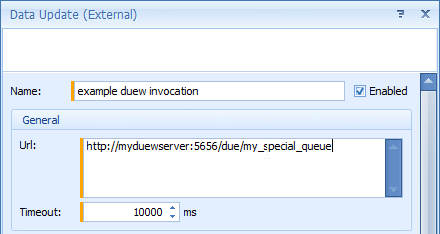
Any valid, single-level folder name can be used to create a named queue.
The DUEW server simply deposits the posted content in a JSON file in the specified folder, and responds back to the caller with a unique identifier.
A unique identifier consist of an optional prefix and a UUID.
You can have multiple Data Update (External) actions using identical or unique queue names, but it is expected that a specific DUE queue folder is processed by one specific process.
When the folder in the DUE_OUT_QUEUE folder does not exist, it is created when the action is executed for the first time.
Please note that a DUE queue is only a queue, if it is treated as a queue, and the service or application processes the files in the folder in the intended order. This assumes using a proper value for the configuration setting DUEW_OUT_PREFIX.
The default value for DUEW_OUT_PREFIX is %Y%m%d%H%M%S_, making the prefix a date-time stamp with second precision, which is usually fine-grained enough.
The default settings would result in 20241214005505_5322c2fa-61e8-4865-afce-6265742a15ea.json as an example filename.
The Data Update (External) action due_eml_attachment_processing_create_action is shown below as an example.
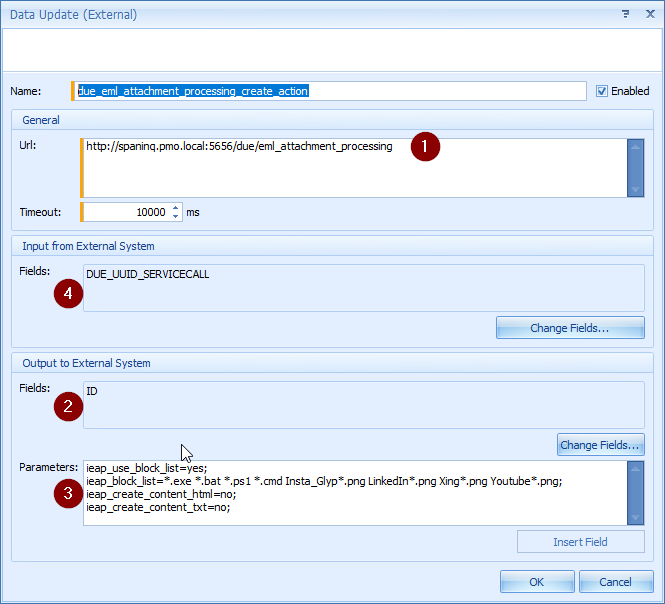
- The eml_attachment_processing as the last part of the URL is the queue name.
- The payload, i.e. data posted to the DUEW server, contains the (Service call) ID field.
- The content of the parameters section is part of the payload as well.
- The response is stored in the DUE_UUID_SERVICECALL, expected to be a large enough text field.
An example service processing this particular queue is the IEAP server, described in the EML document.
custom fields
Using a custom text field to capture the response is not required.
If you do not add a field to the Input from External System section, the action will still work.
It is however useful to capture the response to be able to diagnose issues with an integration that uses the DUEW server.
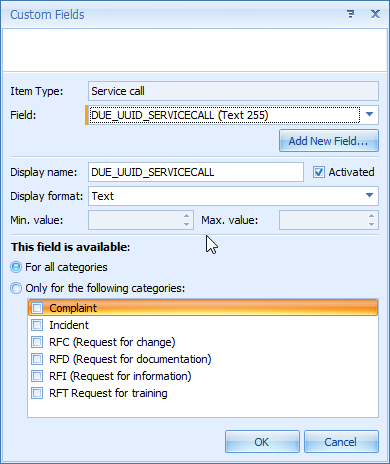
DUE_UUID_SERVICECALL
The convention is to use DUE_UUID with the entity name as a suffix as the name for an additional custom field, e.g. DUE_UUID_SERVICECALL.
The DUEW server does not need to know the name of the field as the response contains numbered fields. The field type is Text and length is 255, to allow for longer responses if needed.
Note
When the Data Update (External) action is used in a client-side rule and the Input from External System contains a field to receive the response, e.g. the DUE_UUID_SERVICECALL field, the data in the form is changed by triggering the action and capturing the response. To retain the updated response field, the user has to Save the modified item.
Appendix B - Check Duplicate Text feature
The Check Duplicate Text feature implements logic to verify whether a field value has already been used in another record. This requires that the field and the control field containing a lowercase representation of the field are available in the RESTAPI, which can be checked in the metadata endpoint. A future version of the RESTAPI might support functions, which will make the control field no longer required.
The implementation steps below are for the E-mail attribute in Person, Email in the RESTAPI, and the control field EmailLowerCase, a system field always containing the lowercase email address. We have three custom fields and a set of client-side rules, all in the Person entity, to verify the email address the user fills in is not a duplicate. Displaying the custom fields on a form is useful, but optional.
Note
Checking uniqueness v. duplicates can also be accomplished by creating a unique index on the pertaining field, and waiting for the database error when the user tries to Save the record.
This is less friendly than using the Check Duplicate Text feature.
The Severity in the client-side rule notification action determines whether a Save can or cannot succeed.
custom fields - unique email address validation
The feature does not use the custom fields by name, so you can use standard custom fields or added custom fields.
You can also use different names as long as they are unique, or change the localized name.
The order of the fields in the Input from External System in the action definition is fixed.
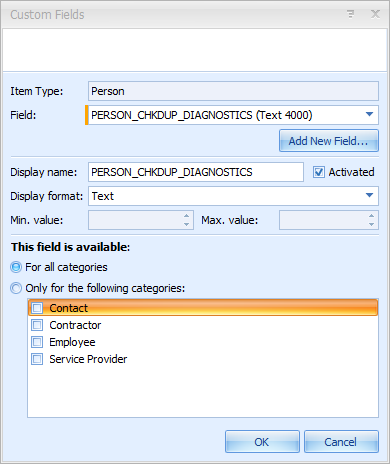
PERSON_CHKDUP_DIAGNOSTICS
This 4K text field contains text output, showing a standard message when there are no duplicates detected, or a list of upto 5 duplicates, with an ellipsis when there are more, or any error messages in case something goes wrong.
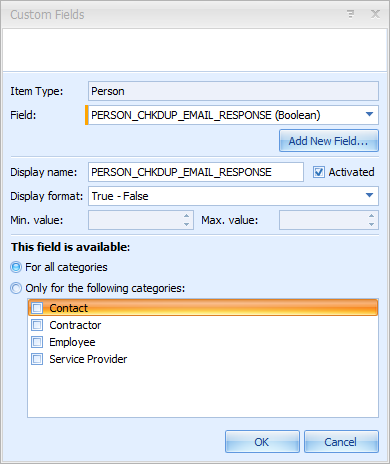
PERSON_CHKDUP_EMAIL_RESPONSE
This boolean field is set to False when the query does not find a duplicate value, and True in case one or more duplicates are found.
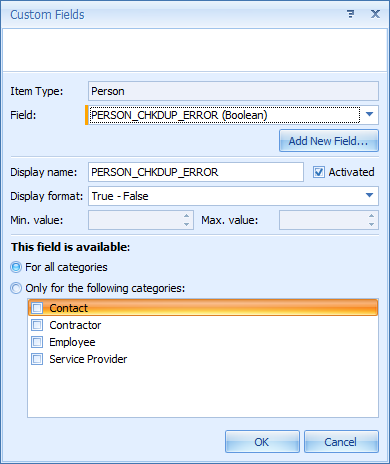
PERSON_CHKDUP_ERROR
This boolean field is set to True when an error is encountered. The error message is written into the PERSON_CHKDUP_DIAGNOSTICS field.
The directive response_on_error in the Parameters section of the DUE action determines what the value of PERSON_CHKDUP_EMAIL_RESPONSE should be when an error occurs.
Note
The action cannot detect that the duewserver is not running.
The user will see a delay due to a timeout, but The Power Server Management Console - Event viewer will show two error messages, also written to the server.log file.

client-side rules - unique email address validation
The client-side rules that are used to implement the unique email address verification.
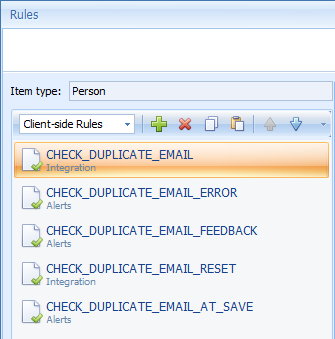
CHECK_DUPLICATE_EMAIL
rule definition
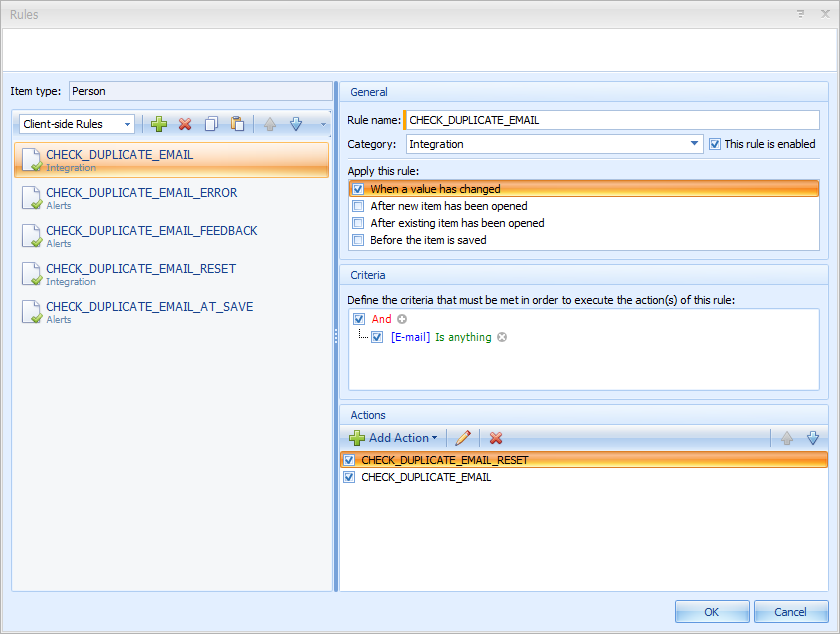
with actions
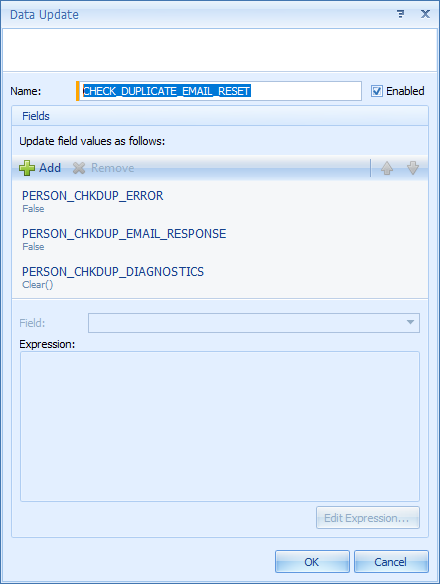
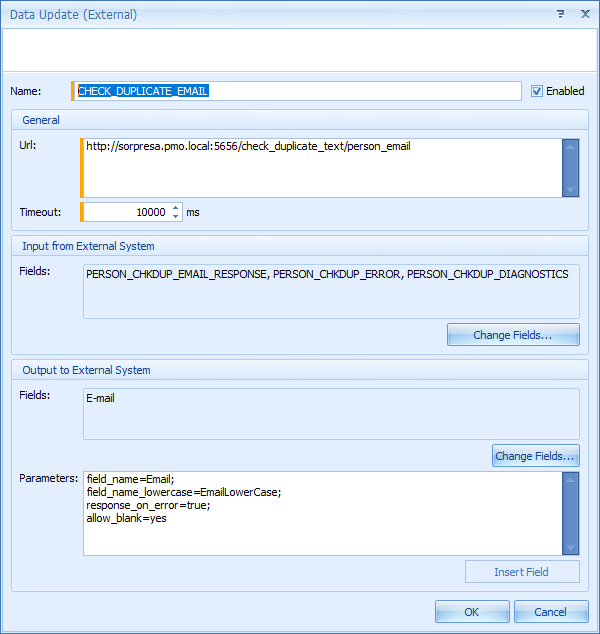
The directives in the Parameters section are key-value pairs, separated by a newline and/or a semicolon. In the example we use both for clarity.
The key and value are separated by an equal sign.
The field_name directive sets the name of the field we want to validate.
The field_name_lowercase directive sets the name of the field that holds the all-lowercase field value.
The directive response_on_error set to False allows verification to pass when an error occurs.
The directive allow_blank in the parameters section allows verification to pass or not pass when the value is cleared.
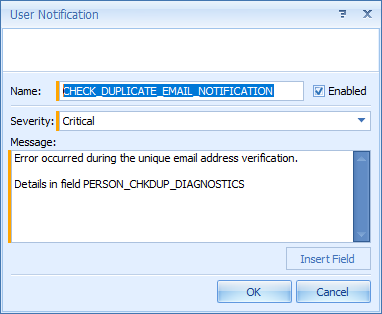
CHECK_DUPLICATE_EMAIL_ERROR
rule definition
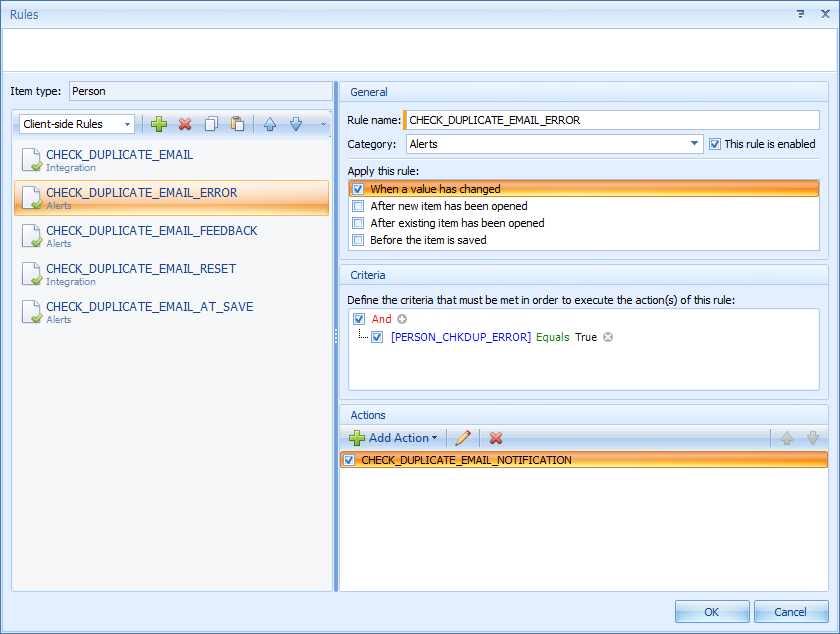
with action
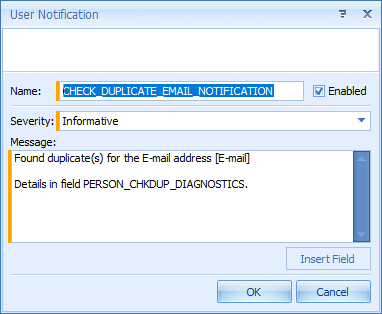
CHECK_DUPLICATE_EMAIL_FEEDBACK
rule definition
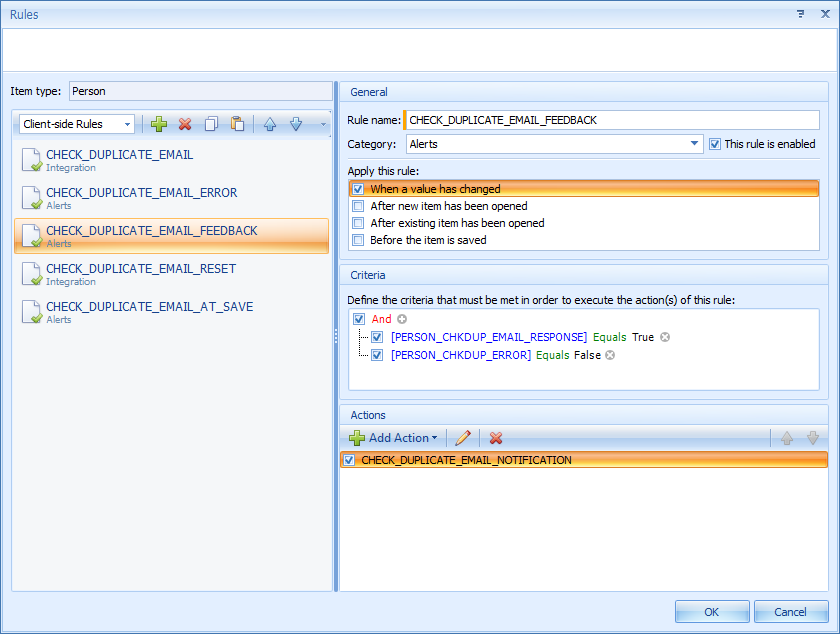
with action
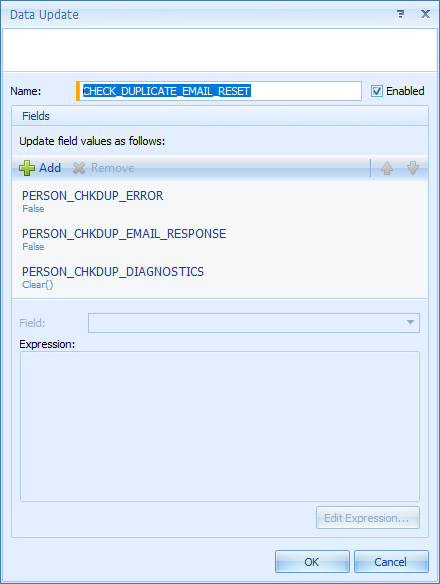
CHECK_DUPLICATE_EMAIL_RESET
rule definition
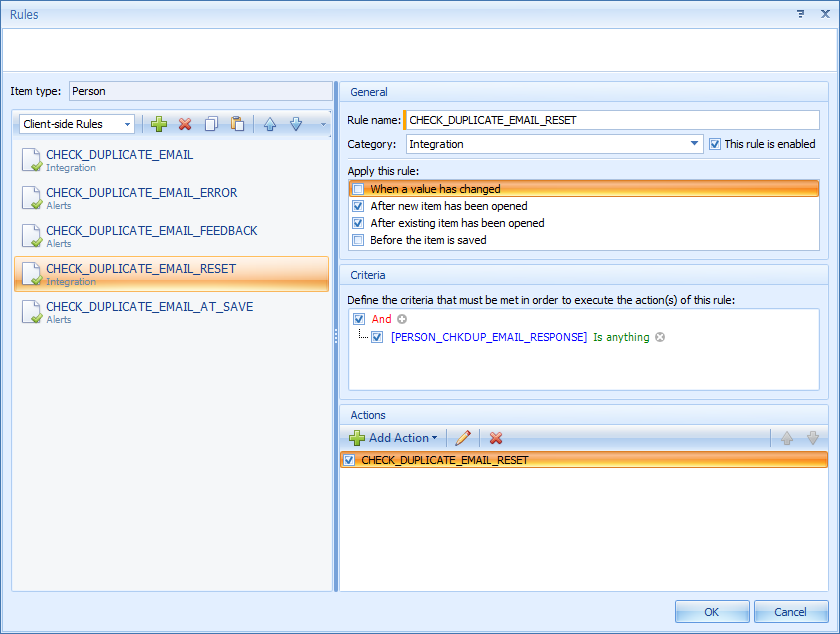
with action
CHECK_DUPLICATE_EMAIL_AT_SAVE
rule definition
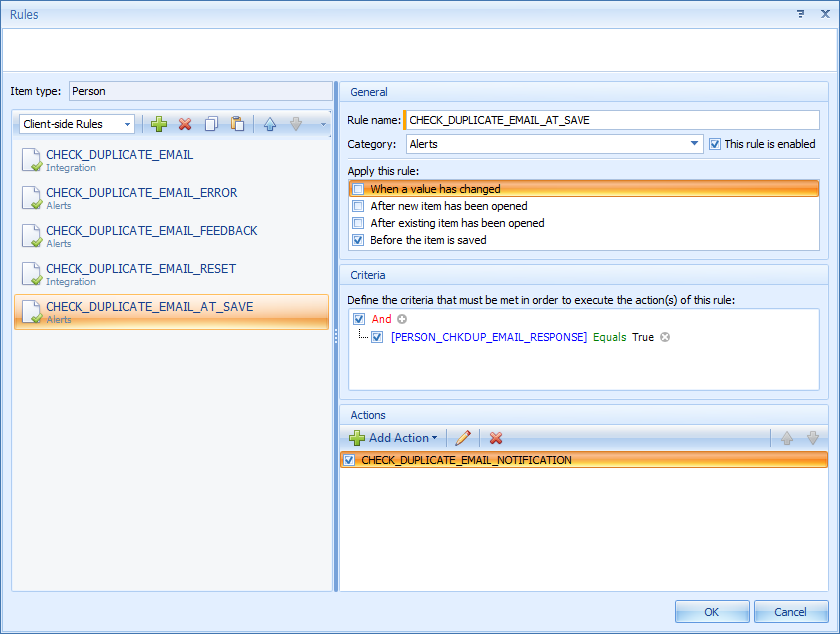
with action
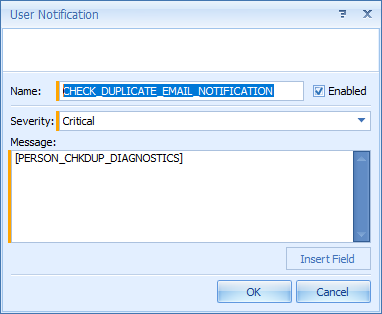
All user notifications can of course be replaced with a differently worded message and a different severity. When a Critical severity notification is triggered it prevents the user from Saving the record.
Appendix C - Validate Format feature
The Validate Format feature uses the /does_not_match/pattern_name route. It allows you to validate a text field value against a named pattern. A named pattern represents a regular expression.
The pattern name - regular expression pairs are stored in a YAML file that is read at startup.
The patterns file name is governed by the DUEW_PATTERNS_FILE configuration setting.
The default name is duewserver.patterns.yaml.
An example file the duewserver.patterns.yaml.dist is available in the distribution and contains a couple of named patterns, one of them is valid_ipv4_address.
# duewserver.patterns.yaml
#
# pattern names and regular expressions
#
# valid_ipv4_address
#   https://www.oreilly.com/library/view/regular-expressions-cookbook/9780596802837/ch07s16.html
#
valid_ipv4_address :
    ^(?:(?:25[0-5]|2[0-4][0-9]|[01]?[0-9][0-9]?)\.){3}(?:25[0-5]|2[0-4][0-9]|[01]?[0-9][0-9]?)$
For the IPv4 address validation example we have three custom fields similar to the Check Duplicate Text feature, with a DIAGNOSTICS text, an ERROR boolean field, and a boolean field for the RESPONSE.
Contrary to the example in the Check Duplicate Text feature we only have two client-side rules, and only notify that validation failed when the user tries to save the record.
custom fields - invalid IPv4 address
We use the CIT prefix associated with the Configuration Item entity in the custom field names, so similar validations can be created in other entities.
CIT_INVALID_FORMAT_DIAGNOSTICS
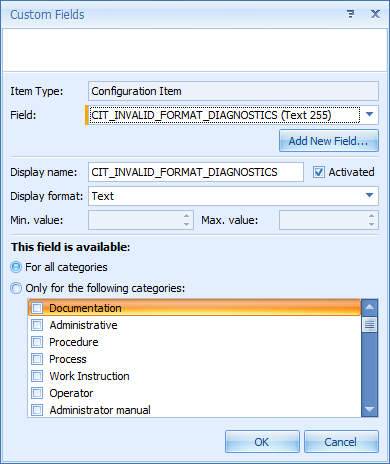
Custom text field of at least 255 characters to hold a short explanation what went well or what went wrong when processing the field value.
CIT_INVALID_FORMAT_ERROR
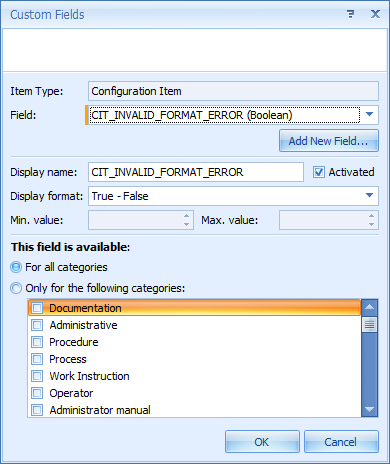
Set to True when there is a runtime error, with a short explanation in the DIAGNOSTICS field.
An error can occur when a regular expression is invalid, or the named pattern is not in the patterns file.
CIT_INVALID_FORMAT_IPV4_RESPONSE
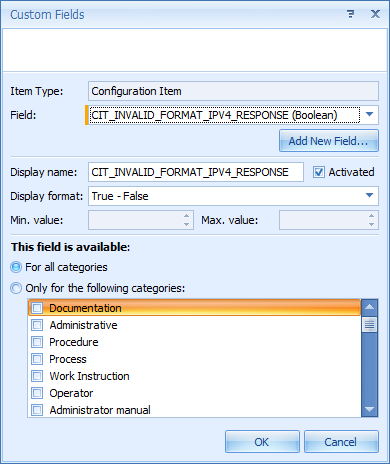
Set to True when the field value does not match the named pattern, False otherwise.
Subsequent rules can be triggered when the value is set to True.
client-side rules - invalid IPv4 address
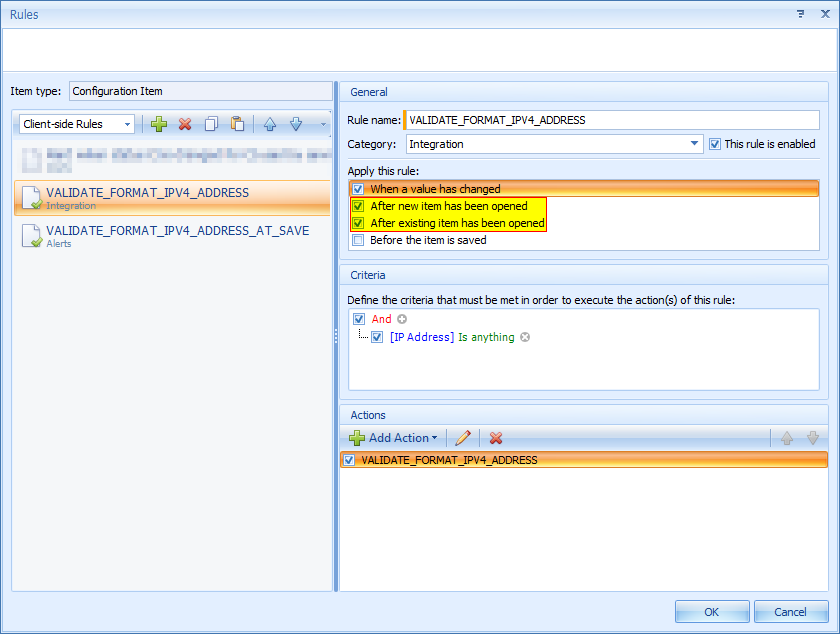
VALIDATE_FORMAT_IPV4_ADDRESS
rule definition
Note
The When a value has changed option should be enabled to trigger validation when the IP Address field is changed, but it will only fire after the field is modified. Enable the After new item has been opened and After existing item has been opened as highlighted to validate the IP address when new item is created or an existing item is opened.
with action
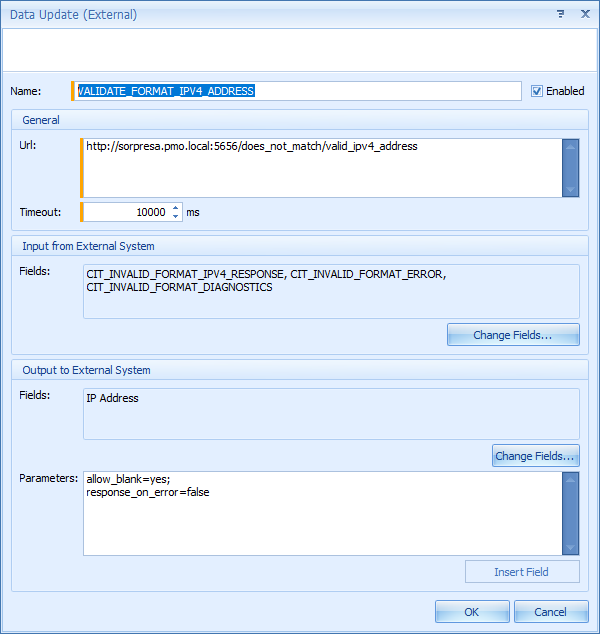
The directive response_on_error allows changing the verification outcome when an error occurs.
Default value is True. Setting it to False allows verification to pass.
The directive allow_blank allows verification to pass or not pass when the value is cleared.
VALIDATE_FORMAT_IPV4_ADDRESS_AT_SAVE
rule definition

with action

Appendix D - runtime server log output explained
The default setting for logstyle is TIMEROTATING, and will cycle the log file at midnight. It will keep the dated log files for a maximum of 10 days. This should not be too much of a strain on resources. The log lines contain a timestamp, a loglevel e.g. INFO, WARNING or ERROR, a function name and a message
duewserver log output
With loglevel set at INFO, you will see the following lines appear in the log file, when a request has finished.
DUE queue.
2024-12-04 14:13:52,291 INFO duew.duewserver_due_subqueue: payload written to /home/pmo/repo/prolin/SISpy/temp/SISpy/work/due_queue/eml_attachment_processing/20241216221352_894579bd-235b-4faf-86ac-c9a900ed43e2.json
2024-12-04 14:13:52,292 INFO duew.after_request: 192.168.16.88 POST http /due/eml_attachment_processing? 200 OK
The first log line tells you the folder where the payload will be written to and the actual file name with the unique id The custom field DUE_UUID_SERVICECALL value would show the same unique id 20240506174812_91b2dfeb-c96f-434d-b983-bbae2bc59b83 as used in the filename.
The second log line tells you the origin IP address, the HTTP verb, the route and the HTTP result.
Validate Format
2024-12-04 15:31:41,596 INFO duew.after_request: 192.168.16.88 POST http /does_not_match/valid_ipv4_address? 200 OKThe log line tells you the origin IP address, the HTTP verb, the route and the HTTP result.
Check Duplicate Text
2024-12-04 16:09:34,586 INFO duew.after_request: 192.168.16.88 POST http /check_duplicate_text/person_email? 200 OKThe log line tells you the origin IP address, the HTTP verb, the route and the HTTP result.
Information and Monitoring
2024-12-05 17:05:47,247 INFO duew.after_request: 192.168.16.1 GET http /? 200 OK
2024-12-05 17:05:47,352 INFO duew.after_request: 192.168.16.1 GET http /favicon.ico? 200 OK
2024-12-05 17:05:52,573 INFO duew.after_request: 192.168.16.1 GET http /about? 200 OK
2024-12-05 17:05:52,631 INFO duew.after_request: 192.168.16.1 GET http /favicon.ico? 200 OK
2024-12-05 17:06:33,471 INFO duew.after_request: 192.168.16.1 GET http /alive? 200 OK
The log lines tell you the origin IP address, the HTTP verb, the route and the HTTP result. When these requests are made in a web browser, the web browser usually requests the favicon.ico file as well.