PROLIN support
  • news
  • downloads
    • Smart Client 14
    • Smart Client 2020
    • Power Server 12 LTS
    • Power Server 14
    • Power Server 2020

Open Database Connectivity - ODBC

Website under construction

  • product documentation
    • Smart Client
      • Smart Client 14
        • PROLIN Smart Client Installation Guide
          • Installation
          • Using the Smart Client
        • PROLIN Smart Client User Manual
          • Introduction
            • User Interface
            • Quality
            • Accessibility
          • Usage
            • Starting
            • Application Menu
            • Changing User Options
            • Closing the Client
            • When the Client Does Not Start
            • Updating the Client
            • Changing Supported Service Packs
            • Using the Client Behind a Firewall
            • Support
            • Help Improve the Client
          • Navigation
            • Parts of the Console
            • Customizing the Console
            • Using Action Windows
            • Parts of a View
            • Navigating Trees
            • Parts of a Form
            • Shortcut Keys
          • Views
            • Finding Information
            • Finding and Opening a View
            • Changing View Options
            • Creating Personal Views
            • Opening and Switching Multiple Views
            • Exporting View Data
            • Table Views
            • Explorer Views
            • Chart Views
            • Scheduler Views
            • Dashboard Views
            • Gauge Views
          • Forms
            • Set the Default Form
            • Navigating Items in a Form
            • Understanding the Information in a Form
            • Required Fields
            • Starting Form Actions
            • Managing Attachments in a Form
            • Entering Information
            • Creating and Changing Relations
            • Copying Item Information
            • Text Snippets
          • Reporting
            • Running Reports by End Users
            • Report Designer
              • Starting the Report Designer
              • Example Reports
              • Run Reports from the Designer
              • Save Reports
            • Report Editing Basics
              • Basic Operations
                • Controls Positioning
                • Change Measurement Units of a Report
                • Change Page Settings of a Report
              • Report Types
                • Table Report
                • Master-Detail Report
                • Multi-Column Report
              • Navigation
                • Add Bookmarks
                • Create Hyperlinks
                • Add a Cross-Reference
              • Styles and Conditional Formatting
                • Understanding Style Concepts
                • Use Odd and Even Styles
                • Conditionally Change a Label’s Text
              • Change the Layout of Report Elements
              • Change Fonts and Colors of Report Elements
              • Delete Report Elements
              • Add or Modify Static Information in Your Report
              • Use Mail Merge in Report Elements
              • Add Calculated Fields to a Report
              • Add Parameters to a Report
              • Change Value Formatting of Report Elements
              • Change or Apply Data Filtering to a Report
              • Change or Apply Data Grouping to a Report
              • Add Totals to a Report
              • Add Page Numbers and System Information to a Report
            • Advanced Report Topics
              • Use Parameters in Filters
              • Charts
                • Create Chart
              • Sub Reports
                • Pass Parameters to Sub Report
            • Importing/Exporting Reports
            • Starting Reports from a Form or View
            • Changing the Print Layout
          • Daily Tasks
            • Working with My Tasks
            • Working with Service Today
            • Using Advanced Find
            • Editing Filters
            • Using Shortcut Keys
          • Items
            • Creating an Item
            • Creating Multiple Configuration Items at Once
            • Updating Multiple Items at Once
            • Deleting an Item
            • Sending E-Mail Messages from Items
          • Advanced
            • Command Line Automation
            • Variable Expansion
            • View Performance Setting
            • Delay Refresh after Save
            • Service Call Hierarchy
          • Administration
            • Starting the Administration Module
            • Navigation
            • Mapping Service Desk functions
      • Smart Client 2020
    • Power Server
      • Power Server 12.2 LTS
        • PROLIN Power Server LTS Installation Guide
          • Installation
            • System Requirements
            • Preparing Installation
            • Installing PROLIN Power Server
            • Uninstalling PROLIN Power Server
        • PROLIN Power Server LTS Operations Manual
          • Introduction
          • Getting Started
            • Migration Guide
            • Database Migration
          • Using Power Server
            • Communication
            • Storage
            • Advanced Topics
              • Alternate Startup Mode
              • Backwards Compatibility
            • Client Access Licenses
              • Setup Power Server
              • Create CALs
            • Command Line Interface
              • Status
              • Install
              • Uninstall
              • Run
              • Start
              • Stop
            • Diagnostics
              • Logging
              • Instrumentation
            • Single Sign-On (SSO)
              • Setup Power Server
              • Create Account
              • Setup Smart Client
              • Troubleshooting
          • Server Management Console
            • Overview
            • Server Configuration
              • Communication Settings
              • Security Settings
              • Storage Settings
              • Services Settings
              • Advanced Settings
            • Server Monitoring
              • Monitoring the Local Host
              • Monitoring Remote Hosts
          • Services
            • Global Search
            • REST API
            • SMTP
          • Tools
            • Legacy Tools
          • Appendix
            • Supported Attachments
        • PROLIN Power Server LTS REST-based Web API
          • Open Data Protocol
          • Current Implementation
          • REST API Fundamentals
            • Programming Using the REST API
            • Primitive Data Types
            • OData Queries
            • Ordering
            • Paging
            • Projection
            • Navigation
            • Filtering
            • Creating a New Resource
            • Updating an Existing Resource
            • Deleting a Resource
            • Relating Resources
            • Invoking Actions or Functions
            • Me Endpoint
          • Security
            • Token-Based Authentication
            • Transport Layer Security (TLS)
            • IP Address Restrictions
          • Advanced Scenarios
            • Working With Attachments
            • Custom Fields
            • Using PING
            • Open API Explorer
            • OData Annotations
            • Prefer Header
      • Power Server 14
        • PROLIN Power Server Installation Guide
          • Installation
            • System Requirements
            • Preparing Installation
            • Installing PROLIN Power Server
            • Uninstalling PROLIN Power Server
        • PROLIN Power Server Operations Manual
          • Introduction
          • Getting Started
            • Migration Guide
            • Database Migration
          • Using Power Server
            • Communication
            • Storage
            • Advanced Topics
              • Alternate Startup Mode
              • Backwards Compatibility
            • Client Access Licenses
              • Setup Power Server
              • Create CALs
            • Command Line Interface
              • Status
              • Install
              • Uninstall
              • Run
              • Start
              • Stop
            • Diagnostics
              • Logging
              • Instrumentation
            • Single Sign-On (SSO)
              • Setup Power Server
              • Create Account
              • Setup Smart Client
              • Troubleshooting
          • Server Management Console
            • Overview
            • Server Configuration
              • Communication Settings
              • Security Settings
              • Storage Settings
              • Services Settings
              • Advanced Settings
            • Server Monitoring
              • Monitoring the Local Host
              • Monitoring Remote Hosts
          • Services
            • Global Search
            • REST API
            • SMTP
          • Tools
            • Legacy Tools
          • Appendix
            • Supported Attachments
        • PROLIN Power Server REST-based Web API
          • Open Data Protocol
          • Current Implementation
          • REST API Fundamentals
            • Programming Using the REST API
            • Primitive Data Types
            • OData Queries
            • Ordering
            • Paging
            • Projection
            • Navigation
            • Filtering
            • Creating a New Resource
            • Updating an Existing Resource
            • Deleting a Resource
            • Relating Resources
            • Invoking Actions or Functions
            • Me Endpoint
          • Security
            • Token-Based Authentication
            • Transport Layer Security (TLS)
            • IP Address Restrictions
          • Advanced Scenarios
            • Working With Attachments
            • Custom Fields
            • Using PING
            • Open API Explorer
            • OData Annotations
            • Prefer Header
  • projects
    • Smart Suite RESTAPI
      • Securing the Smart Suite RESTAPI
    • Smart Integration Server (python)
      • version 2024.10.6
  • how-to

On this page

  • Introduction
  • SQL Server
    • Download
    • Install
    • Configure
  • Oracle
    • Download
    • Install
      • install the Visual C++ Redistributable
      • Unzip the Basic and ODBC packages
      • Add Instant Client folder to PATH
    • Configure
      • create a data source name for a connectivity test

Open Database Connectivity - ODBC

installation and configuration

version: 2024.10.6
date: February 2025

Introduction

Some of the tools in the SISpy family use an ODBC connection to connect to the Smart Suite application database.
An ODBC connection requires an ODBC driver.
Because all SISpy tools are 64-bit executables, you need a 64-bit ODBC driver.
The ODBC driver can be downloaded from the database vendor’s website.
A System Data Source Name (DSN) ties database connection specifics to a database driver. When using Microsoft SQL Server as a database, you need to set up a System DSN using the ODBC Data Sources (64-bit) Desktop app available in Windows.
When using Oracle as a database, installing the ODBC driver is enough.
The steps to download and install the ODBC driver, and optionally configure a System DSN using the desktop app is different for each database.

At the time of writing the tools only require Read access to the database. It is recommended to create a separate account for each tool that requires a connection as this might change in the future when new features are introduced.

SQL Server

Information about the Microsoft ODBC Driver for SQL Server can be found on the Microsoft ODBC Driver for SQL Server page.

Download

On the above-mentioned page, you should find a link to the Download page. Follow the link and locate the download for the most recent driver, i.e. ODBC Driver 18 for SQL Server (x64).

Install

The ODBC SQL Server driver download file is usually called msodbcsql.msi.
Verify on the File Properties page that the file in Unblocked and open the MSI.
You will be greeted with the Welcome page.
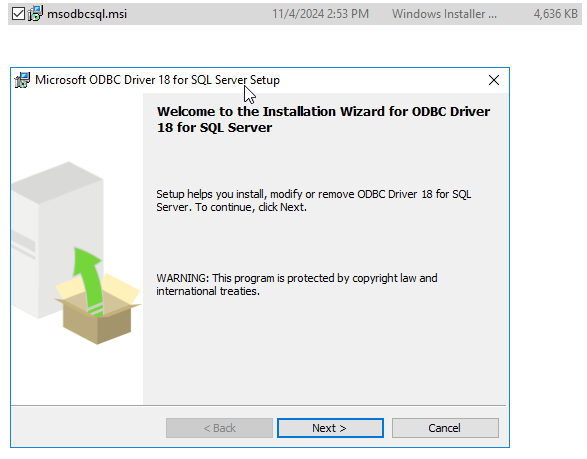
Welcome

Welcome

On the Welcome page click Next.

License Agreement

License Agreement

On the License Agreement page click Next.
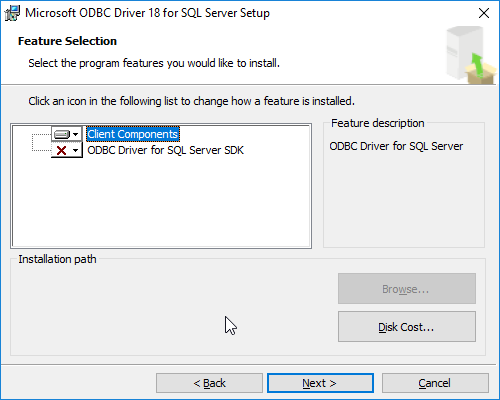
Feature Selection

Feature Selection

On the Feature Selection page accept the default selection and click Next.
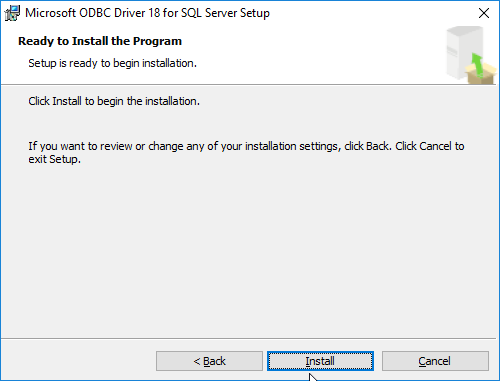
Ready to Install

Ready to Install

On the Ready to Install the Program page click Install.
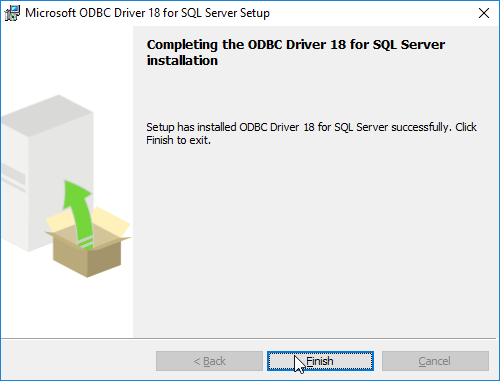
Setup Complete

Setup Complete

On the final page of the setup click Finish. Continue with the configuration steps.

Configure

Open the Start menu and type ODBC to get a list of application.
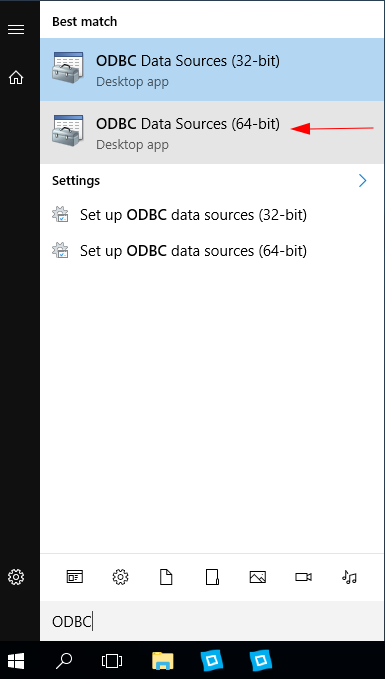
Start Menu ODBC options

Start Menu ODBC options

Select ODBC Data Sources (64-bit) desktop app.
This will open the ODBC Data Source Administrator (64-bit) window like the one shown below.
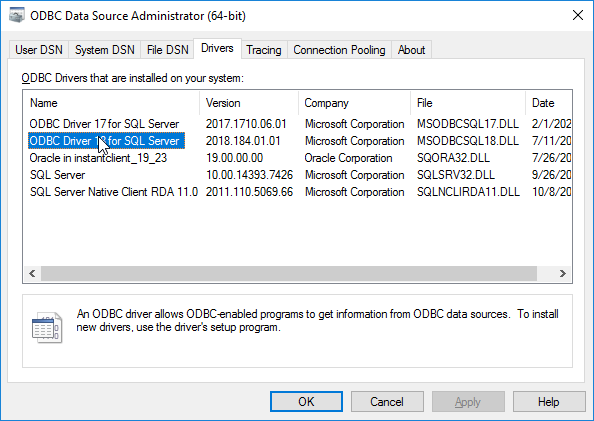
ODBC Data Source Administrator - Drivers

ODBC Data Source Administrator - Drivers

Open the Drivers tab and verify the ODBC Driver 18 for SQL Server is installed.
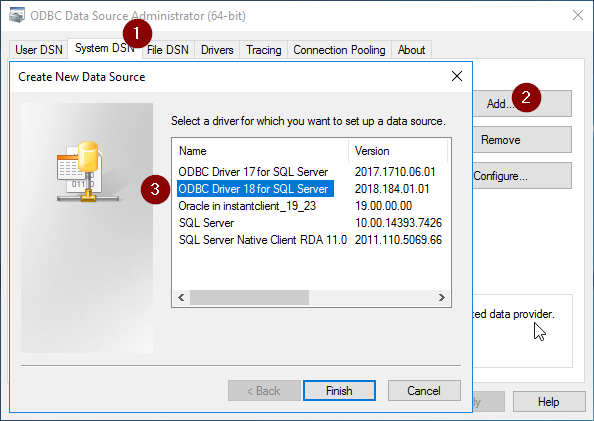
Create New Data Source

Create New Data Source

Open the System DSN tab, and click the Add button to create a new data source.
In the Create New Data Source popup select the correct driver, i.e. ODBC Driver 18 for SQL Server.
Click Finish.

This opens the Microsoft SQL Server DSN Configuration window.
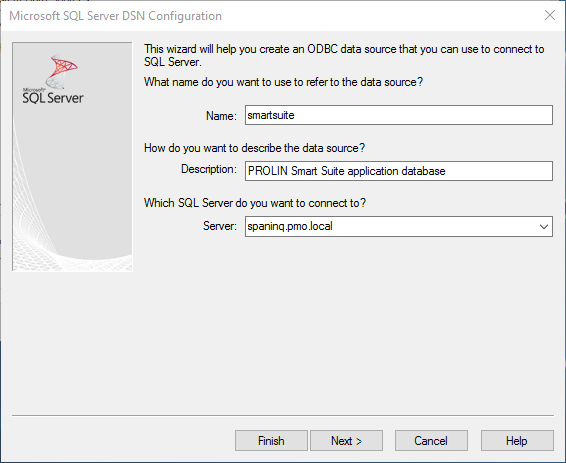
Microsoft SQL Server DSN Configuration

Microsoft SQL Server DSN Configuration

Navigate to the Name field and fill in a unique name for the data source.
When a SISpy tool configuration asks for a DSN, this name is the value you need to fill in.
Fill in an appropriate description in Description.
In the Server field you need to fill in the SQL Server server name that hosts the application database. Then click Next.
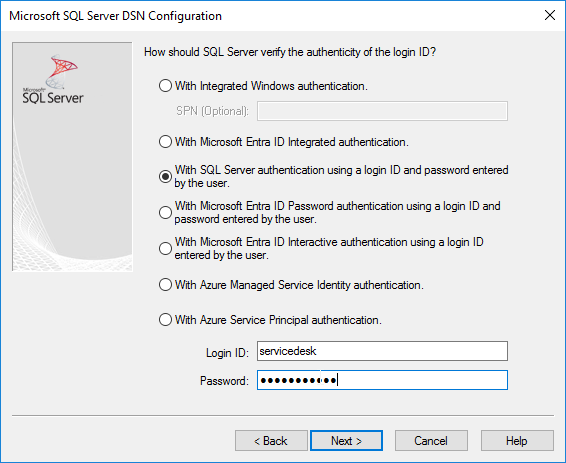
Authentication options

Authentication options

Select the With SQL Server authentication using a login ID and password entered by the user option, and fill-in the Login ID and password for an account with (read-only) access to the application database. Click Next.
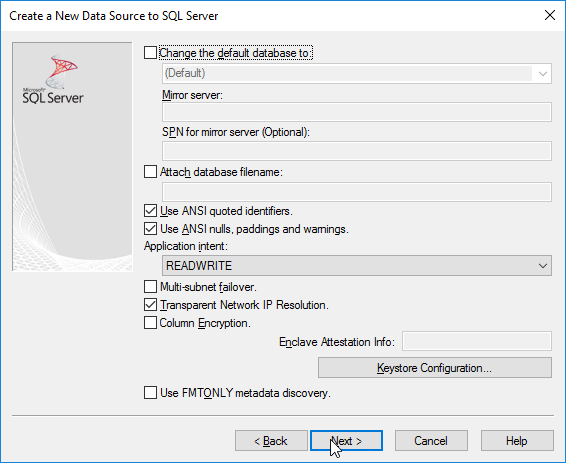
Connection options (1)

Connection options (1)

Keep the defaults and click Next.

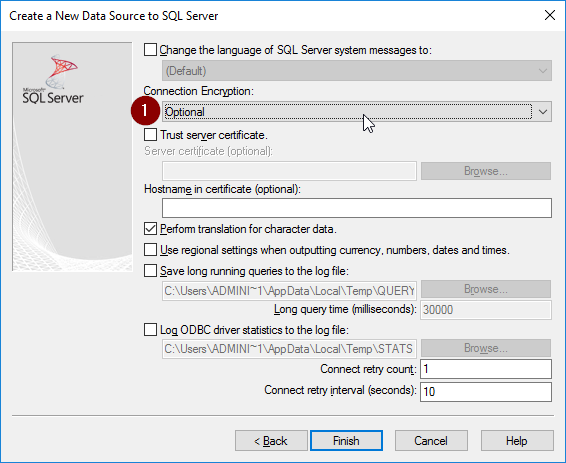
Connection options (2)

Connection options (2)

Navigate to the Connection Encryption option dropdown and select Optional.
Click Next.
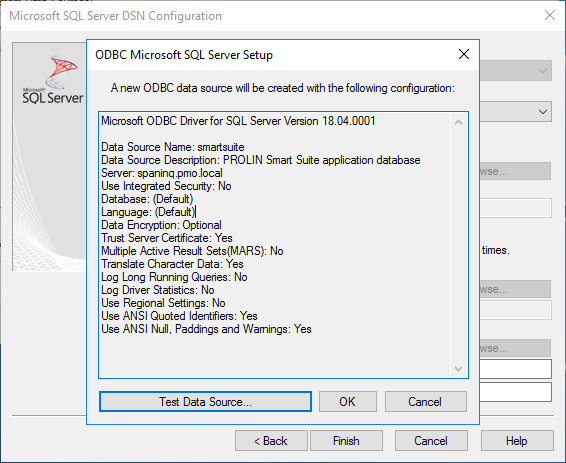
Summary

Summary

Verify the values listed in the popup and click Test Data Source.
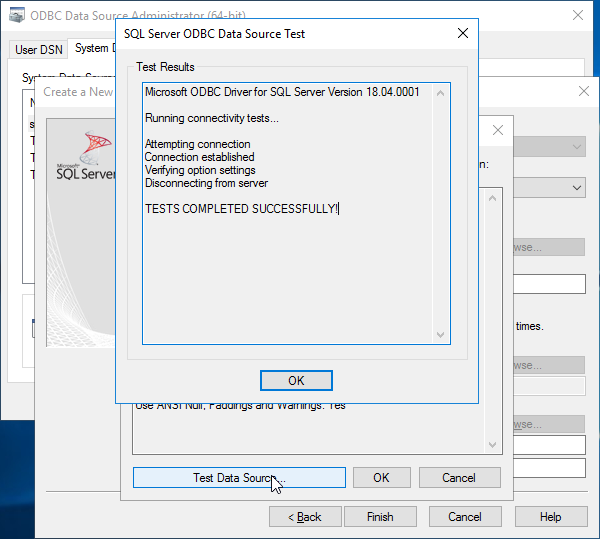
Test Results

Test Results

The Test Results should show TESTS COMPLETED SUCCESSFULLY!.
Click OK, OK, Finish to complete the configuration, and then Finish to close the ODBC Data Source Administrator app.

Oracle

The Oracle ODBC drivers are distributed as an add-on to the Oracle Instant Client software.
Information can be found on the Oracle Instant Client ODBC Installation Notes page. Scroll down to find the instructions for Windows. The site will likely ask you to switch to a different Oracle country site.

Download

The instructions for Windows has the Instant Client ODBC package link, pointing to a page where you can find the Instant Client for Microsoft Windows (x64). The page contains dropdown sections per database version, e.g. 18, 19, 21, 23.
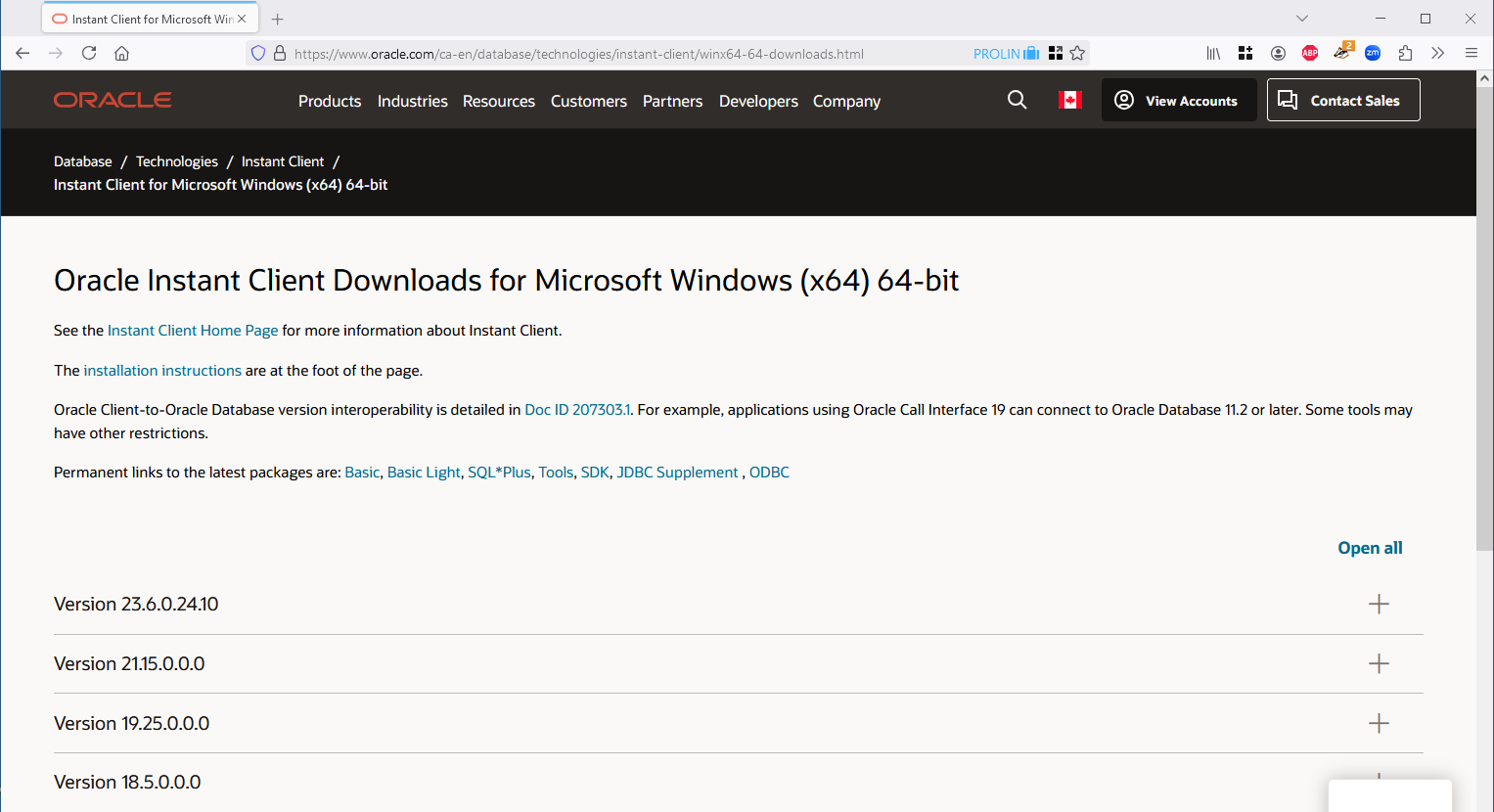
Instant Client Downloads

Instant Client Downloads

Select the dropdown for your database version, or a higher version. The software is regularly updated, and version numbers after the main database version number will go up.

Tip

If you have already installed the Instant Client software before, select the corresponding ODBC download,
or use the opportunity to upgrade the Instant Client Basic Package.

You need to download the Basic package (#1) as well as the Microsoft Visual C++ Redistributable package (#2).
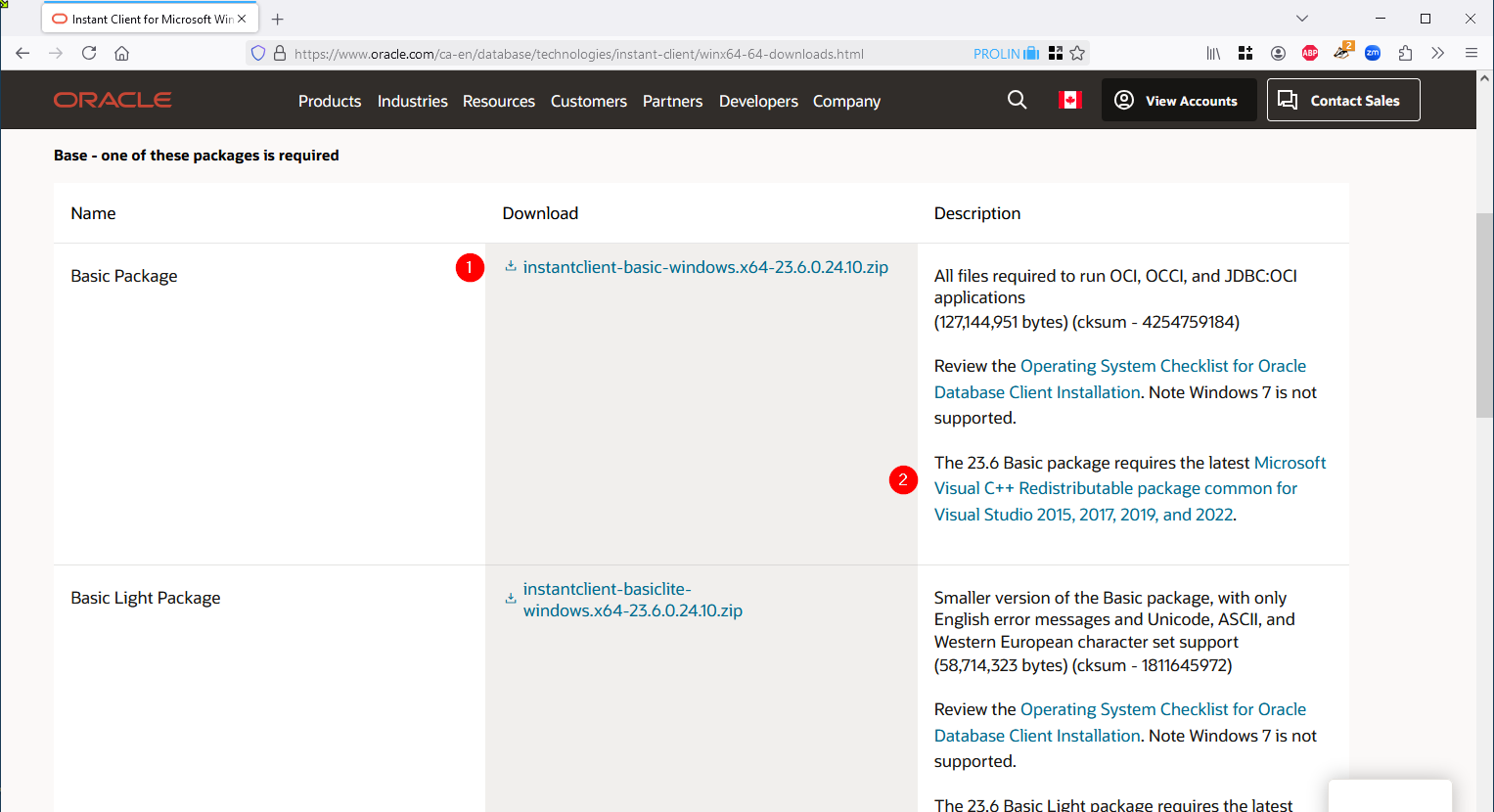
Basic package and Visual C++ Redistributable

Basic package and Visual C++ Redistributable

Then scroll down.
You may find the packages in the Tools - optional packages section useful, but these are not required.
The Development and Runtime - optional packages section contains the ODBC package.
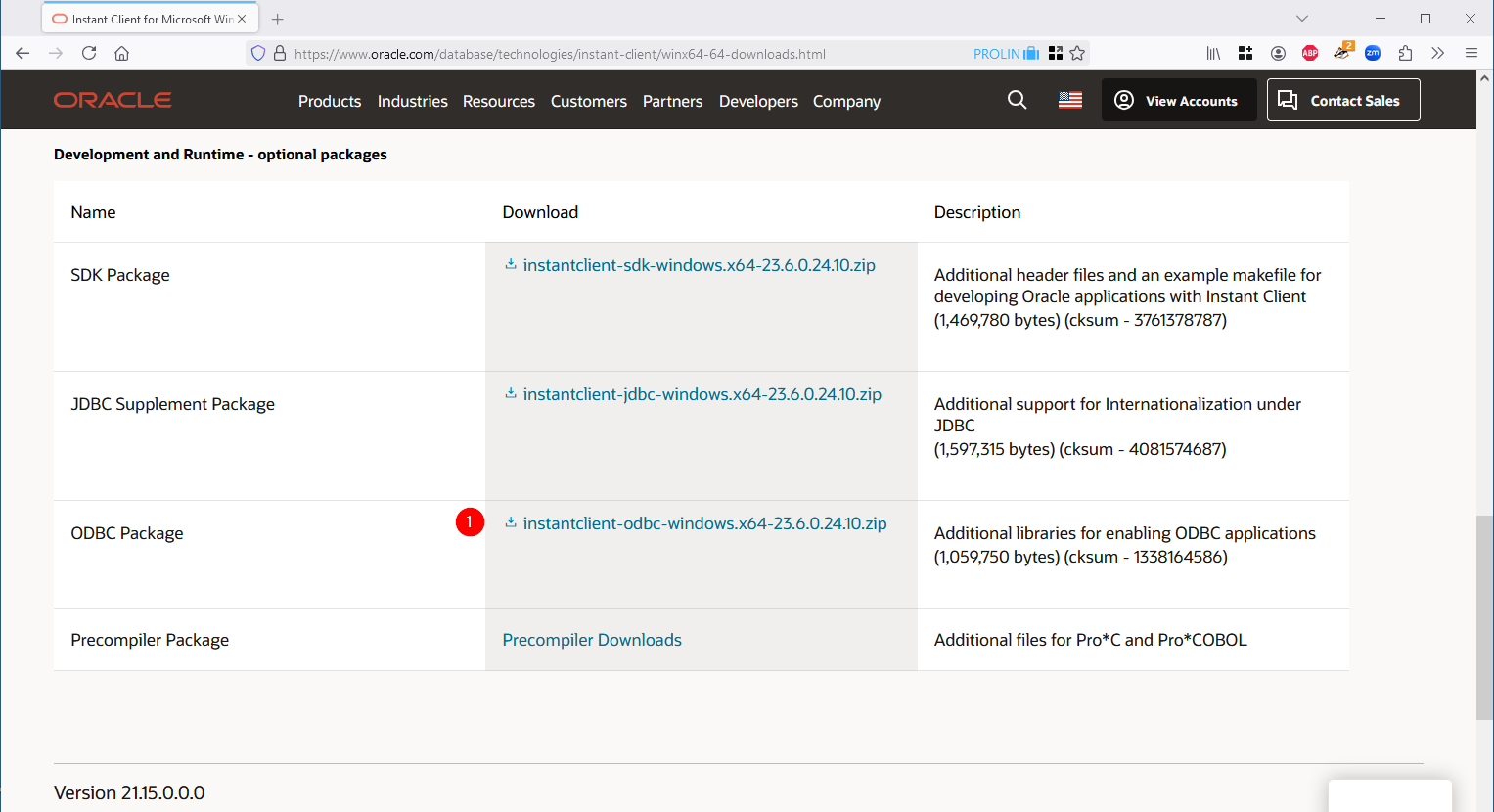
ODBC package

ODBC package

After downloading you will want to use the Properties on each file to Unblock the download.

Install

install the Visual C++ Redistributable

Navigate to the Downloads folder and locate the VC_redist.x64.exe file. Open/run the file to install the Microsoft Visual C++ Redistributable.
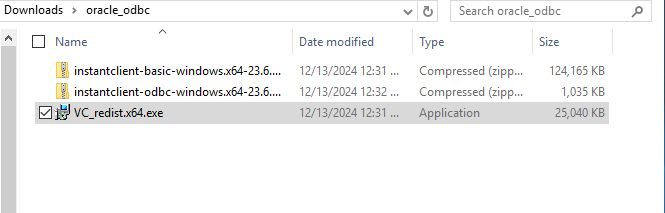
VC_redist.x64.exe

VC_redist.x64.exe

Agree to the license terms and click Install.
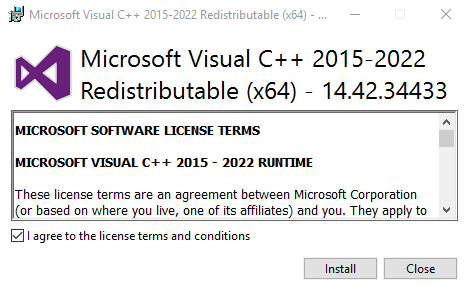
License Terms

License Terms

Wait while the software is installed.
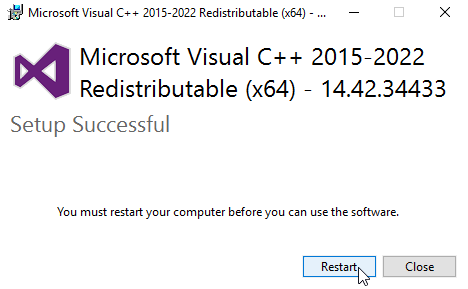
restart needed

restart needed

Restart the server as instructed.

Unzip the Basic and ODBC packages

Then after the required restart create a target folder to unzip the Oracle software to.
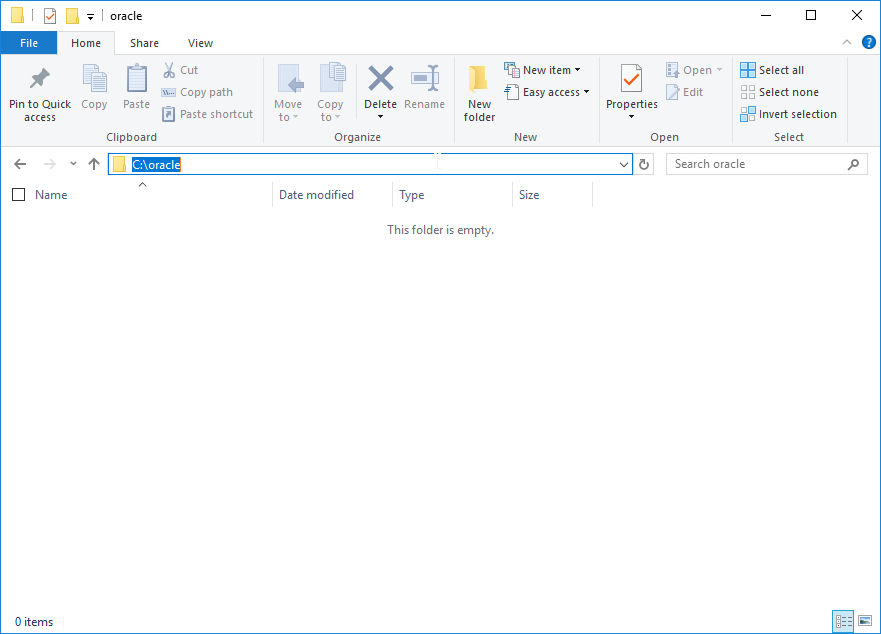
target folder

target folder

First unzip the Basic package to the target folder you just created.
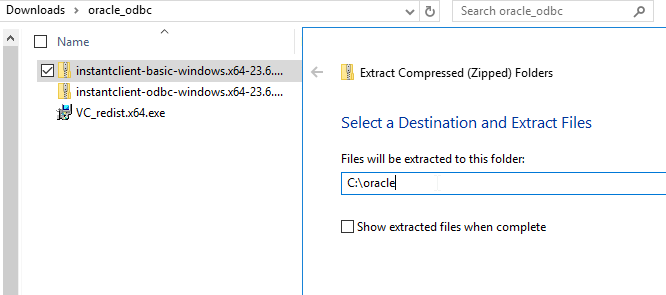
unzip Basic package to target folder

unzip Basic package to target folder

Then unzip the ODBC package to the same target folder.
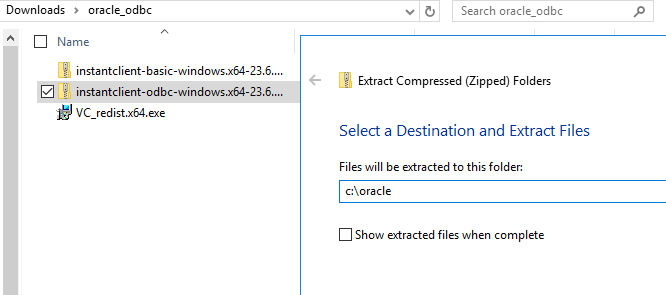
unzip ODBC package to target folder

unzip ODBC package to target folder

The Basic and ODBC packages have a couple of files in common,
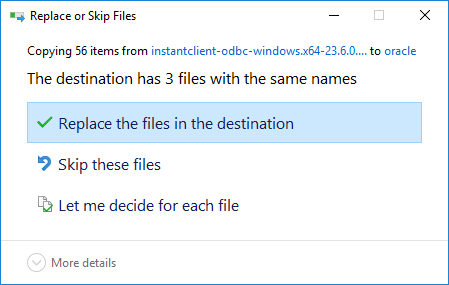
replace or skip files dialog

replace or skip files dialog

select to Replace those. The result should look like below.
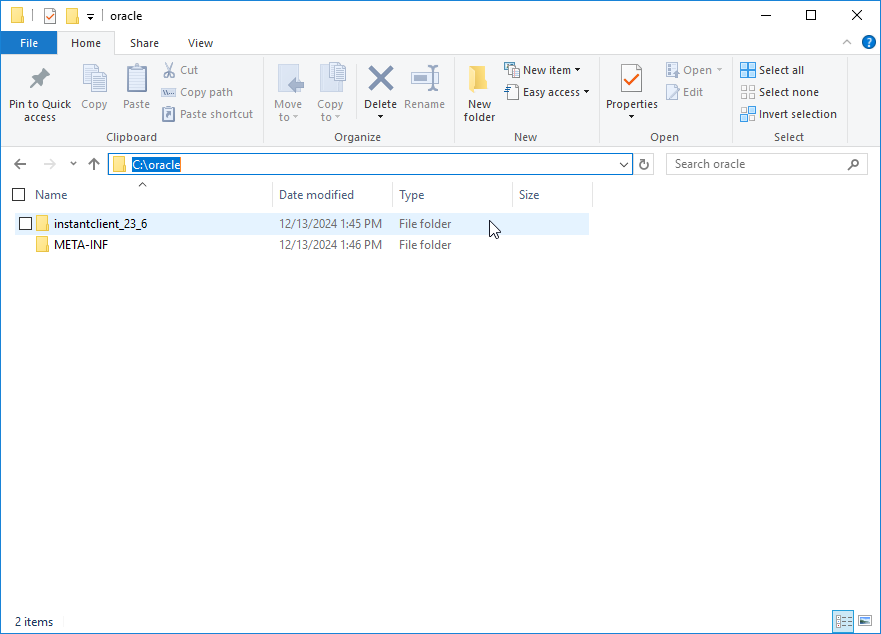
extracted files

extracted files

Navigate to the target folder and into the Instant Client folder.
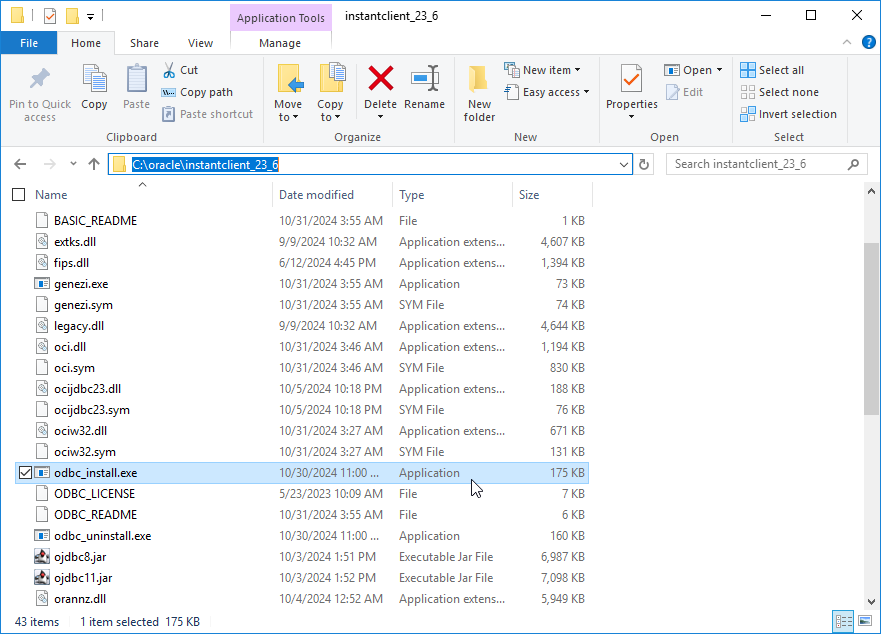
odbc_install.exe

odbc_install.exe

Locate and run odbc_install.exe.
You will not see any feedback usually.
You can verify that the driver has been installed in the ODBC Data Sources (64-bit) desktop app.
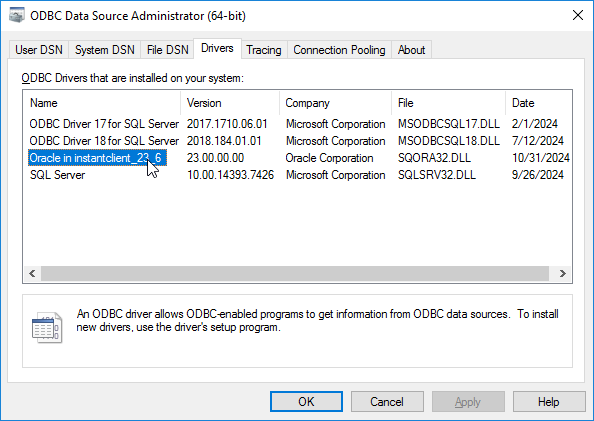
verify Oracle driver is installed

verify Oracle driver is installed

Add Instant Client folder to PATH

This is an important step.
You need to add the fully qualified name of the folder where you installed the Instant Client software to the System’s PATH environment variable, or the software will not work properly. You will see an error similar to the one below if the instant client folder is omitted from the PATH.

(cx_Oracle.DatabaseError) DPI-1047: Cannot locate a 64-bit Oracle Client library: “The specified module could not be found”.

Configure

When stepping through one of the SISpy tool’s configuration process, you will need to provide credentials and details like database server name, database instance and port number.
The tool uses the Oracle ODBC driver, but not a System DSN.
Which means you do not need to configure a Data Source Name using the ODBC Data Sources (64-bit) desktop app, unless you want to run a connectivity test.
For this you need to set up a TNSNAMES.ora file in the local network/admin folder, or one in the shared TNS_ADMIN location.

If you (plan to) use the Oracle Instant Client in combination with Power Server, i.e. using the so-called Thick driver, you need to set up a TNSNAMES.ora file, if you have not already done so.

An example TNSNAMES.ora entry could look like below.

TEST19C.emea =  
  (DESCRIPTION =  
    (ADDRESS = (PROTOCOL = TCP)(HOST = titanium.emea.prolin.local)(PORT = 1524))  
    (CONNECT_DATA =  
      (SERVER = DEDICATED)  
      (SERVICE_NAME = TEST19C.emea.prolin.local)  
    )  
  )  

create a data source name for a connectivity test

If you want to verify that the driver is installed correctly, and you have the proper details to configure the connection, you can set up a Test DSN in the Open the ODBC Data Sources (64-bit) desktop app and go to the System DSN tab.
Click the Add button, and select the Oracle ODBC driver from the list.
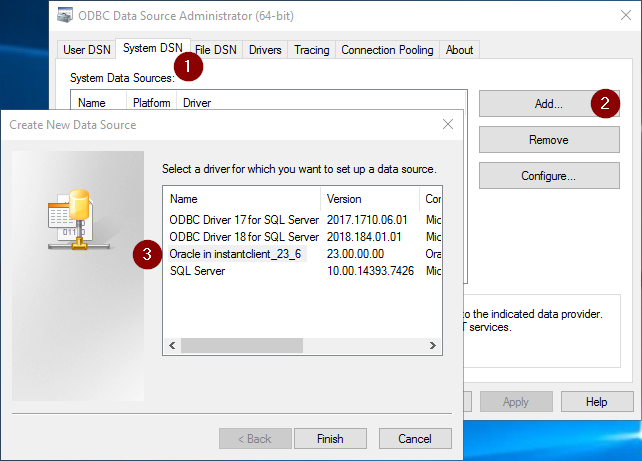
Create New Data Source

Create New Data Source

Click Finish.
This will open a second form where you need to fill in a data source name and description, a TNS name and an oracle account.
Click Test Connection.

Oracle DSN Configuration

Oracle DSN Configuration

Fill in the oracle password for the account and click OK. (the password is not stored)
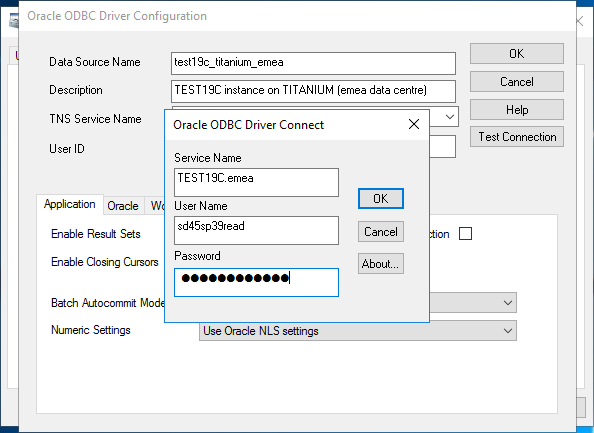
provide password and test connection

provide password and test connection

The Connection successful result means the Oracle ODBC driver is correctly installed, the configuration is correct, and the database can be reached.
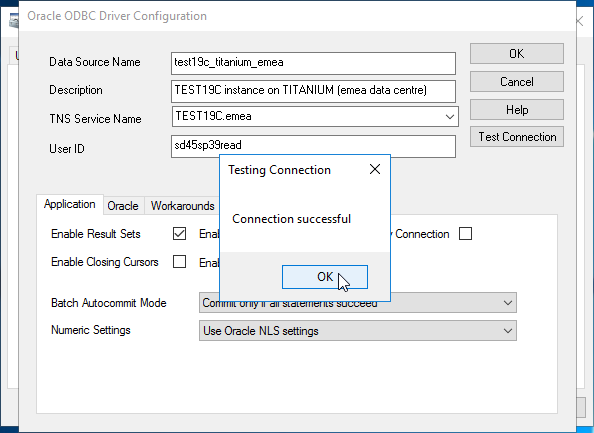
connection successful

connection successful

Click OK enough times to get back to the main screen.
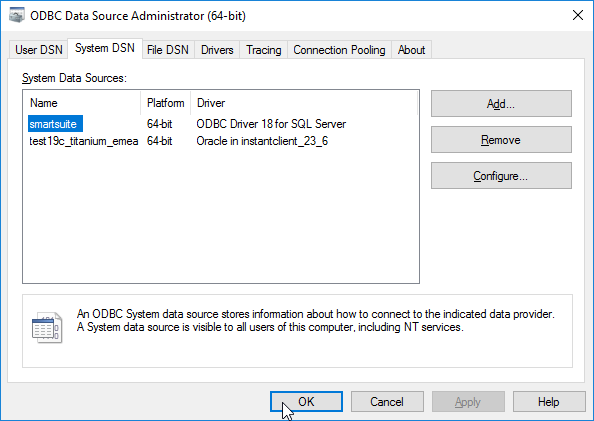
SQL Server and Oracle DSN

SQL Server and Oracle DSN

Another OK to leave the application.

Back to top

© Copyright 2025+, PROLIN